Call Center Appointment Booking

Heavenly Greens — booking sales appointments and service visits, and what happens after each · October 29, 2026

1. Address + deal→2. Book on HG Estimate→3. Check the deal→4. Service Request→5. Send the self-assessment link→6. Book the crew→7. Day-before call
Open the full deck (18 cards) →
Open the deck in Gamma Read it as a page below ↓

Quick Navigation

  1. Two kinds of appointment
  2. Sales: booking the appointment
  3. Sales: what happens after you press Book
  4. Sales: who hears what
  5. Sales: the two things that stop every message
  6. Service: from the first call to the visit
  7. Service step 1: open the ticket with Service Request
  8. New today: "Who are you?" — pick your name once
  9. Service step 2: the rest of the form, and Create
  10. Service step 3: send the self-assessment link
  11. What the customer sees
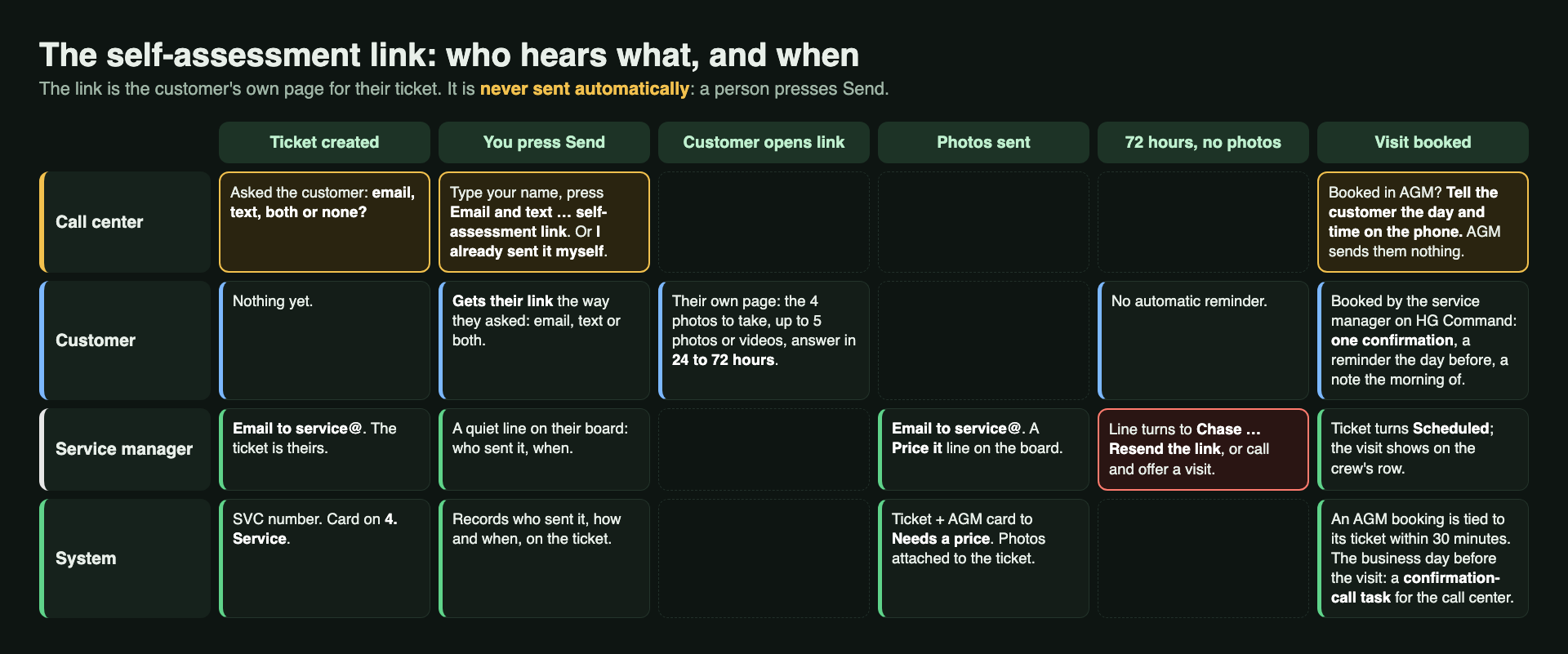
  12. The self-assessment link: who hears what, and when
  13. Booking a service visit in AGM
  14. The AGM Service booking form
  15. After a service booking, and the day-before call
  16. What's automatic, and what's you
  17. The rules on one page
Looking for one button? Jump to The rules on one page.

Booking Appointments: What You Press, and What Happens Next

Sales appointments and service visits, for the Heavenly Greens call center

Thursday, October 29, 2026

Two kinds of booking, two different chains of messages behind them. This guide shows each one: the steps you take, and everything AGM and the service system do by themselves afterwards.

Two kinds of appointment

Sales appointment (an estimate) Service visit
Calendar HG Estimate Service
Open first The customer's deal in 1. Lead Flow A service ticket: press Service Request on the contact
Booked for A sales rep A crew: Service 3 or Service 4
Title Fills itself in Ends with the crew: | Crew: Service 4
Customer hears from AGM Yes: confirmation, 24-hour reminder, 1-hour text No. You tell them the day and time on the phone
Before the booking Full address on the contact The self-assessment link, when we need photos to price it

The rest of this guide walks through each column.

Sales: booking the appointment

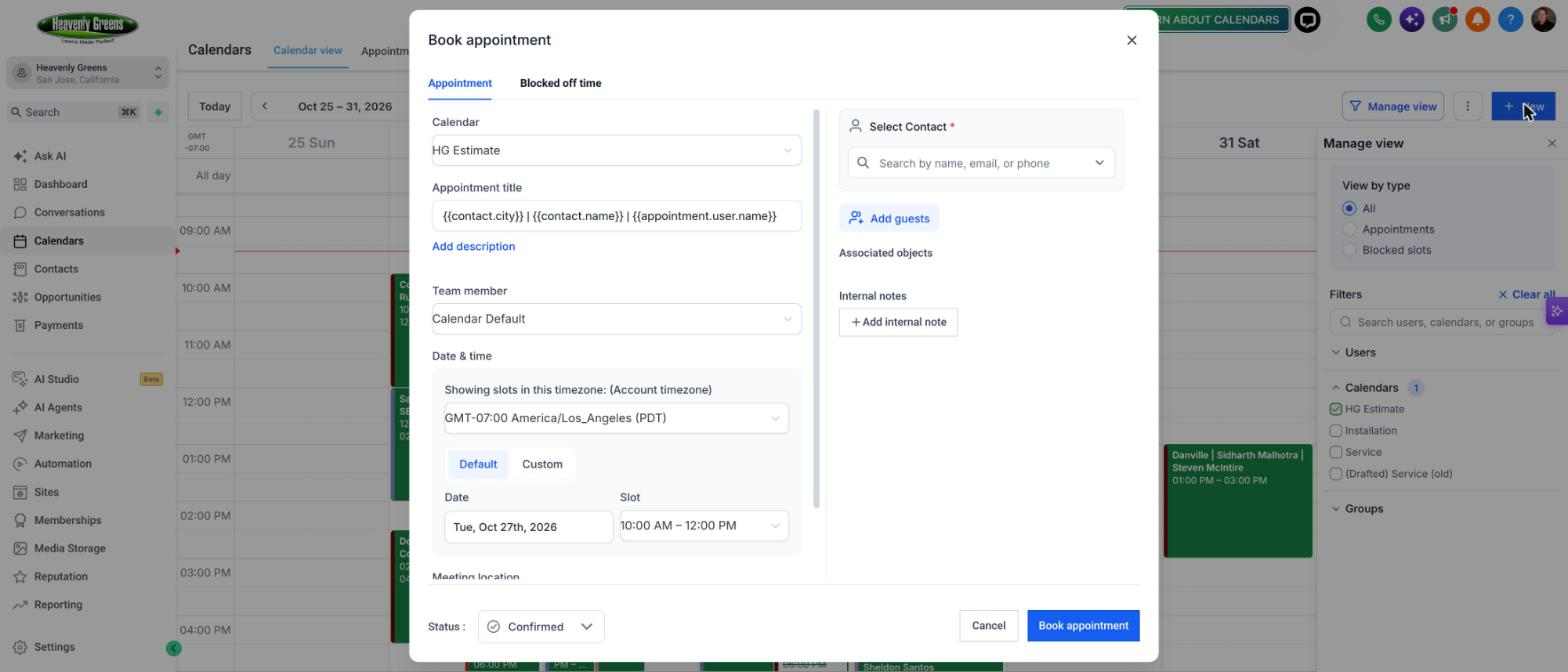
Book appointment: Calendar HG Estimate, the title fills itself, Team member, date and slot, Select Contact
  1. First: the contact has a full street address with city, and one open deal in 1. Lead Flow.
  2. Calendar: HG Estimate. Never Service or Installation.
  3. Team member: the sales rep the appointment is for.
  4. Date and slot, Select Contact, Status: Confirmed, then Book appointment.

Sales: what happens after you press Book

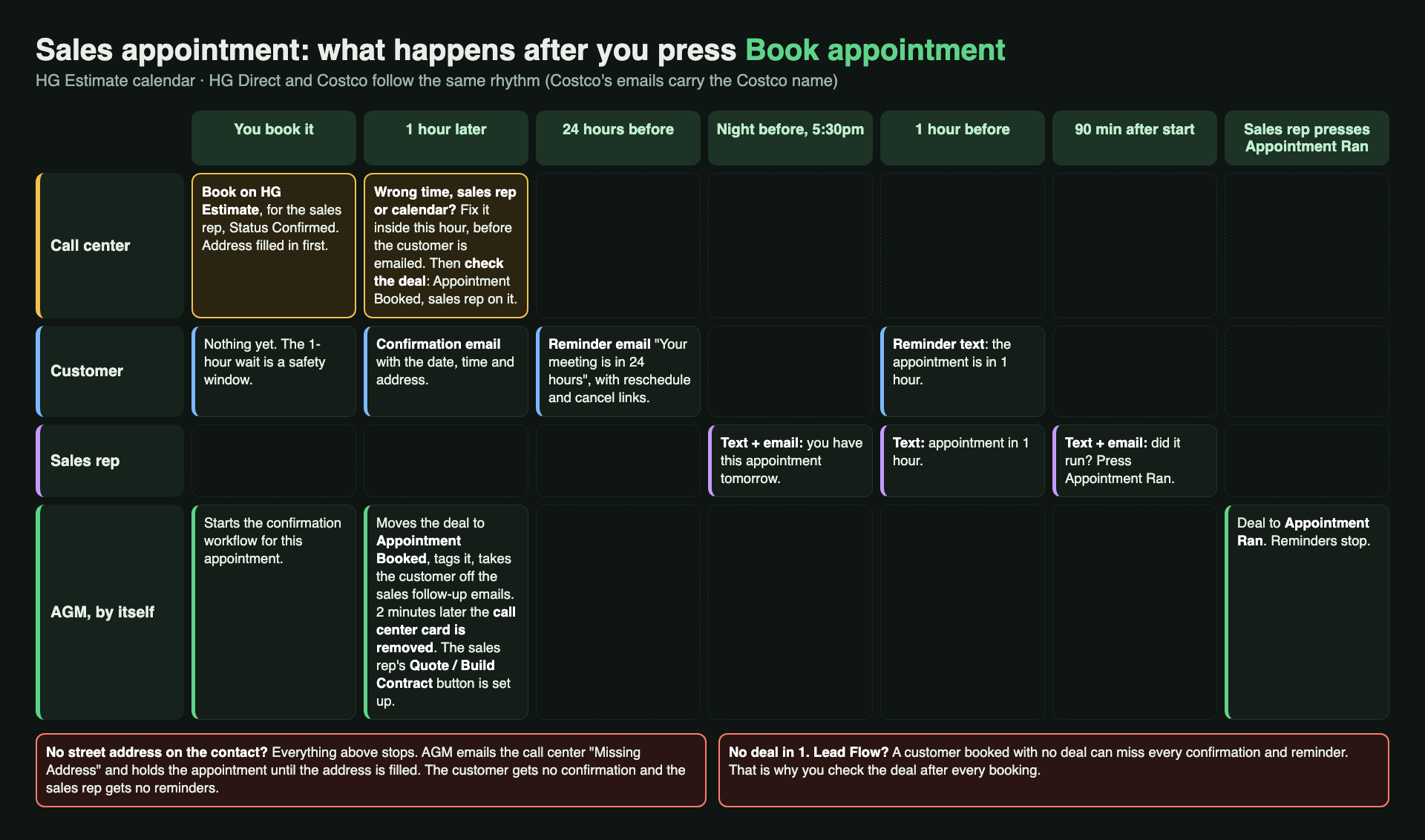
Every message and every automatic step after a sales booking, by who receives it

Read it left to right. Gold is you. Everything else happens by itself. The one-hour wait at the start is on purpose: it gives you time to fix a wrong time, sales rep or calendar before the customer is emailed.

Sales: who hears what

When Customer Sales rep Behind the scenes
You book Nothing yet Nothing yet The confirmation workflow starts
1 hour later Confirmation email: date, time, address Deal moves to Appointment Booked. The customer comes off the sales follow-up emails. Their Call Center Followup card is removed. The sales rep's Quote / Build Contract button is set up
24 hours before Reminder email, with reschedule and cancel links
Night before, 5:30pm Text + email: appointment tomorrow
1 hour before Reminder text Text: appointment in 1 hour
90 min after the start Text + email: did it run?
Sales rep presses Appointment Ran Deal moves to Appointment Ran. All reminders stop

Costco customers get the same rhythm with Costco-branded emails, and their sales rep is prompted to build the contract or proposal.

Sales: the two things that stop every message

1. No street address. AGM emails the call center "Missing Address" and holds the appointment. No confirmation to the customer, no reminders to the sales rep, until someone fills the address in. Fill it in before you book.

2. No deal in 1. Lead Flow. The calendar itself sends nothing. Every message comes from the deal's workflow, so a customer booked with no deal can miss all of them.

So after every booking, check the deal: stage Appointment Booked, the right sales rep on it. If you move a booked card to Appointment Booked on the call center board, AGM moves the Lead Flow deal for you and takes the card off your call list.

Changing the time or sales rep later? Change it on the appointment. The reminders follow the new time.
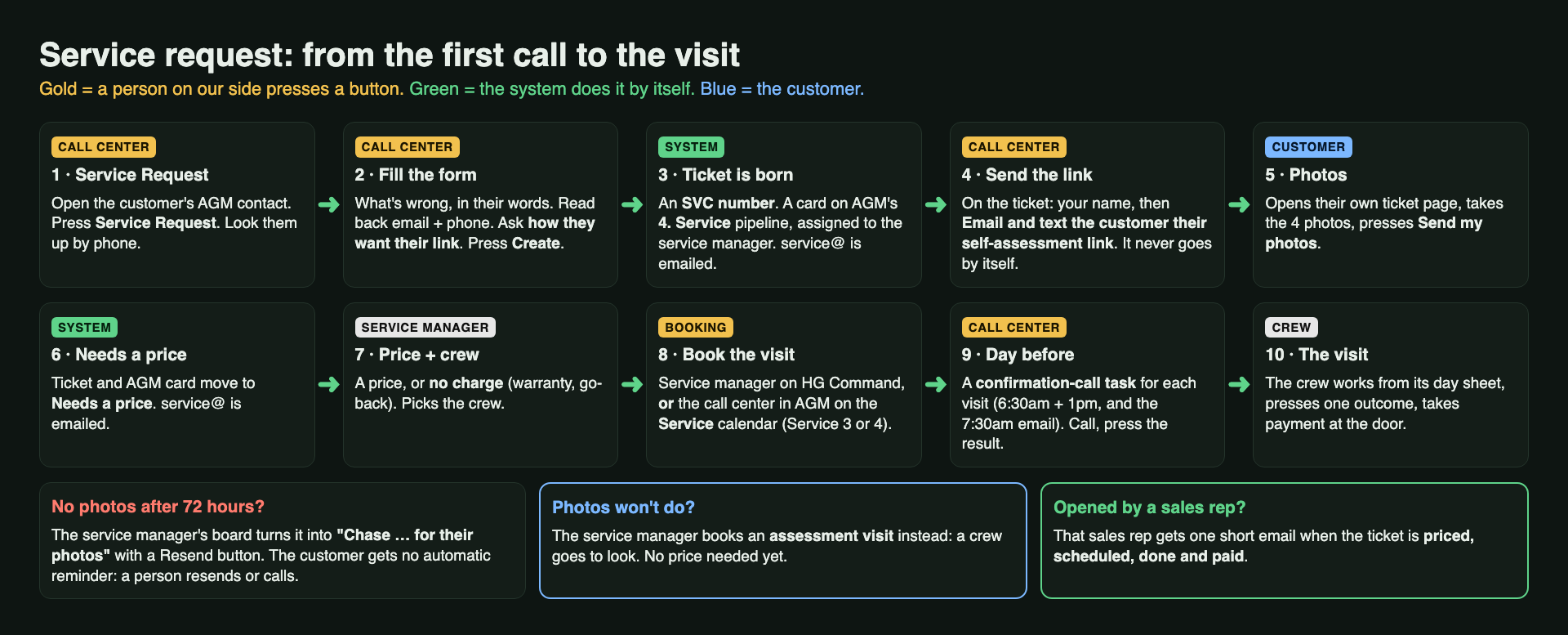
Service: from the first call to the visit

The ten steps of a service request, coloured by who does each one

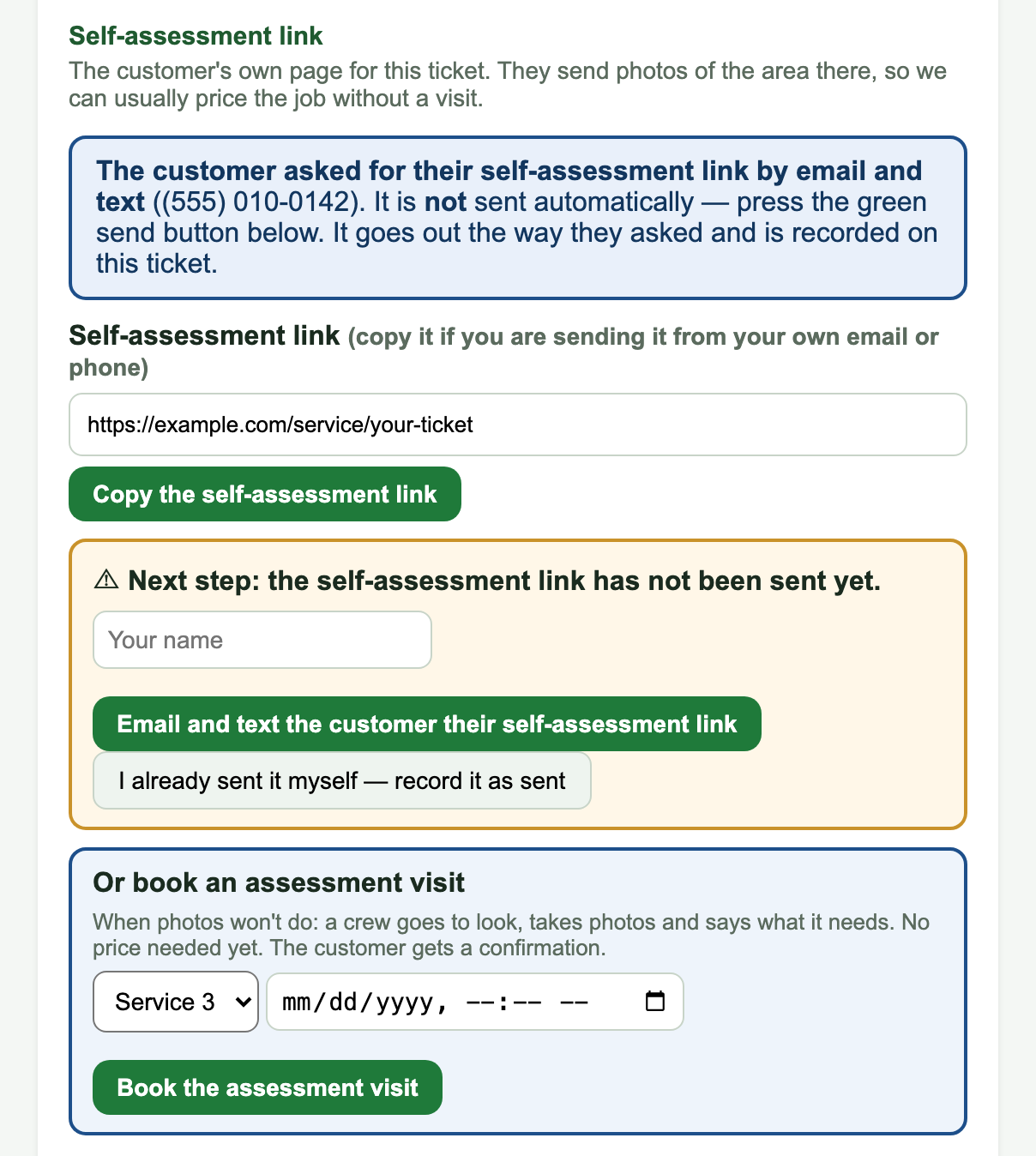
Gold steps are a person pressing a button. Nothing goes to a service customer until someone on our side acts on that one job. After that, the green steps happen by themselves.

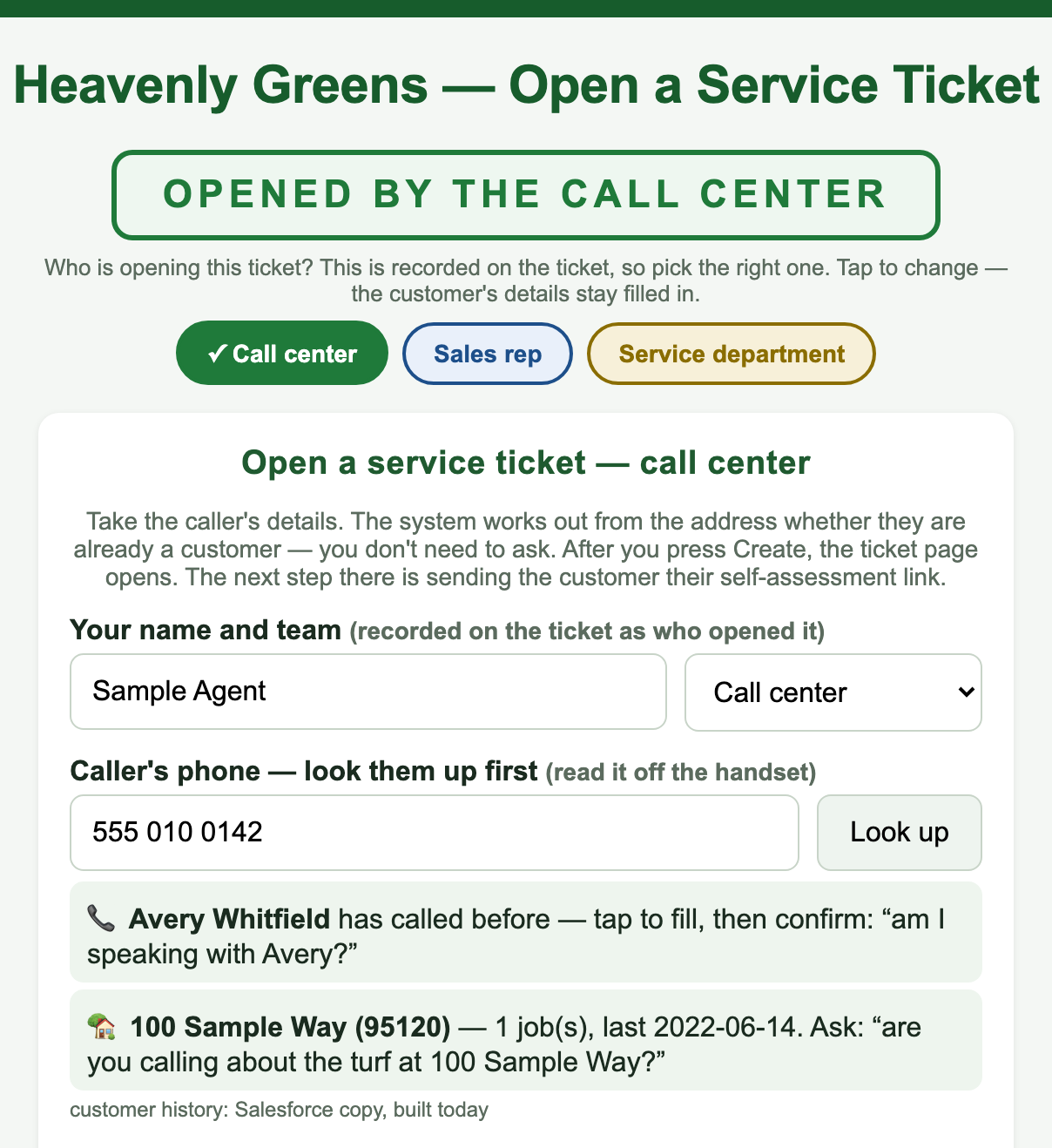
Service step 1: open the ticket with Service Request

The call center's version of the form: your name, then look the caller up by phone
  1. Open the customer's contact in AGM and press Service Request.
  2. First time on this computer? It asks "Who are you?": pick your name (next section).
  3. Check the caller's phone number and press Look up. It finds them in AGM and in every past install, and tells you whether Heavenly Greens installed at that address and whether it's in warranty.
  4. Confirm the two things it shows you with the caller.

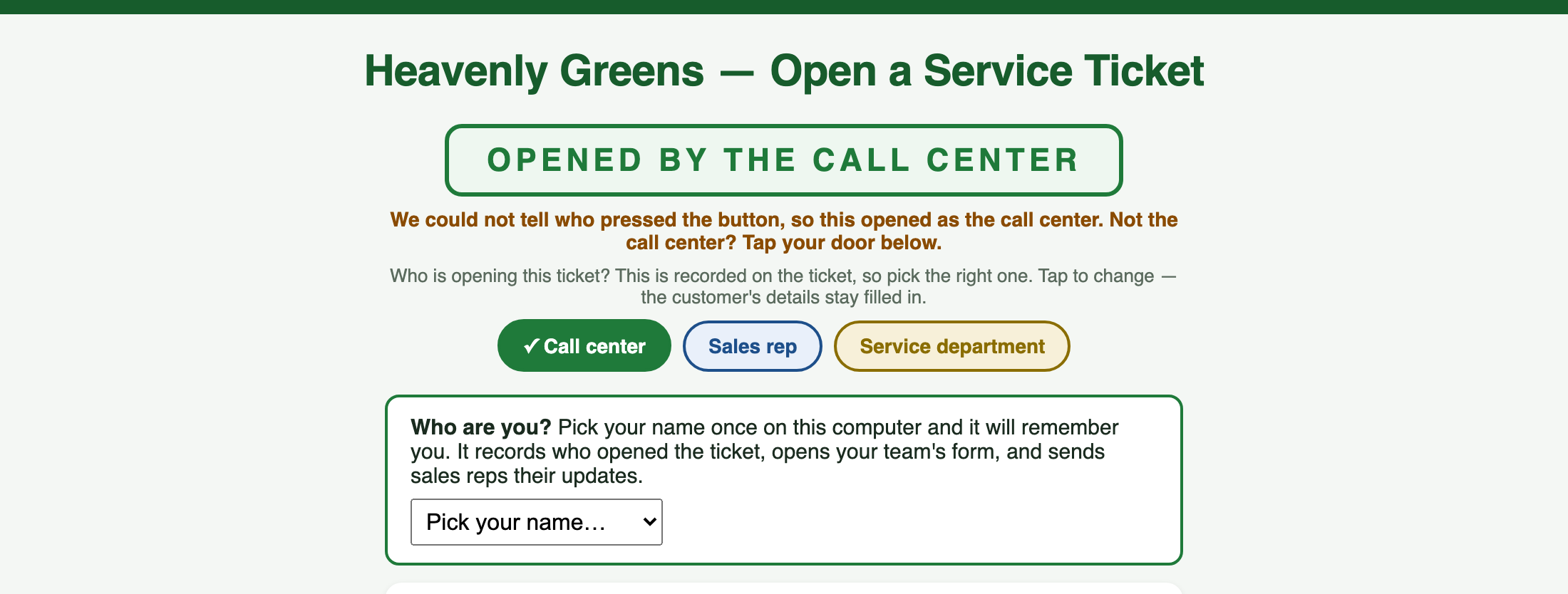
New today: "Who are you?" — pick your name once

The first time you press Service Request on a computer: Who are you? Pick your name

The first time you press Service Request on a computer, the form asks Who are you? Pick your own name from the list. The computer remembers you after that.

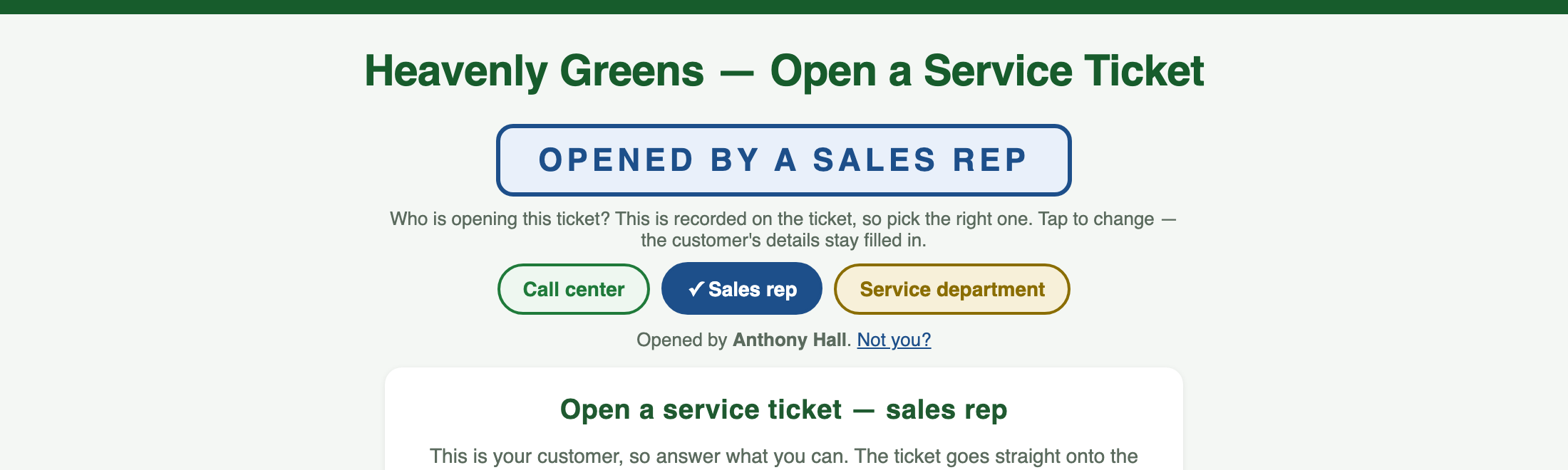
After the pick: the right team's form, and Opened by your name, with Not you? to change it

From then on every press opens your team's form with "Opened by" your name already filled in. Your name goes on the ticket as the person who opened it, and a sales rep who opens a ticket gets their priced, scheduled, done and paid emails.

Service step 2: the rest of the form, and Create

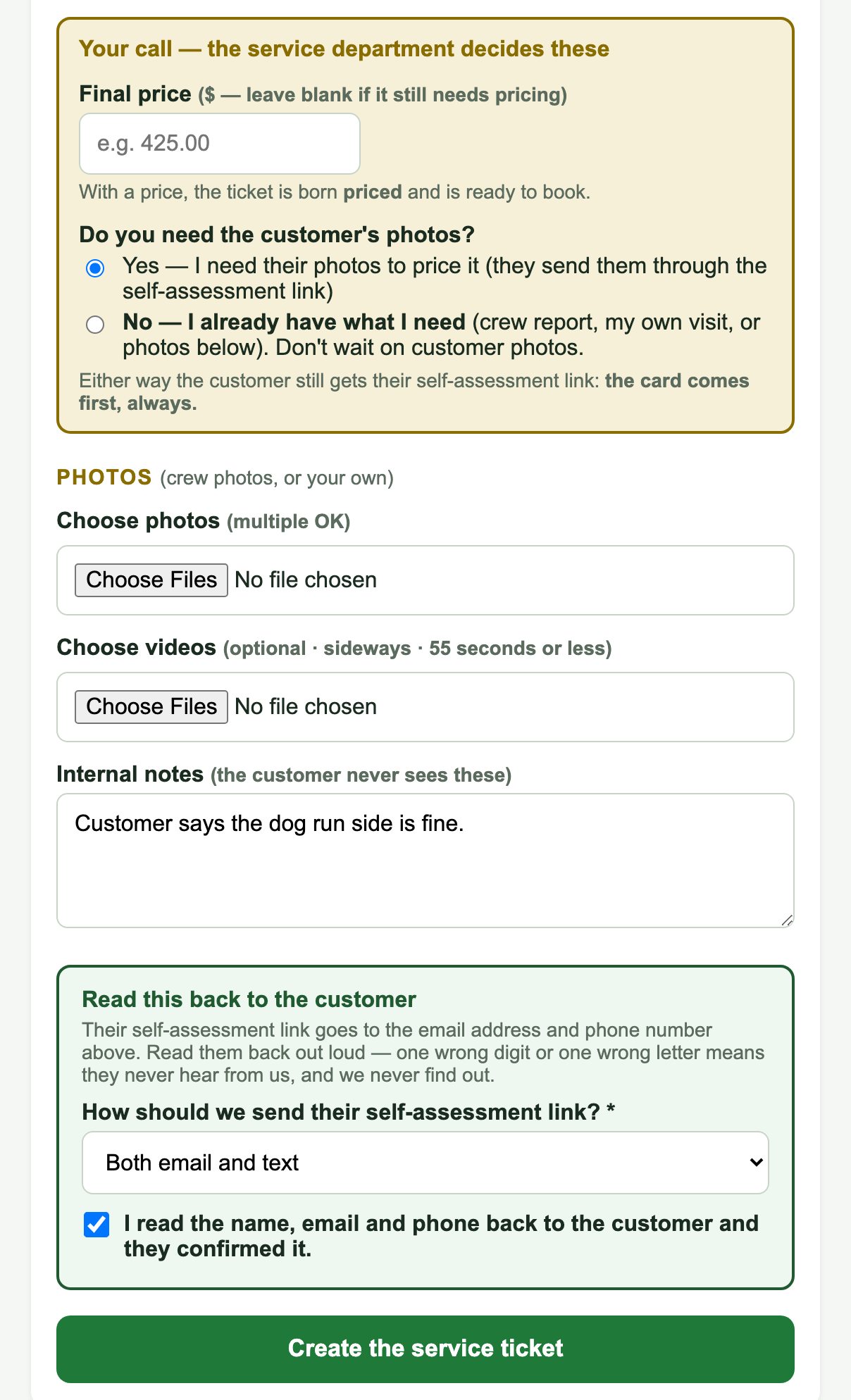
How the customer wants their link, and Create the service ticket

What happens by itself: a new SVC number, a card on AGM's 4. Service pipeline assigned to the service manager (DeAnna), and an email to service@.

What the customer sees

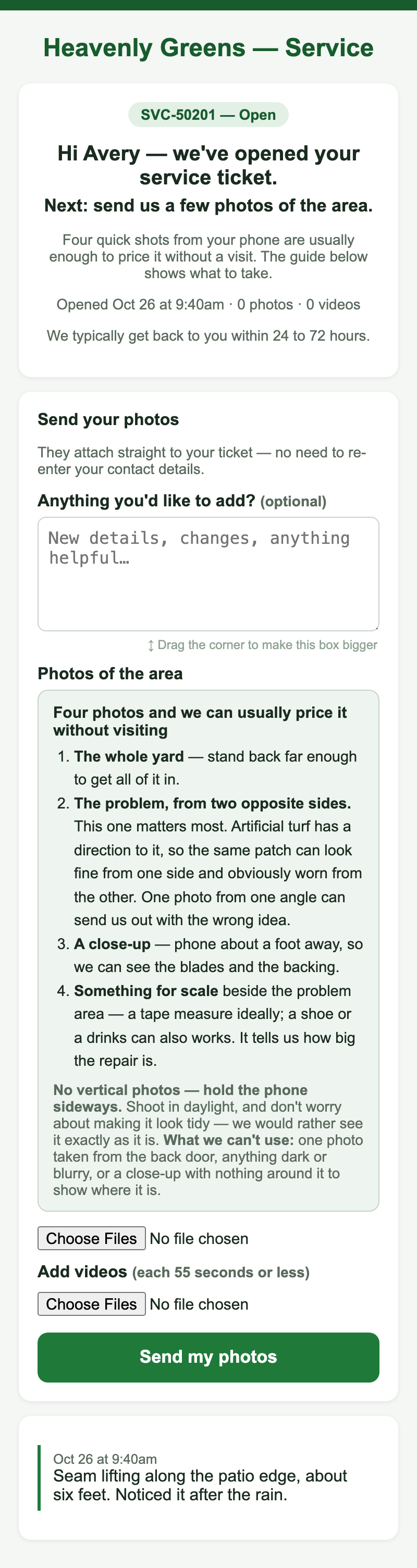
The customer's own ticket page: what to photograph, and Send my photos

Their own page for their ticket. It shows the four photos that let us price the job without a visit (the whole yard, the problem from two opposite sides, a close-up, something for scale), takes up to five photos or short videos, and promises an answer within 24 to 72 hours.

When they press Send my photos, the ticket and its AGM card move to Needs a price by themselves, and service@ gets an email.

Booking a service visit in AGM

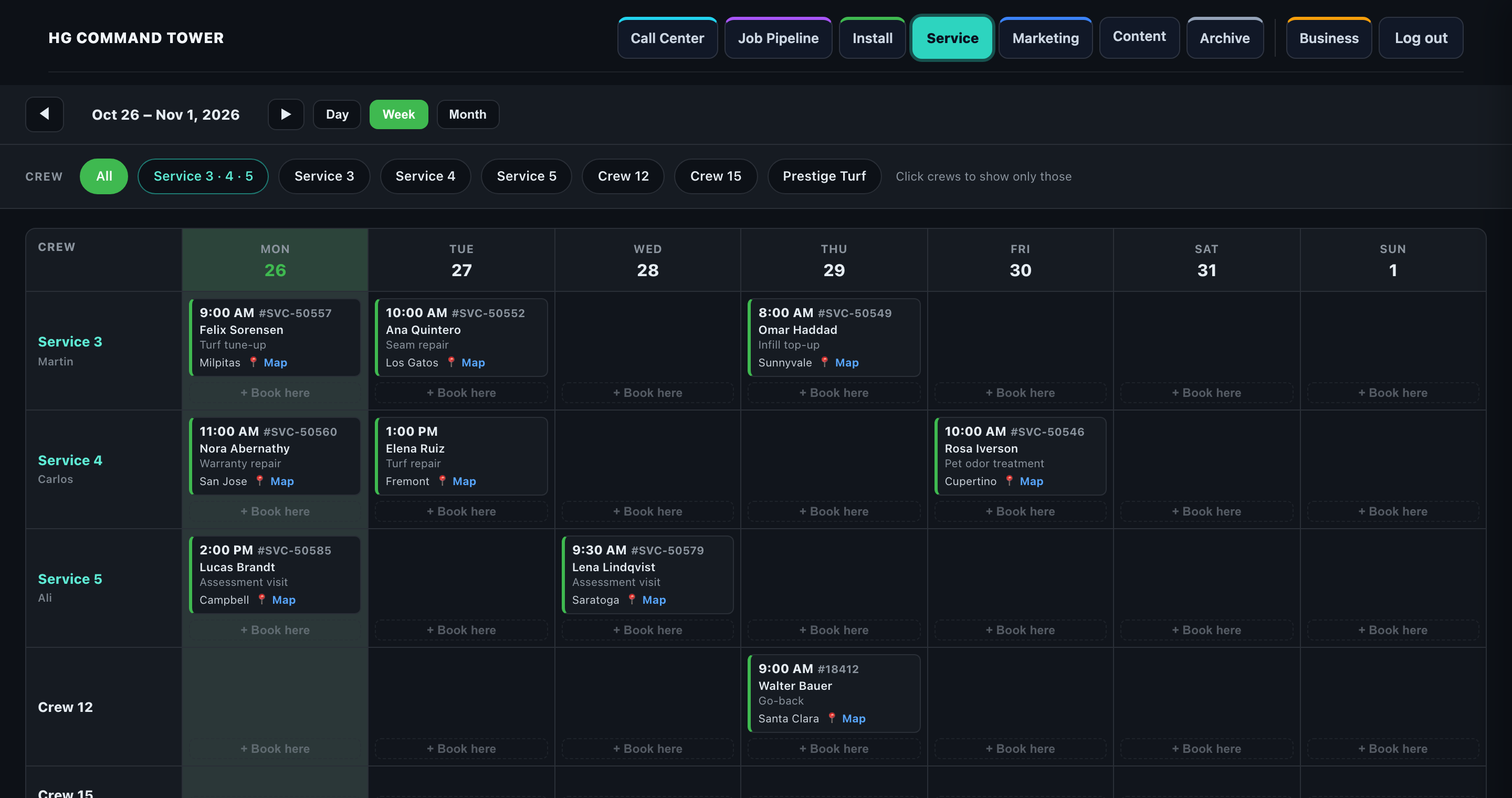
Call Center, Service Calendar: one row per crew, the same view the service team sees

Check which crew has room on Call Center → 🛠 Service Calendar, then book in AGM:

  1. The customer must have a service ticket. No ticket? Press Service Request first.
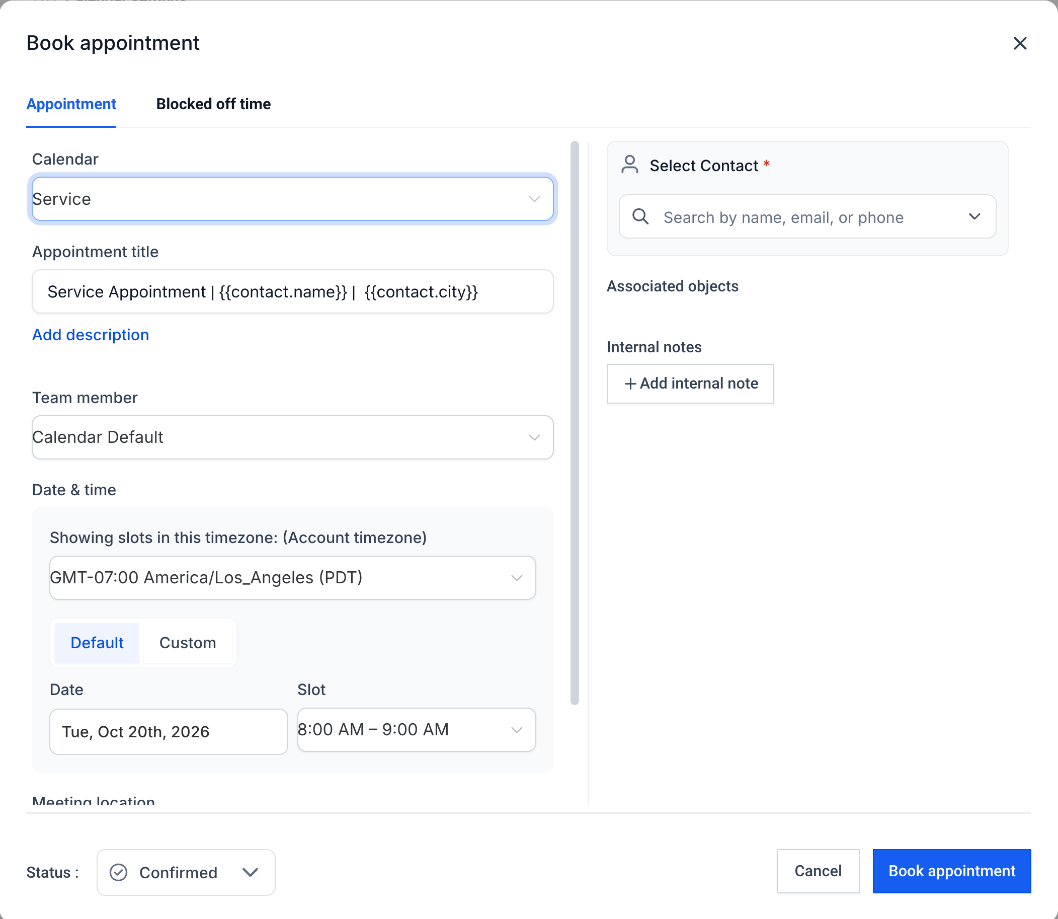
  2. Open the contact, book an appointment, Calendar: Service. AGM remembers the last calendar, so check it every time.
  3. Title ends with the crew: Service | Jane Doe | San Jose | Crew: Service 4. Start with the SVC number if you have it.
  4. Service 3 (larger jobs, further out) or Service 4 (troubleshooting and go-backs). Service 5 and install crews are booked by the service manager only.
  5. Save, and tell the customer the day and time on the phone.

The AGM Service booking form

AGM's Book appointment with Calendar set to Service

After a service booking, and the day-before call

Within 30 minutes the system ties your booking to the customer's ticket: the ticket gets the date, time and crew and turns Scheduled, and the visit shows on that crew's row. If it can't (no ticket, two tickets, no crew in the title, or the crew booked twice at that time), the service manager gets a Fix calendar bookings line.

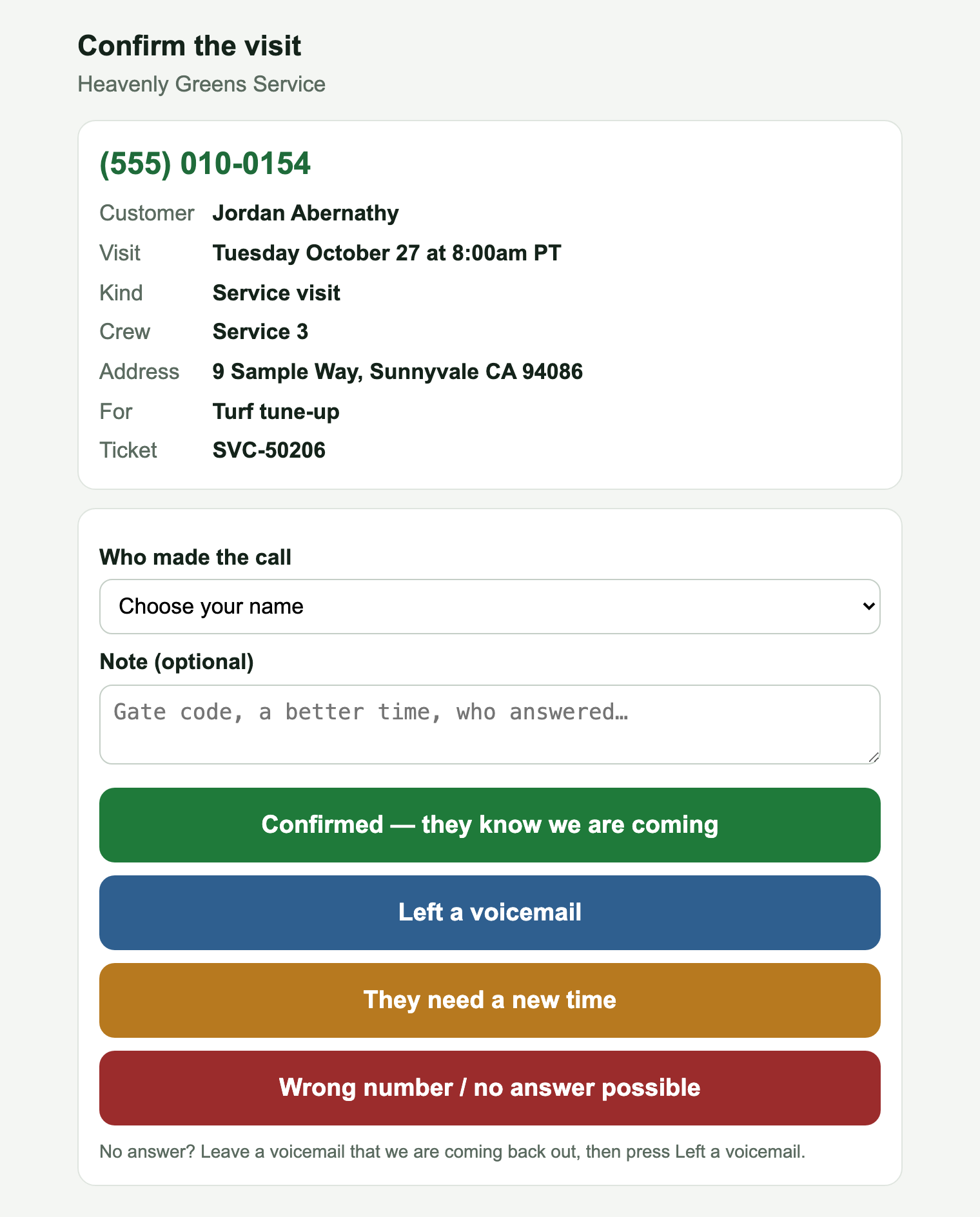
The confirmation call page: Confirmed, Left a voicemail, They need a new time, Wrong number

The business day before every visit, a confirmation-call task lands on the Call Center user (made at 6:30am and 1pm) and in the 7:30am call center email. Call the customer and press one: Confirmed · Left a voicemail · They need a new time · Wrong number. The task closes itself, and the last two go to the service manager to rebook. The crew's day sheet shows what you pressed.

What's automatic, and what's you

Sales appointment Service visit
You Address first, book on HG Estimate for the sales rep, check the deal Service Request, read back email and phone, press Send on the link, book with the crew in the title, tell the customer the time
Customer, automatically Confirmation email, 24-hour reminder email, 1-hour text Their link (only after someone presses Send). Nothing from an AGM booking
Sales rep, automatically Night-before text + email, 1-hour text, "did it run?" Only if they opened the ticket: priced, scheduled, done, paid
Office, automatically Call center card removed; deal moved to Appointment Booked service@ emailed at every step; ticket moves stage by itself
Day before Reminders go out by themselves You make the confirmation call and press the result

The rules on one page

Sales 1. Address first. No street address holds every message. 2. HG Estimate only, for the right sales rep, Status Confirmed. 3. Check the deal after every booking: Appointment Booked, sales rep on it. 4. Wrong booking? Fix it within the hour, before the customer is emailed.

Service 5. Ticket first: Service Request, then book. First time on a computer, pick your own name. 6. Read the email and phone back. That's where the link goes. 7. Press Send on the self-assessment link. It never goes by itself. 8. Calendar: Service, crew at the end of the title, Service 3 or 4 only. 9. Tell the customer the day and time on the phone. AGM won't. 10. Make the day-before confirmation calls and press the result.