Heavenly Greens — the five steps to complete a service ticket, the short version · updated October 30, 2026
Open the full deck (12 cards) →From the first call to the money in
Heavenly Greens · Service department · updated October 30, 2026
Every service job is one ticket, on one calendar, worked from one board: HG Command → Service. As of October 30, service has left Salesforce: every visit is booked in AGM or HG Command, and nowhere else.
| Step | Who | |
|---|---|---|
| 1 | Book it, and choose: photo link or not | Call center |
| 2 | It shows up on the Service board | Automatic |
| 3 | Price it and schedule it | DeAnna, or hand it to the call center |
| 4 | The crew gets its work order link | DeAnna → crew |
| 5 | Close it and collect | Crew, then automatic |
Everyone in the screenshots that follow is a made-up customer.

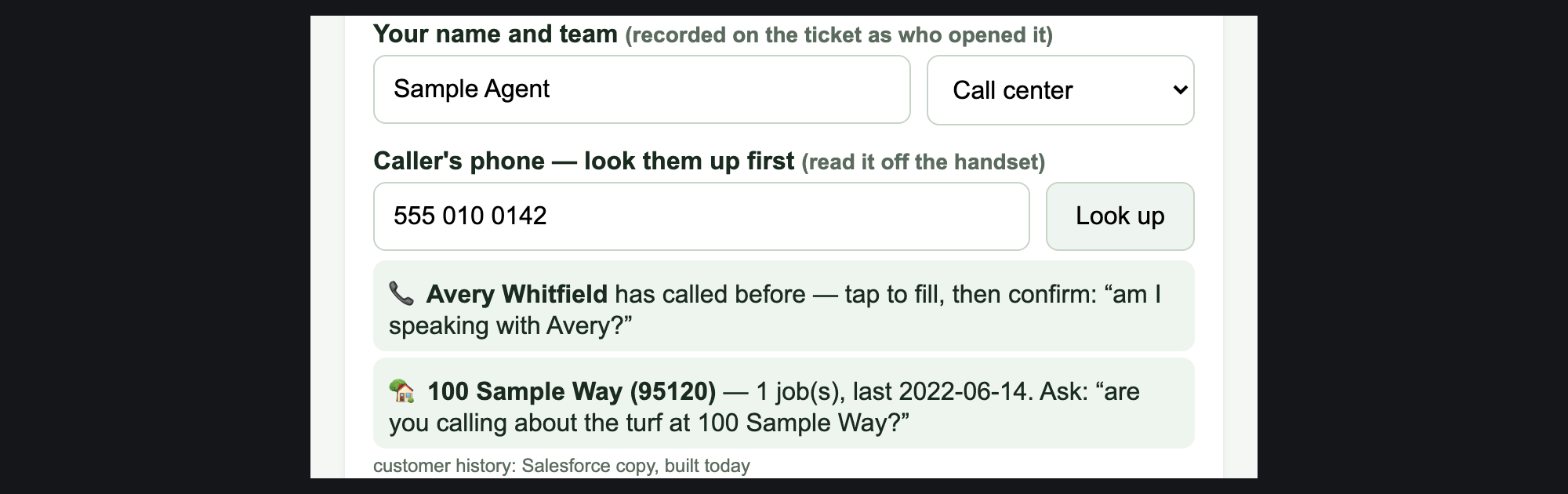
On the customer's AGM contact, press Service Request. Type the caller's phone and press Look up: it says whether they've called before and whether HG installed at that address. Not in our system? Choose New customer — not in our system at the bottom. Type what's wrong in their words, add any gate / access notes (they print on the crew's sheet), then press Create the service ticket.
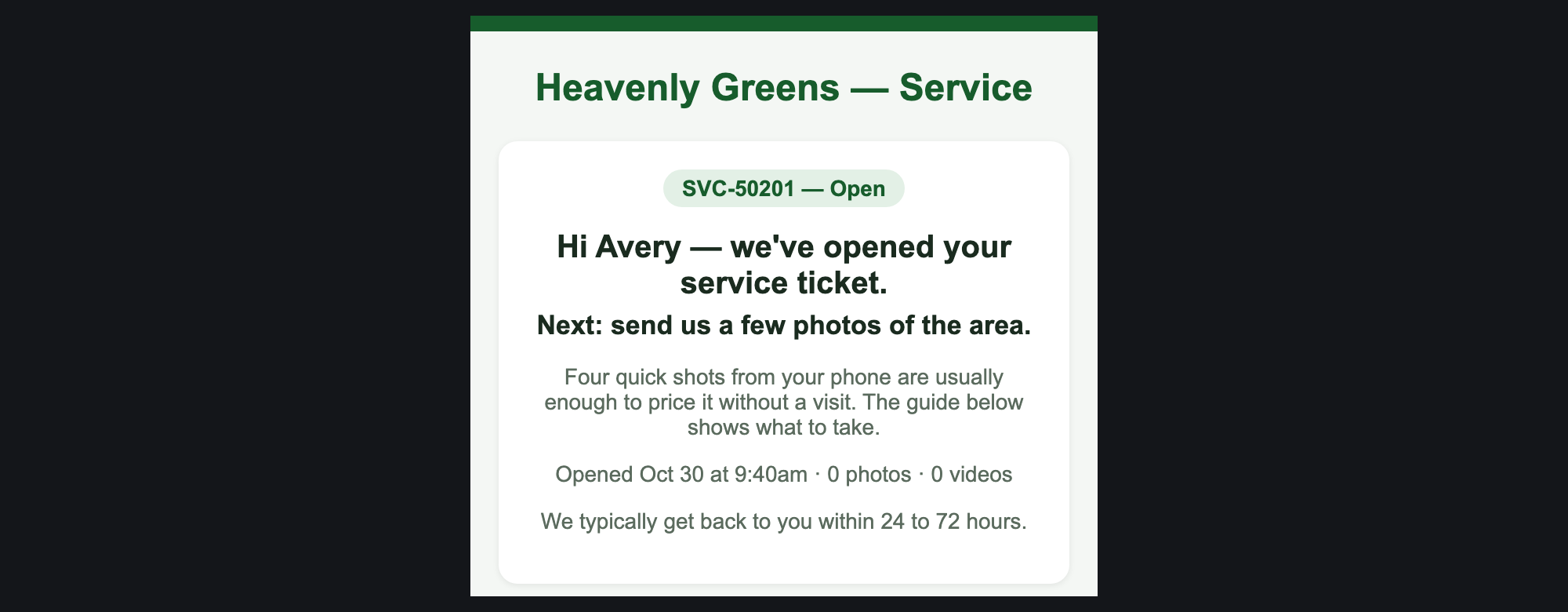
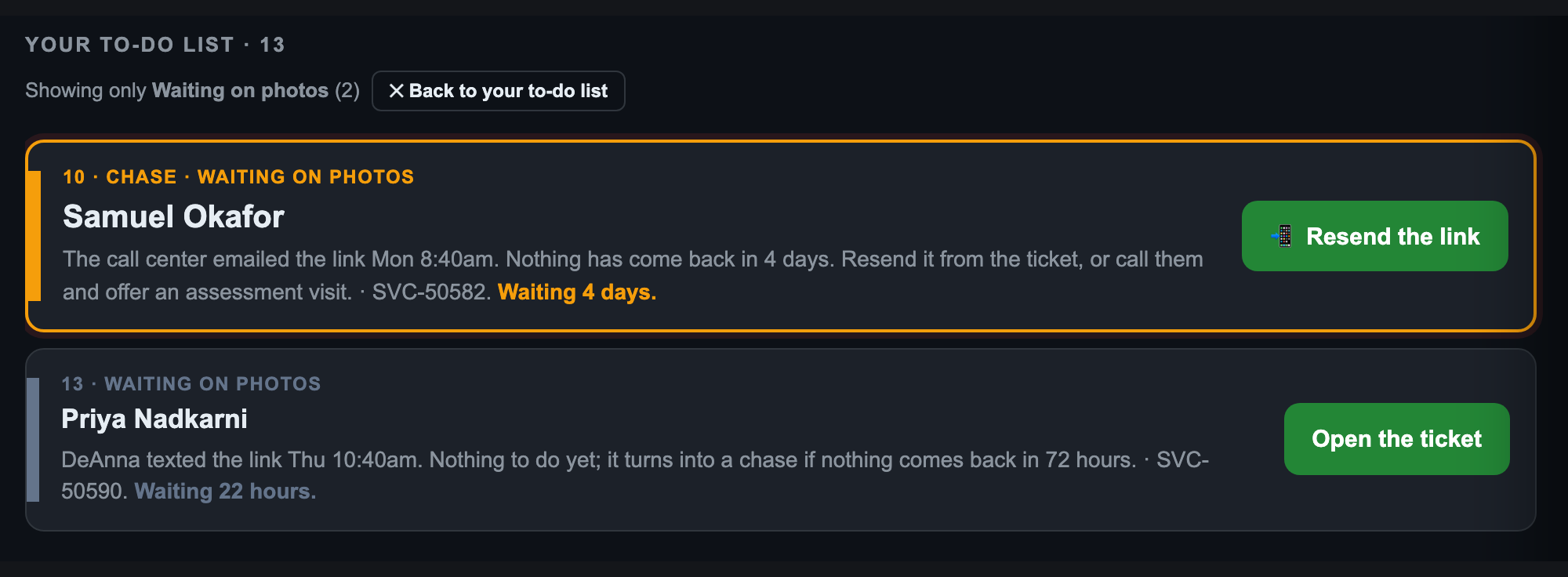
The link opens their own ticket page. It shows which four photos to take, takes photos and short videos, and promises an answer within 24 to 72 hours. No photos yet? The system reminds them twice, 72 hours apart, the way they asked, then stops. When they press Send my photos, the ticket moves to Needs a price by itself and service@ gets an email.

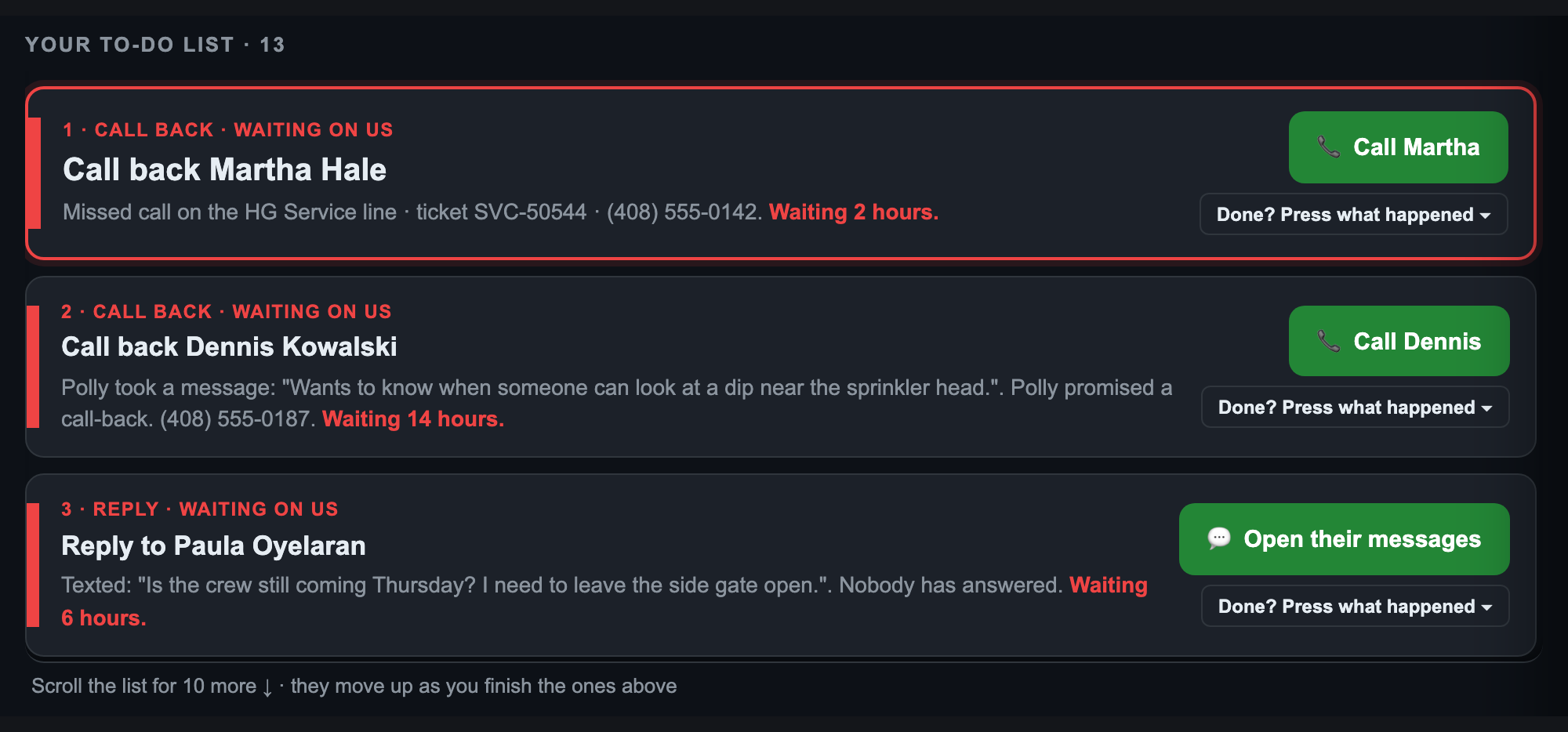
Within minutes the ticket is on hgcommand.com → Service, assigned to DeAnna. The board now reads in plain words: Customers waiting on us · Your to-do list · Open tickets · Finished · Today's numbers. Each card leads with the customer's name and has one green button. Every ticket also has ✓ Close ticket and More ▾, which only offers what fits the ticket's step.


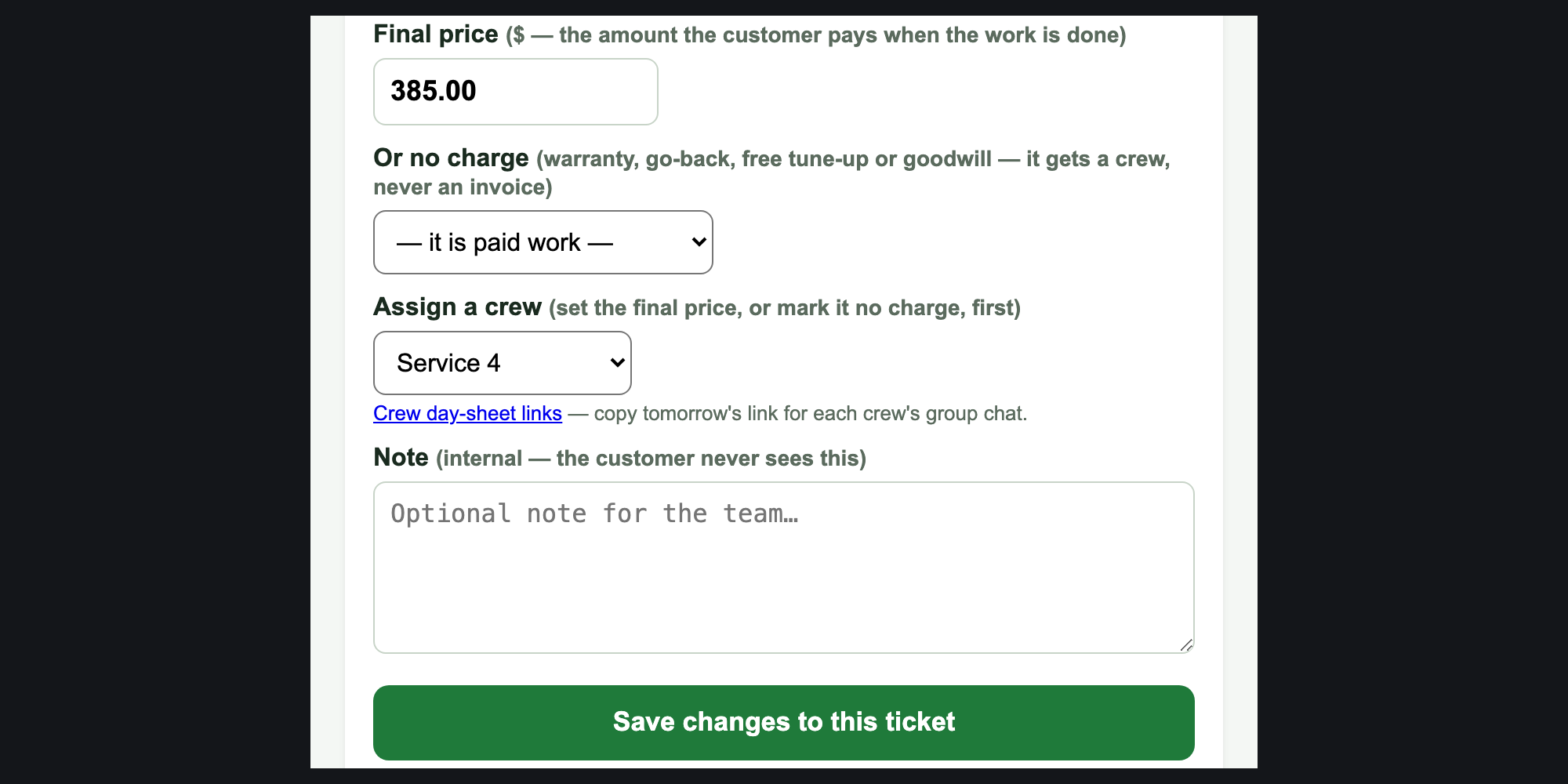
Enter the final price, or choose no charge with the reason (warranty, go-back, free tune-up, goodwill). No-charge work gets a crew but never an invoice. Then assign a crew and press Save changes to this ticket.


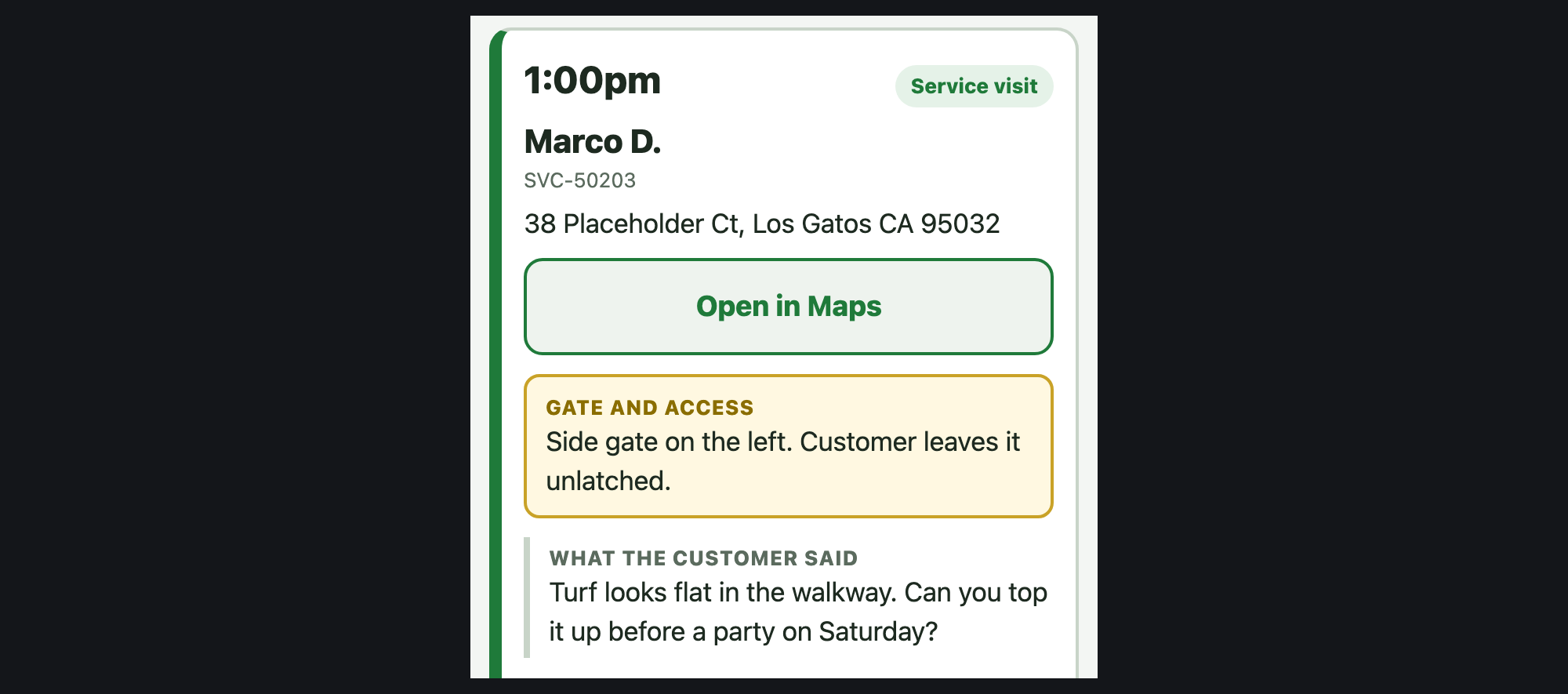
Crews never get email. Every afternoon DeAnna presses Copy tomorrow for each crew and pastes the link into that crew's group chat. On their phone the crew sees every stop: the address with Open in Maps, the gate / access notes, what the customer said, their photos, and the agreed price or No charge.

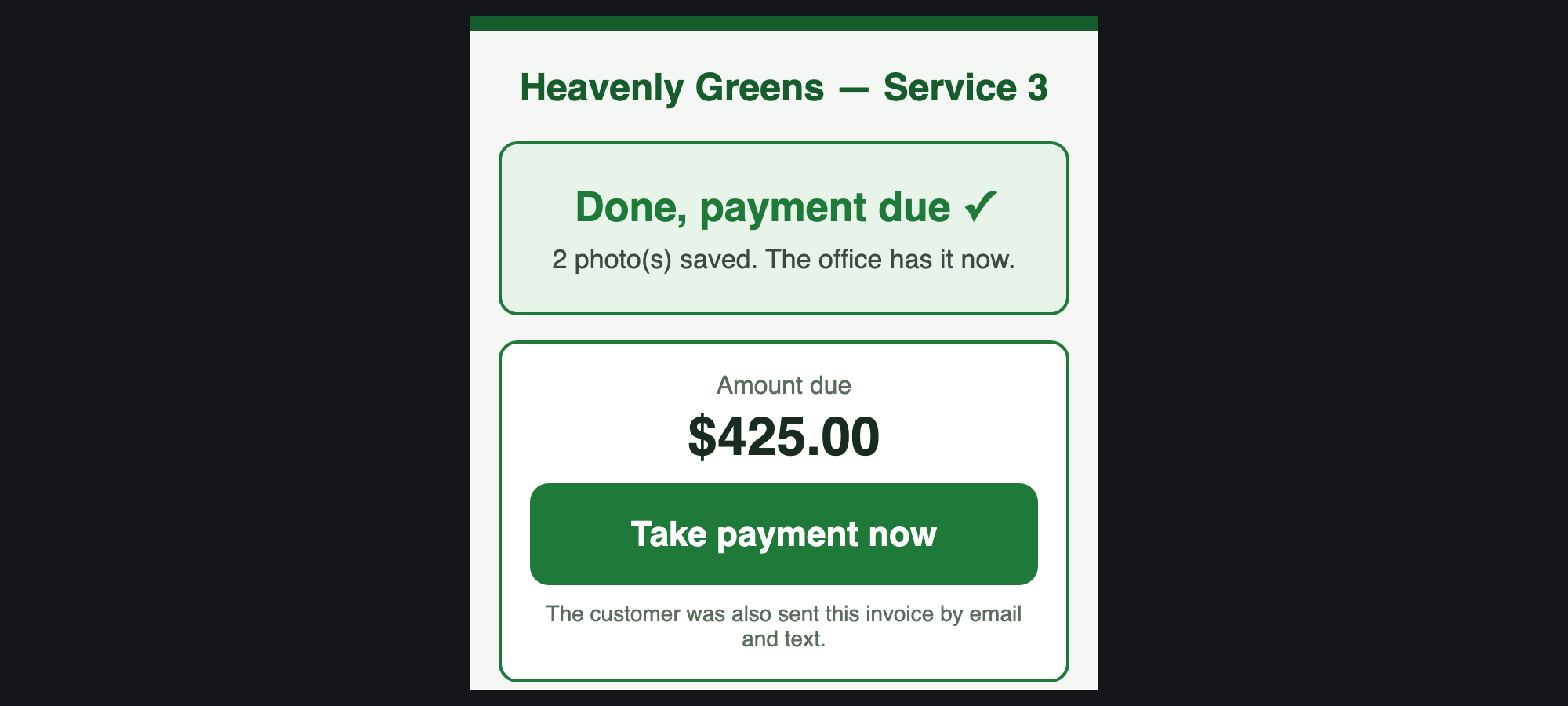
At each stop the crew presses one result. Done: take payment sends the invoice and shows Take payment now, and the customer pays by card on the spot. For a check or Paymentech, use the board's 💳 Collect payment, which opens Record a payment on the ticket. Once paid, by itself: the sales rep is told, and accounting@ and service@ both get "Service paid". Work done with nothing to collect? ✓ Close ticket → Service completed (no message goes to the customer).
| When | Who | Press |
|---|---|---|
| A customer calls | Call center | Service Request on their AGM contact |
| They can show us | Call center or DeAnna | Send the self-assessment link (email and text) |
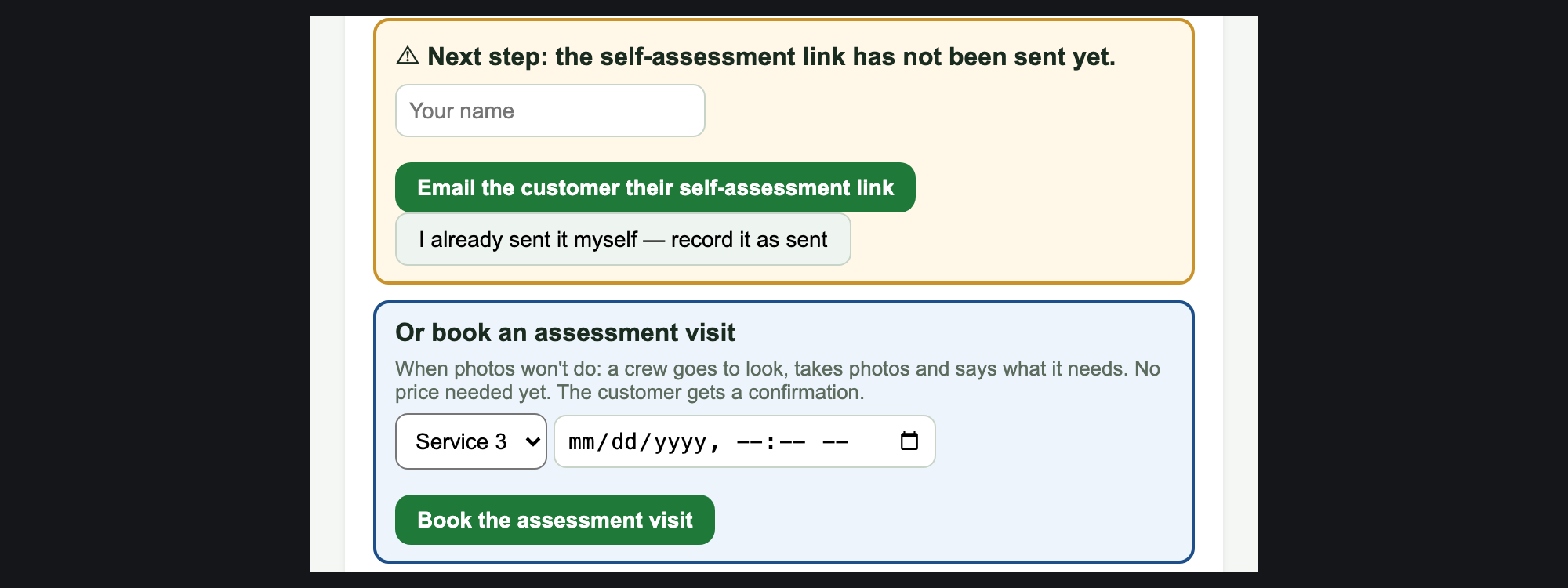
| No photos after 72 hours | DeAnna | Resend the link, or More ▾ → Needs an in-person look |
| Photos are in | DeAnna | Set a price (or no charge), assign a crew |
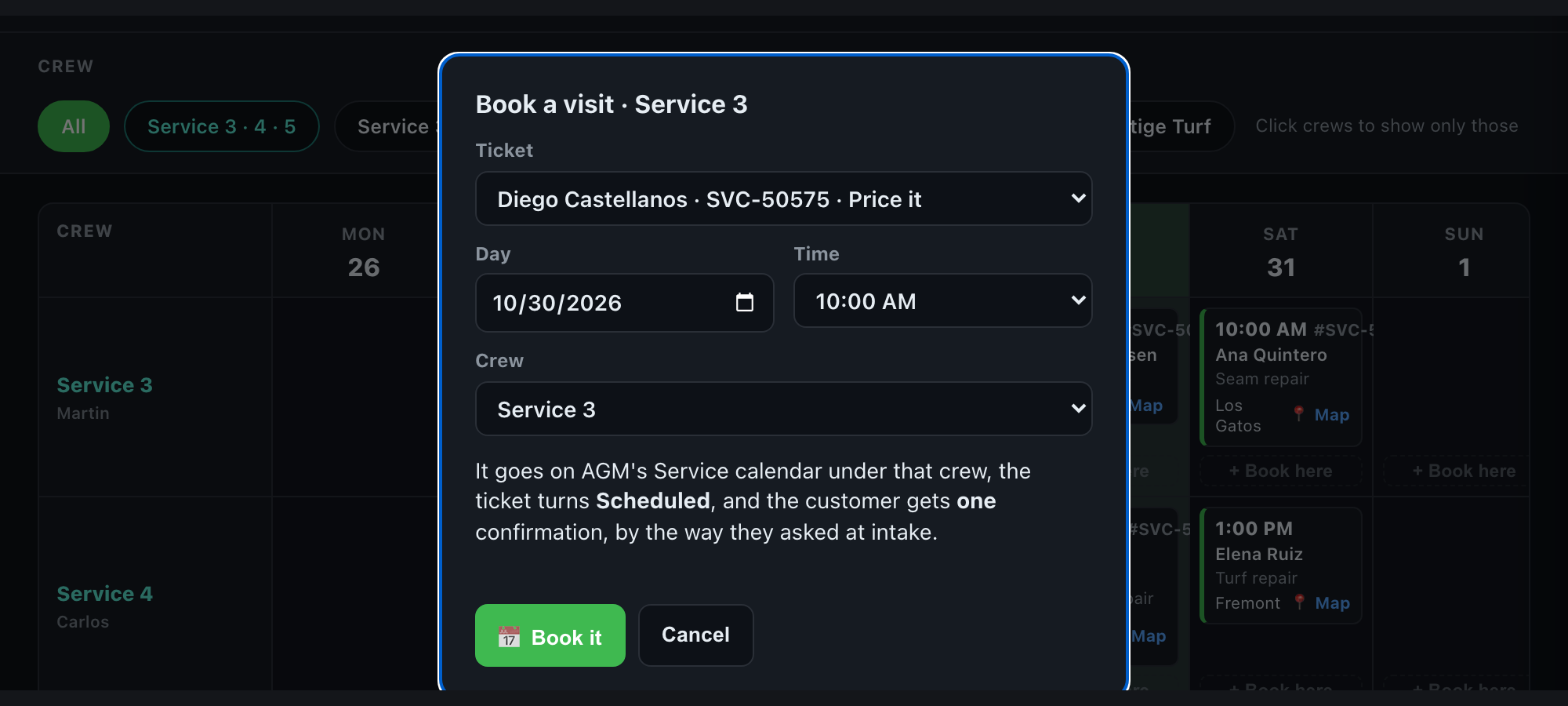
| Ready to book | DeAnna, or the call center | Book the visit / + Book here, or More ▾ → Send to the call center to book |
| Visit has to move | Anyone booking | More ▾ → Unbook, then book again |
| Afternoon before | DeAnna | Copy tomorrow into each crew's group chat |
| At the stop | Crew | One result: Done: take payment, paid by check, no charge… |
| A check arrives | DeAnna or accounting | 💳 Collect payment → Record a payment |
| Work finished | DeAnna | ✓ Close ticket → Service completed |
Questions? If something looks wrong, note the SVC number and what you pressed, and send a screenshot.