Heavenly Greens — the service department in HG Command, from the first call to the money in · updated October 30, 2026
Open the full deck (48 cards) →How service works now, from the first call to the money in
Heavenly Greens · updated October 30, 2026 · for anyone who runs or takes over service
What this guide is: the whole service department on one set of screens: where a request comes in, which page to open, which button to press and when, what the crews and customers see, and what the system does by itself afterwards. It replaces the October 20 service training deck. Every customer in these pictures is made up.
Every service job is one ticket (an SVC number), on one calendar (AGM's Service calendar, a row per crew), worked from one board (HG Command → Service) that says what to do next.
Request → See it (photos or a visit) → Price it (or no charge) → Book a crew → Crew does it → Paid → Closed
| Who | What they do |
|---|---|
| Customer | Reports the problem, sends photos on their own ticket link, pays on their phone or at the door |
| Call center (John Throne's team) | Answers, opens the ticket (Service Request in AGM), books Service 3 or 4, books the visits the board sends them (with their length), makes the day-before confirmation calls |
| Sales rep | Opens a ticket for their own customer; gets an email when it is priced, scheduled, done and paid |
| Service manager (DeAnna, signs in as service@) | Owns every ticket: looks, prices, books the crew, sends crews their day sheets, follows the money |
| Crews (Service 3, 4, 5) | Open their day sheet, press one outcome per stop, take payment at the door |
| Accounting (Zima and Blas) | Gets a "Service paid" email per payment (DeAnna at service@ gets it too), records checks, works Accounting → Service |
| Tim Fullerton | Go-back oversight |
| Door | Where it lands |
|---|---|
| Call center | AGM contact → Service Request button → the call-center form → a new SVC ticket |
| Sales rep | Open a service ticket from their Playbook, Find, the AGM contact, or the job's uploader (pinned to that job) |
| Service manager | ➕ New ticket on the Service board |
| Website service form | Becomes a ticket by itself, checked every 15 minutes |
| service@ email or office voicemail | Loose mail on the board: add it to a ticket, or open one from it |
| Polly, the after-hours AI | A "call them back" line on the board; a person opens the ticket |
| Crew on site | Repair found on the day sheet sends the scope to the office to price |
| An old Salesforce ticket | Search finds it; Convert to AGM copies it over |
Every intake door has a Gate / access notes box (editable later on the ticket; it prints in the crew day sheet's Gate and access box) and, at the bottom, New customer — not in our system.
Every new ticket is put on AGM's 4. Service pipeline, assigned to the service manager, and emailed to service@. The website form, phone look-up and address check tell whether HG installed at that address and whether it is in warranty.
| Stage | Means | What moves it on |
|---|---|---|
| New request | Just came in | Someone sends the photo link, or books a visit to look |
| Needs assessment / photos | Waiting on photos, or an assessment visit is booked | The customer's photos arrive, or the crew reports on the visit |
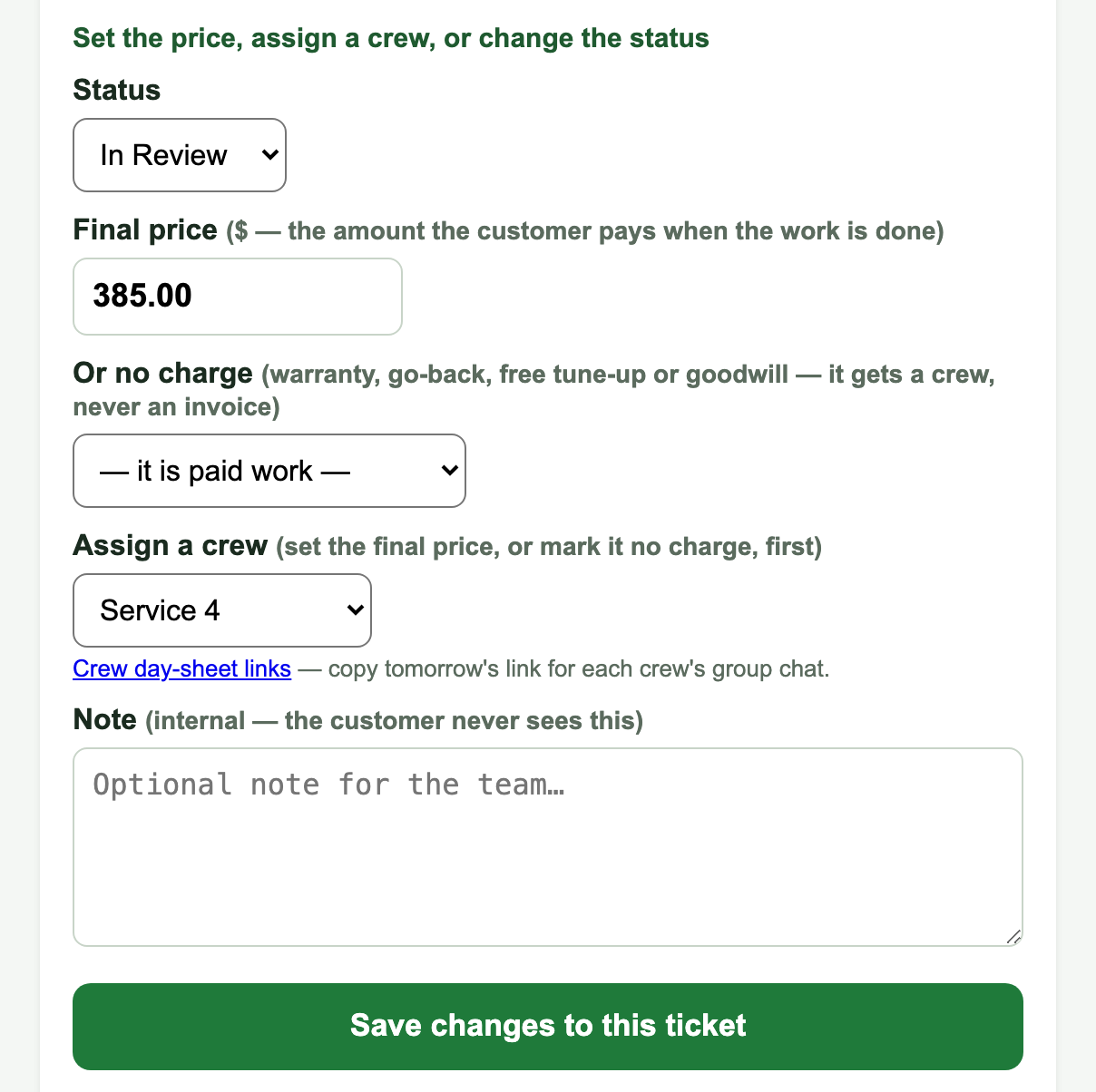
| Needs a price | We have what we need | The service manager sets a price, or no charge with a reason |
| Waiting on the customer | The ball is in their court | They reply, sign or pick a time |
| Scheduled | A crew and a time | The crew presses an outcome on the day |
| Done, not paid | Work done, invoice out | The money comes in |
| Closed | Paid, no charge, Service completed (Resolved), or cancelled | — |
The photos arriving, a booking, the crew's outcome and the payment each move the ticket (and its AGM card) by themselves. Warranty, go-back and free tune-up work is no charge: it gets a crew and a date but never an invoice.
The board takes a few seconds to read both systems the first time. It refreshes itself every 5 minutes and whenever you come back to the tab.
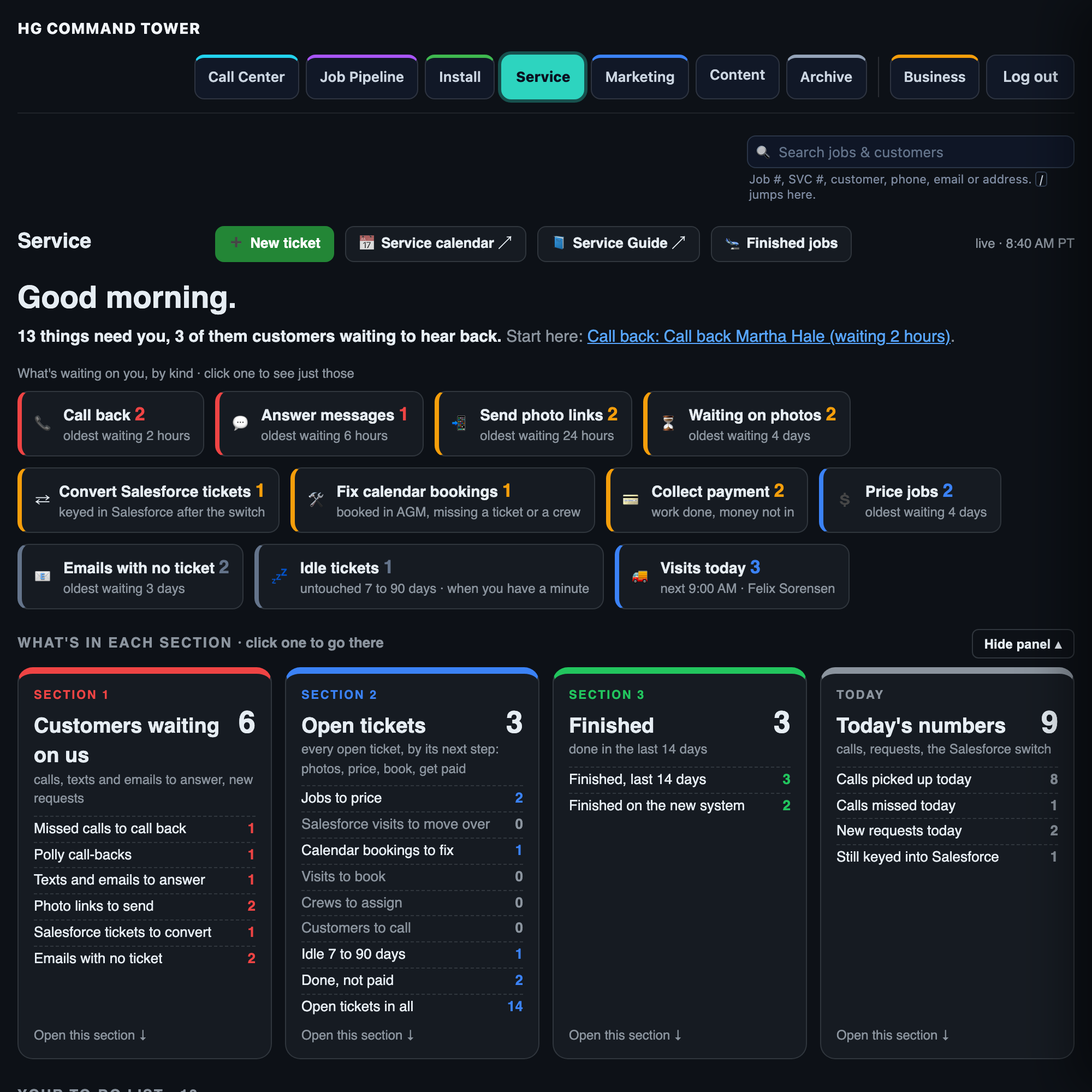
Open hgcommand.com → Service. It opens on what to do, not on numbers.

Top to bottom: what's waiting on you, by kind · Today's numbers · Your to-do list, one line per job · today's visits with the Service calendar under them · then three folded sections for when you have a minute: Customers waiting on us, Open tickets and Finished. Across the top: ➕ New ticket, 📅 Service calendar and Finished jobs. The search box (top right, or press /) finds any customer, job, SVC number or old Salesforce service number.

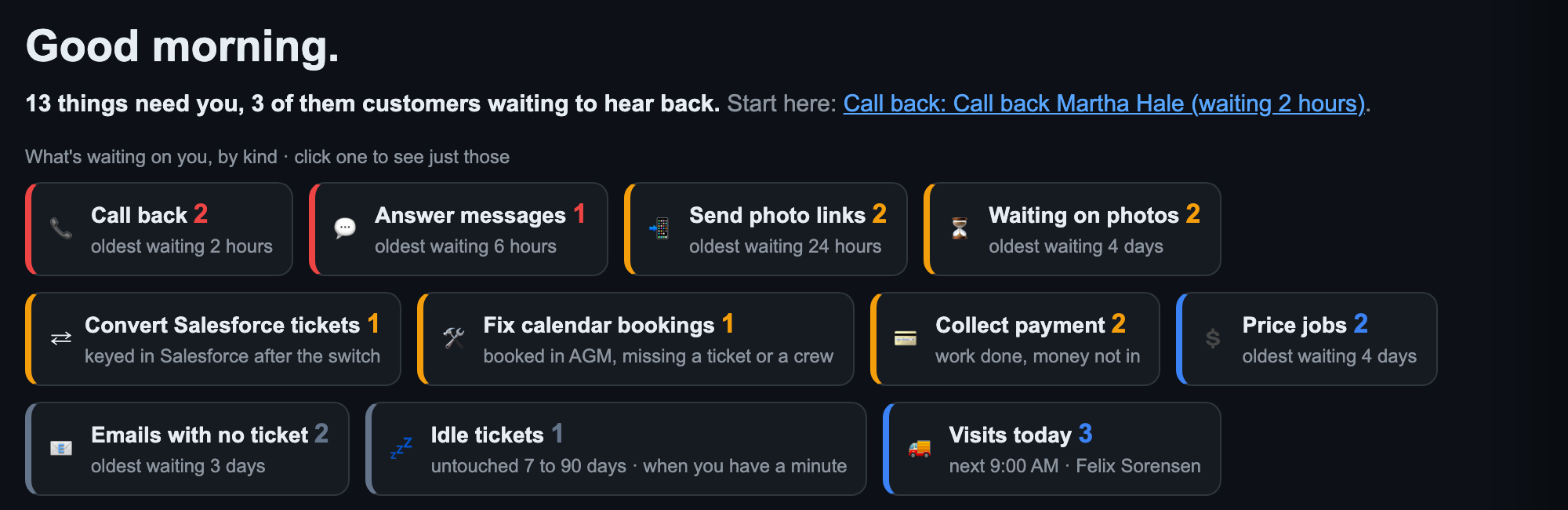
The top line says how many things need you, how many are customers waiting to hear back, and where to start. Click it and the page goes straight to that line.
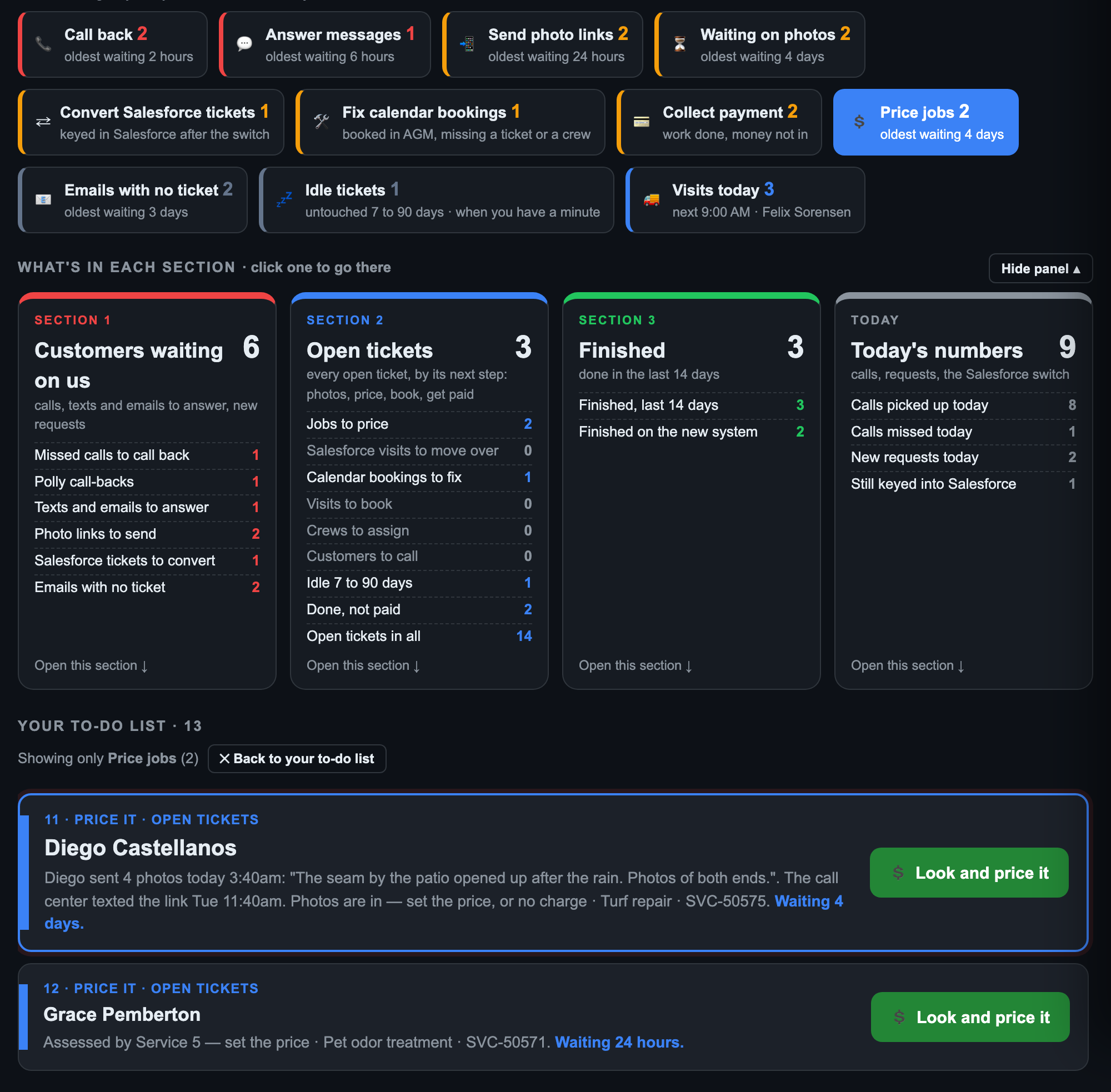
One button per kind of work, each with how many and how long the oldest has waited: Call back · Answer messages · Send photo links · Waiting on photos · Price jobs · For the call center · Book, assign, call · 💳 Collect payment · ✓ Finished: close it · Fix calendar bookings · Convert Salesforce tickets (old ones only). Two are for when you have a minute: Emails with no ticket, and Idle tickets. Visits today names the next visit.
For the call center lists approved visits to book, with their length ("Call Dana to book the visit · 4 hours"), and customers to call for an in-person look.

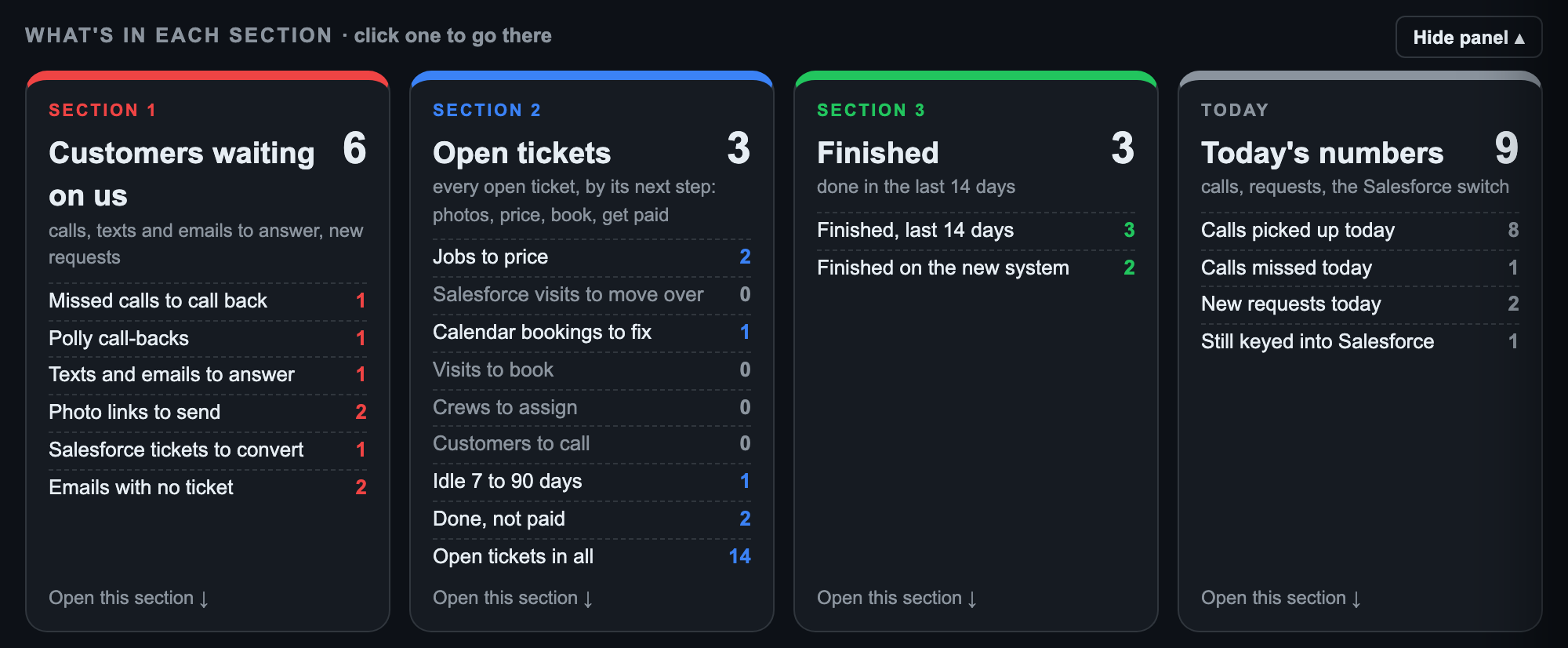
Four tiles, one per section further down: Customers waiting on us (who is trying to reach us), Open tickets (what's moving and what's stuck), Finished (what we finished) and Today's numbers. The counts come from the same list as the buttons above, so they always agree. Click a tile to open that section. Hide panel folds it away and the page remembers.

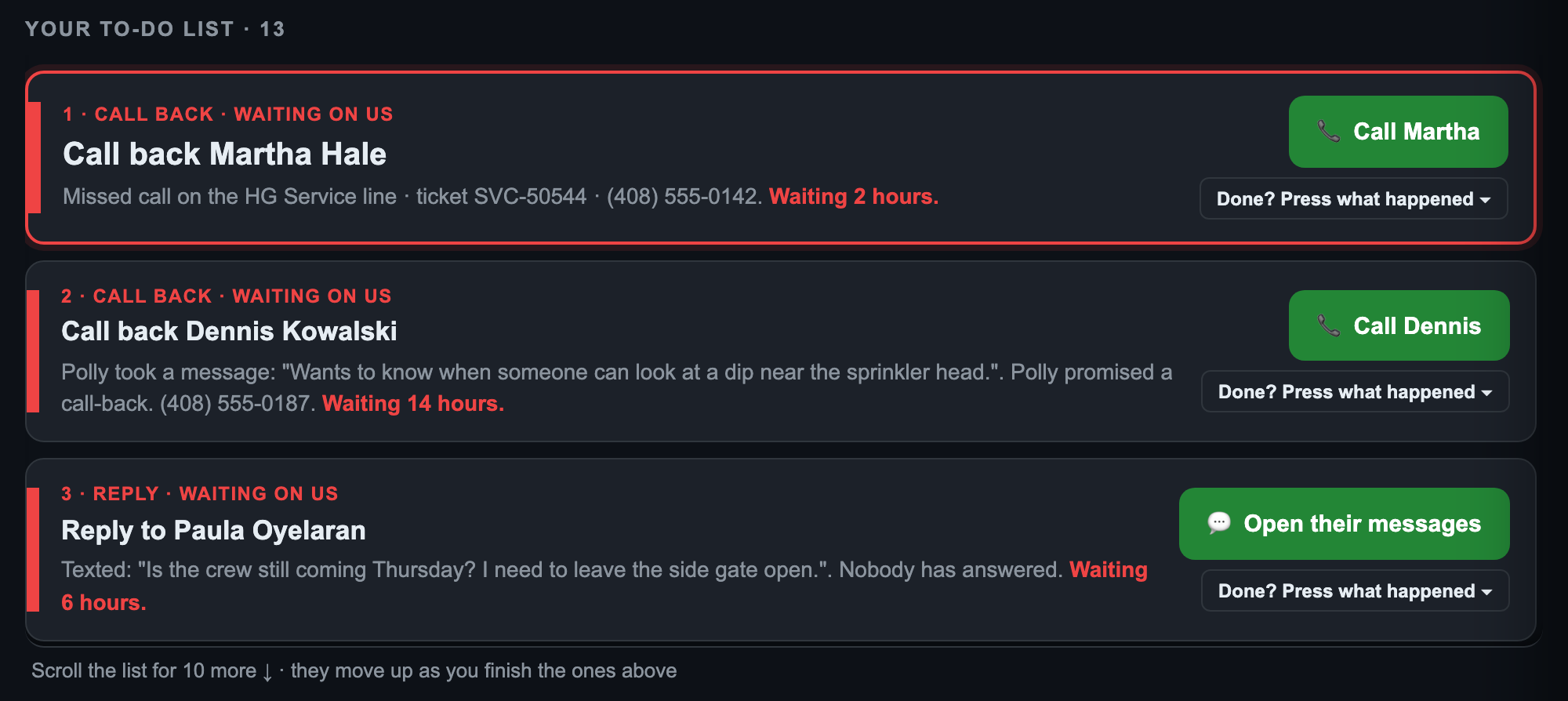
One list, in order: people waiting first (missed calls, Polly's messages, texts and emails), then photos to price, links to send and chase, visits to book, payments to collect, finished jobs to close, calendar bookings to fix. Each line headlines the customer's name; the label carries the action (Start here reads "Chase: Jane Doe"). It says what happened and how long they've waited (red when it's long), with one green button that opens exactly what you need. Finish a line and the next one moves up.
A ticket closed as Resolved leaves the list, unless its invoice is unpaid: then it stays as Invoice out — waiting on payment.
Beside every ticket row: ✓ Close ticket and More ▾.
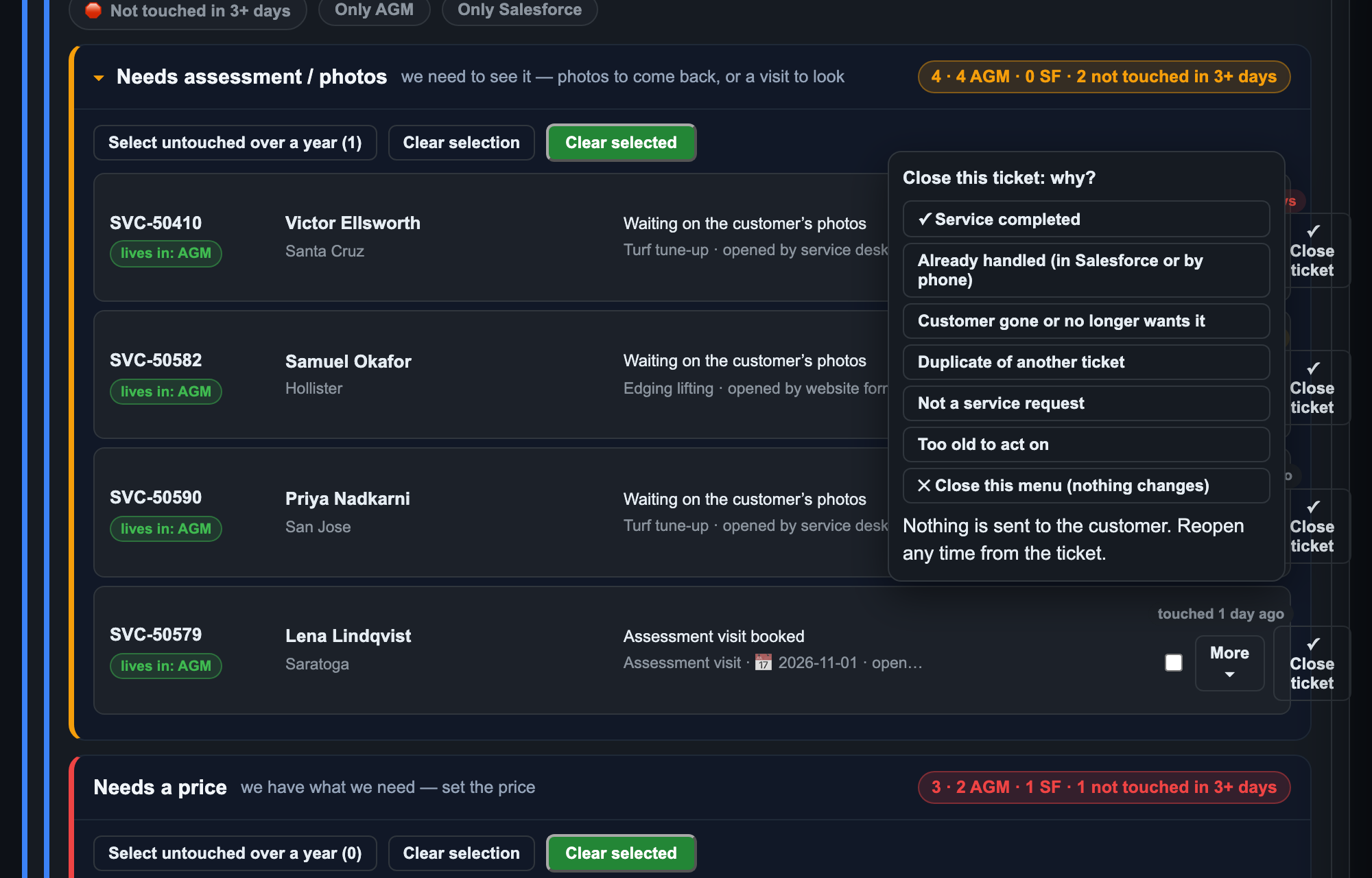
✓ Close ticket asks why. The first reason, ✓ Service completed, marks the ticket Resolved and sends nothing to the customer. Every other reason closes it as Cancelled.
More ▾ follows the ticket's step and says what each choice does: - Send the link / photos, and price it - Send to the call center to book: pick the length (1h · 2h · 4h · 6h · full day = 8h). Needs a final price or no charge first - Needs an in-person look: an optional reason; moves the AGM card to Assessment Needed; nothing goes to the customer - Unbook a booked visit: cancels the AGM Service-calendar visit, and the ticket goes back to its lane - Payment: opens the ticket at its invoice section (Send invoice · Record a payment)
Unbook and Clear both say what happened to the calendar visit: cancelled, none found, or NOT cancelled — do it in AGM.

After a call or message, press Done? Press what happened: Called back, spoke to them · Left a voicemail · Replied · No reply needed · Not service.
It writes a note in AGM in your name, and the line leaves the list until that customer reaches out again. The goal every day: the list reads "Nothing is waiting on you" before you leave.

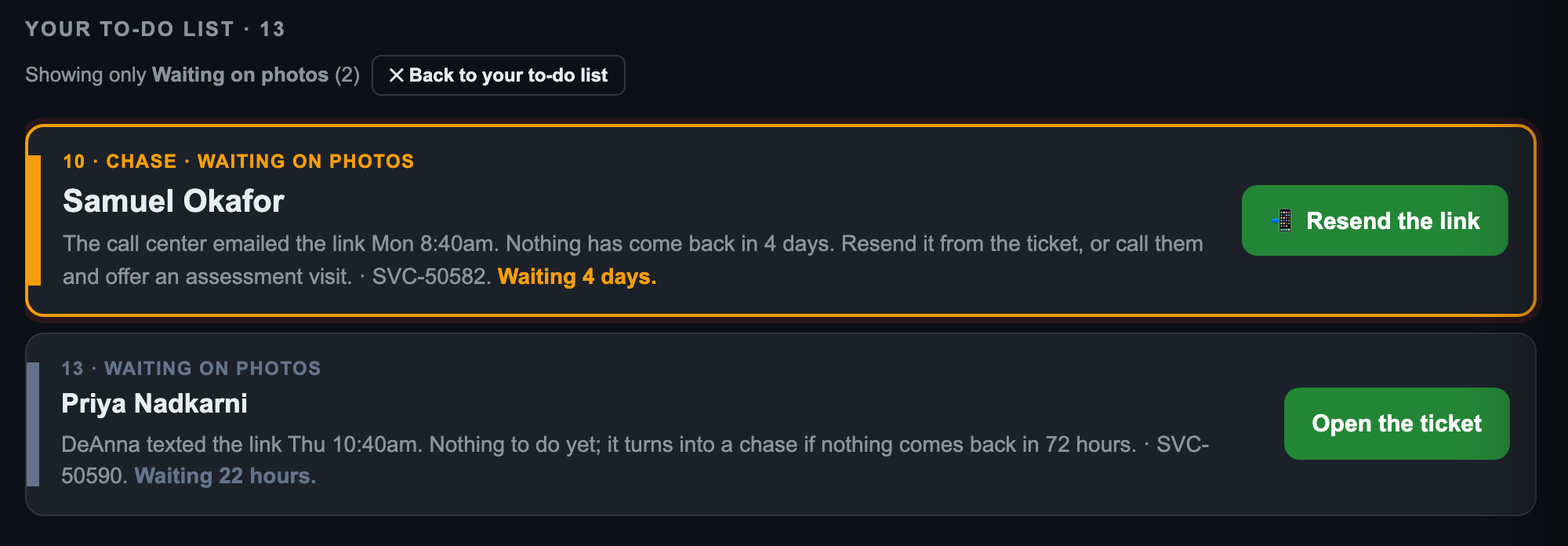
Any button at the top filters Your to-do list to that kind of work, oldest first. A price line tells the story: who opened the ticket, how the link went out, and what the customer sent and said. Press ✕ Back to your to-do list (or the same button again) to see everything.
Once a photo link is out (sent by the call center or by you) it is yours to see through. It is a line on your board from the moment it goes.

Photo reminders are on (since October 30): after a person sends the photo link, the customer gets two reminders, 72 hours apart, then they stop. They go the way the customer chose (email or text) and respect Do Not Disturb. The board's 72-hour Chase still applies.

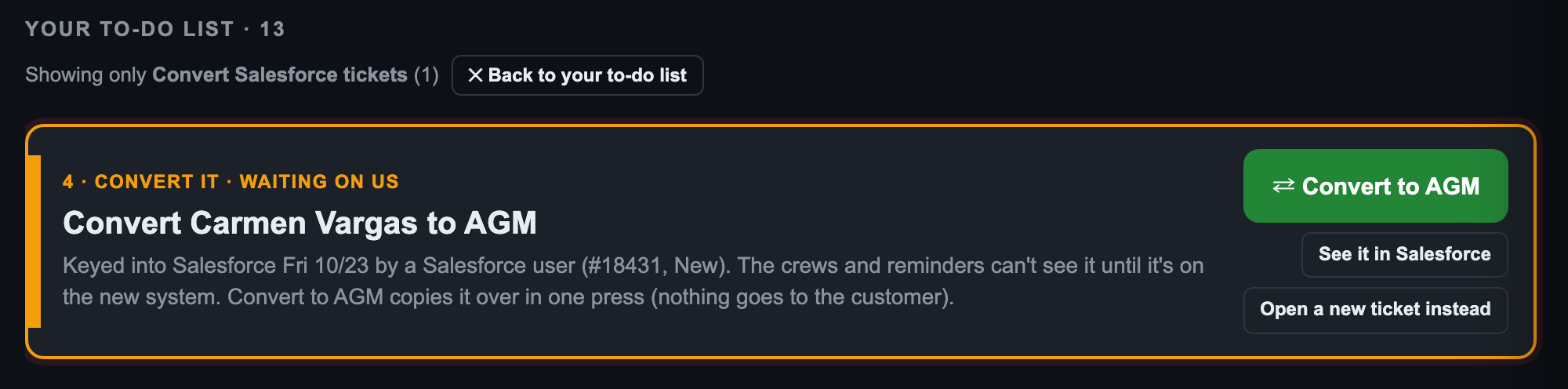
Service has left Salesforce (October 30). Old Salesforce tickets stay searchable. ⇄ Convert to AGM copies one onto the new system in one press: a new SVC ticket on AGM's 4. Service pipeline, assigned to the service manager, with the Salesforce notes. Nothing is sent to the customer.

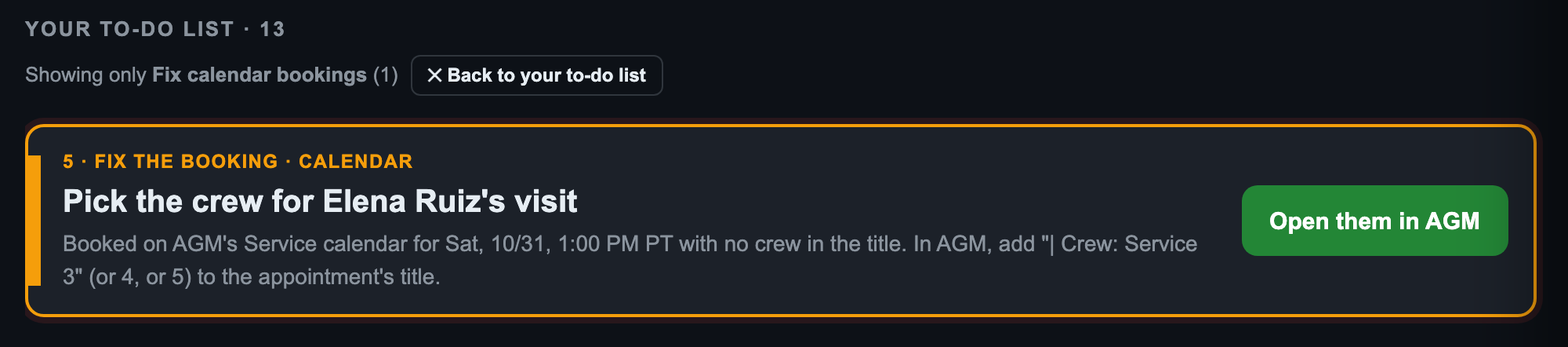
Fix calendar bookings lists visits booked straight on AGM's Service calendar that the system couldn't tie to a ticket on its own: no open ticket, more than one open ticket, no crew in the title, or one crew booked twice at the same time (new bookings refuse a crew that is already busy). The button opens the customer in AGM to fix it.

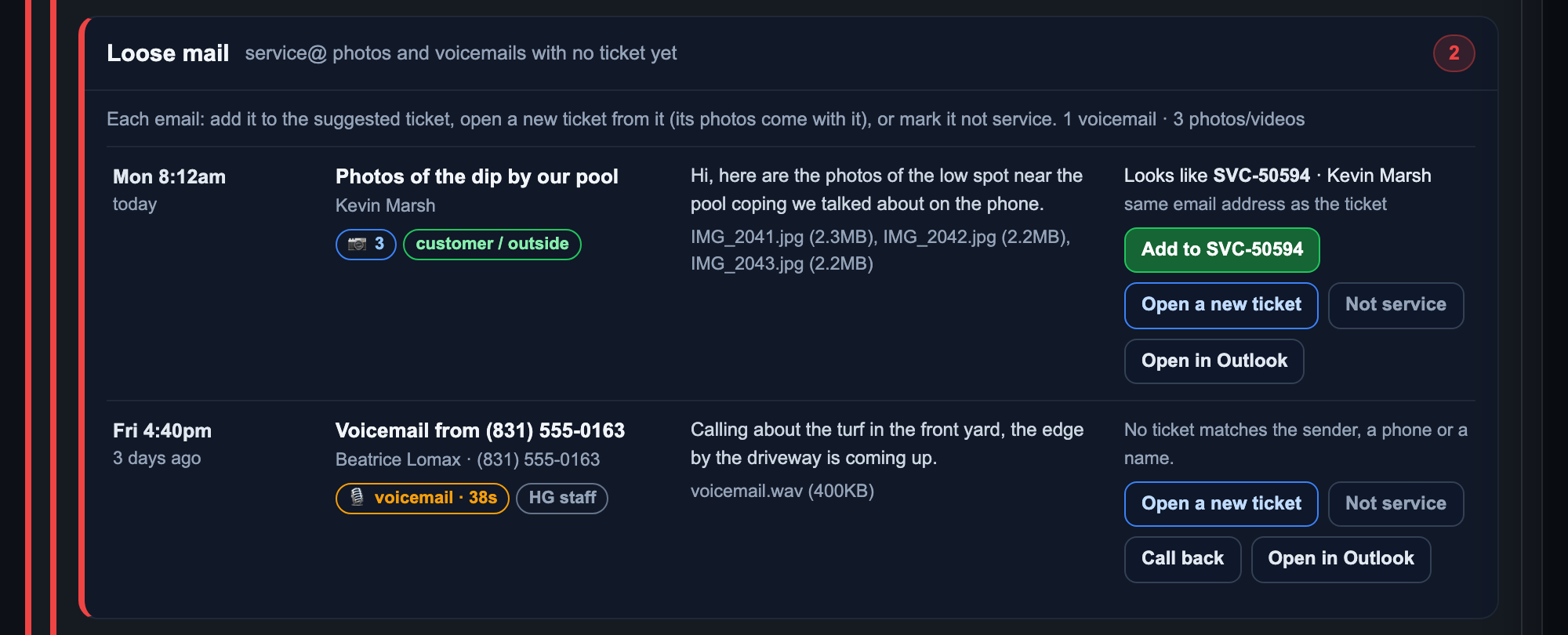
Every email to service@ that carries photos or a voicemail and names no ticket lands here. For each one: - Add to SVC-… files it, photos and all, onto the ticket the board suggests (it says why: same email, same phone, same name). - Open a new ticket makes one from it, prefilled, with its photos. - Not service files it away. Call back dials a voicemail's caller. Open in Outlook reads it.
Filed emails drop off this list but stay in the service@ inbox.

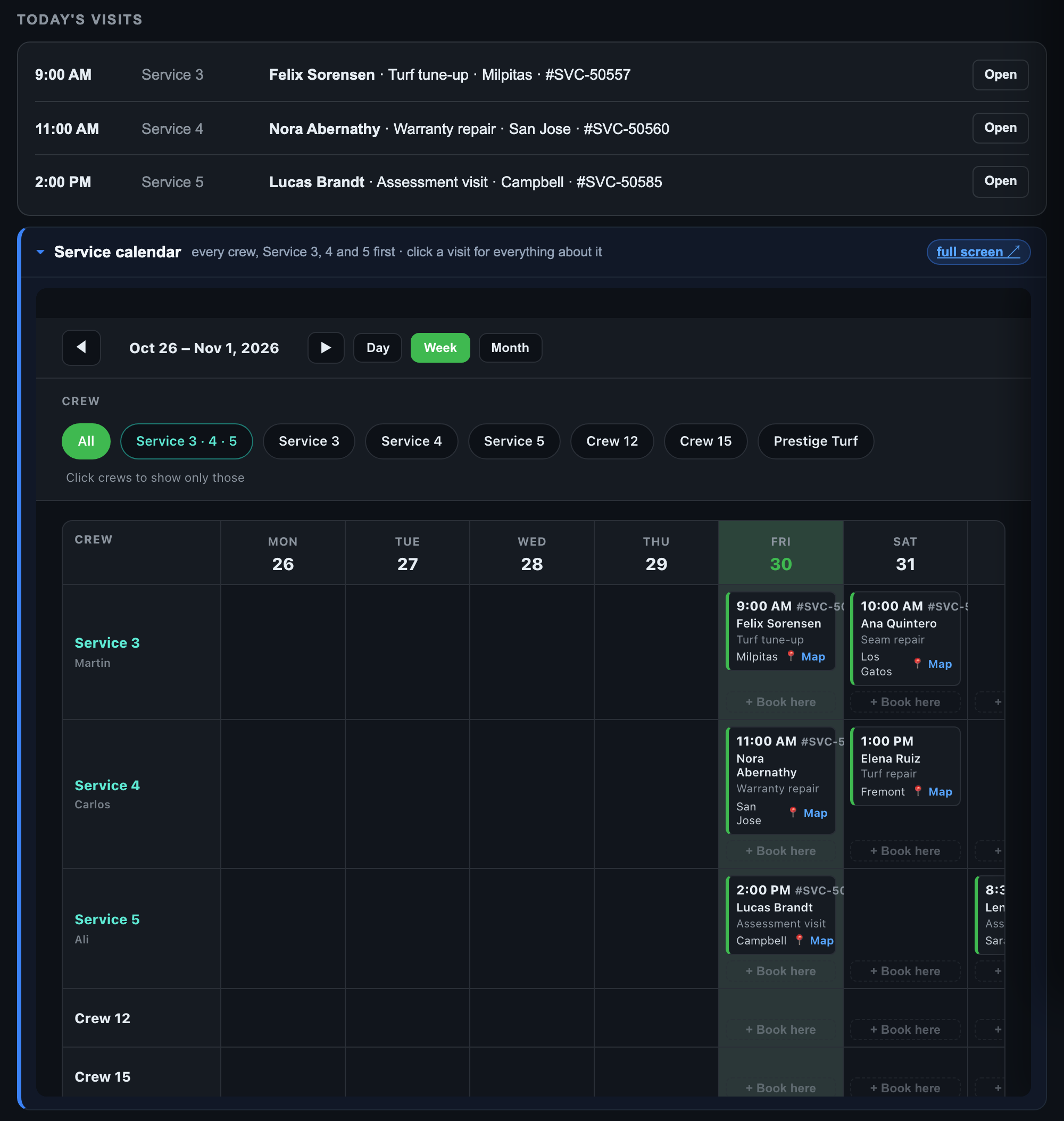
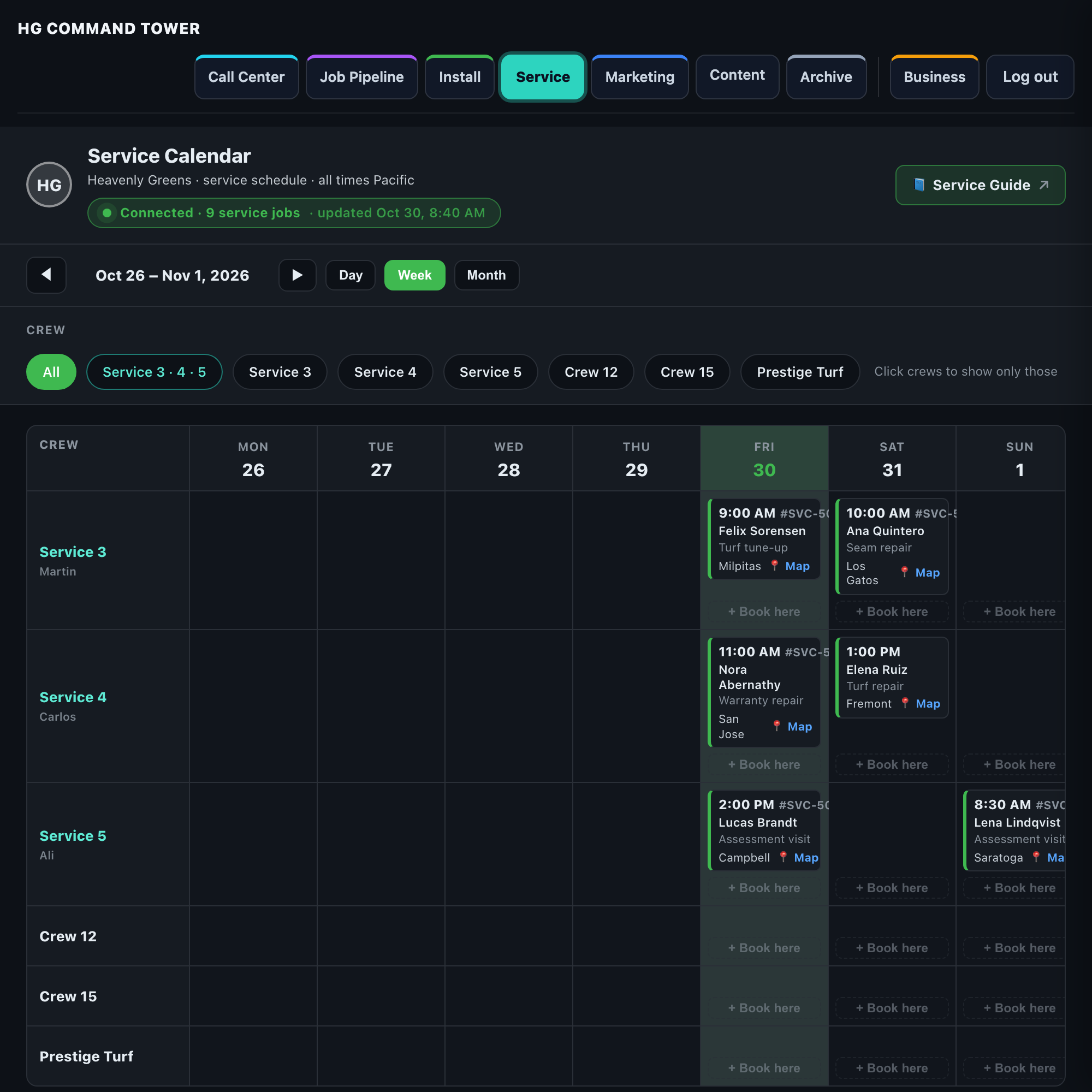
Every visit today: time, crew, customer, type of job, city and ticket. Open goes to that visit's ticket. The Service calendar sits right below, open, for the week.
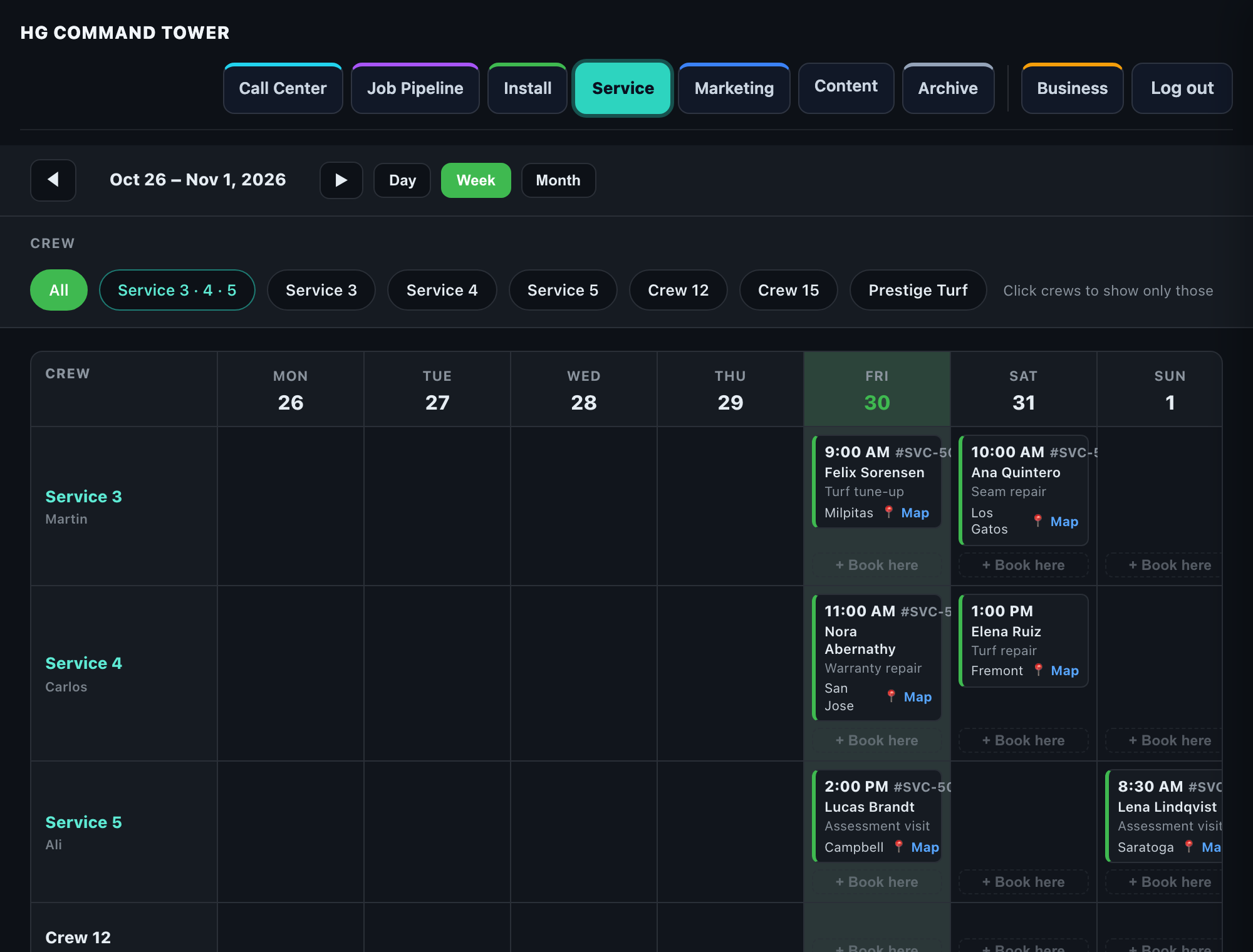
Every service visit is an appointment on AGM's Service calendar, with the crew in its title (| Crew: Service 4), the same way installs work. HG Command reads that calendar and draws one row per crew: Service 3, 4 and 5 first, then the install crews that do go-backs. Service is booked only here, in AGM or HG Command; anyone on staff may book, and a crew already busy at that time is refused.

| Crew | Does |
|---|---|
| Service 3 (Martin) | Larger jobs, further out |
| Service 4 (Carlos) | Troubleshooting and go-backs |
| Service 5 (Ali) | One-man crew, assessments |
| Install crews | Go-backs |

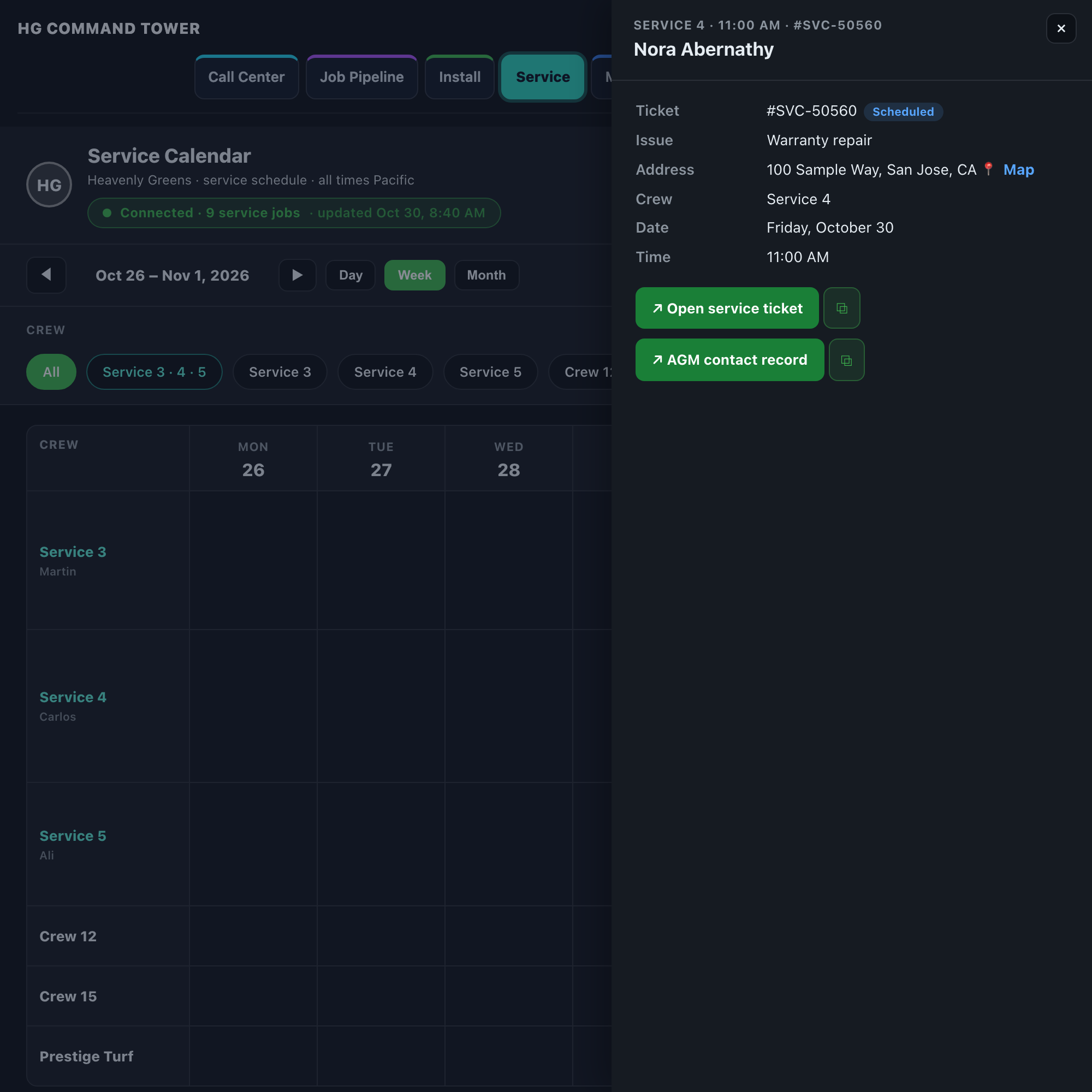
Click any visit for its details, Open service ticket and the AGM contact record.

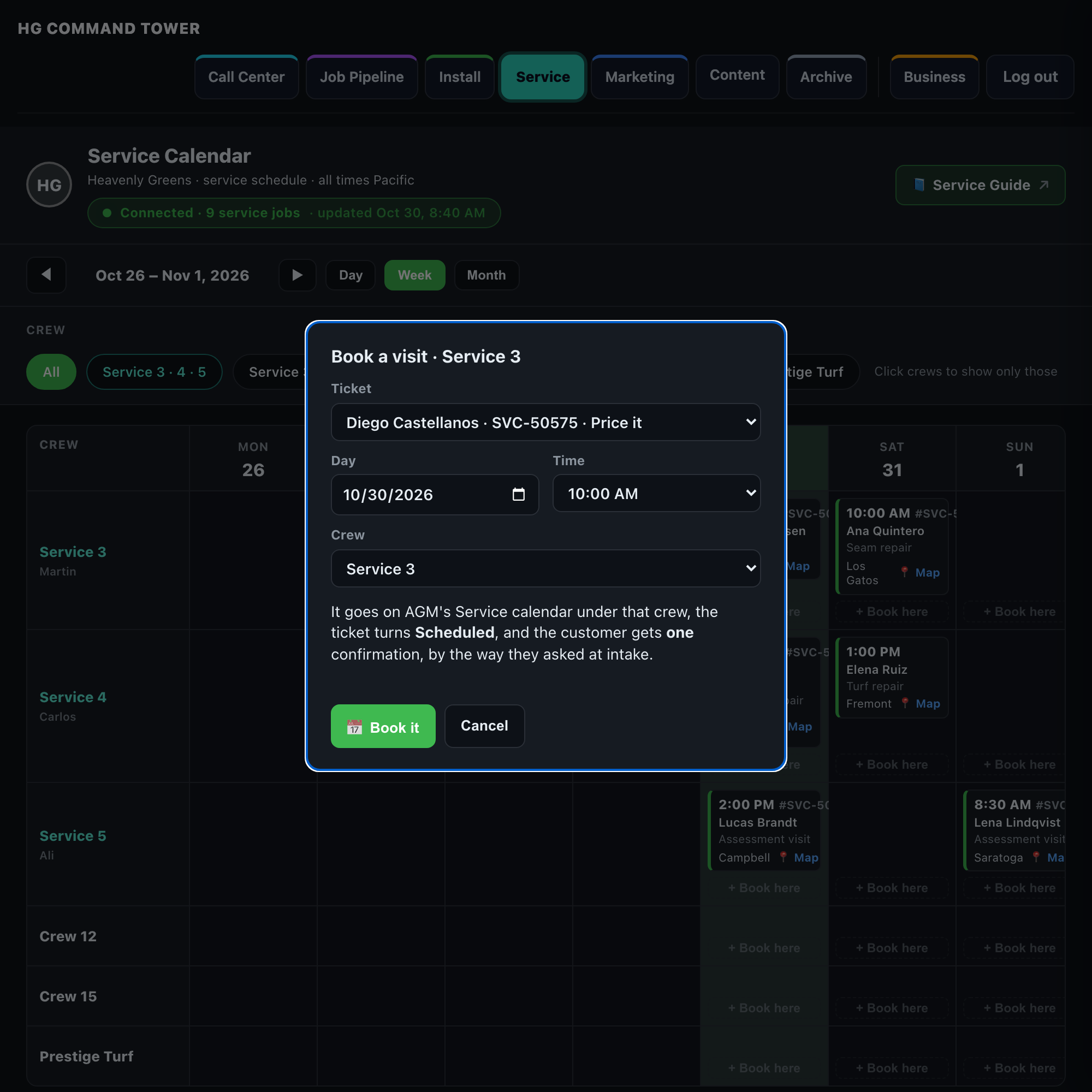
Every crew's day has + Book here. The ticket list shows tickets ready for the call center first ("📞 ready to book, 4 hours"); the visit is booked for its stored length. Pick the ticket, time and crew, press 📅 Book it. It goes on AGM's Service calendar under that crew, the ticket turns Scheduled, and the customer gets one confirmation, the way they asked at intake (over an hour, it says "This visit takes about N hours"). It is the same booking as Book the visit on the ticket.
The board's For the call center button lists approved visits to book, with their length. The call center sees the same crew rows on its own page (Call Center → 🛠 Service Calendar), then books in AGM the way it books sales. Never in Salesforce.


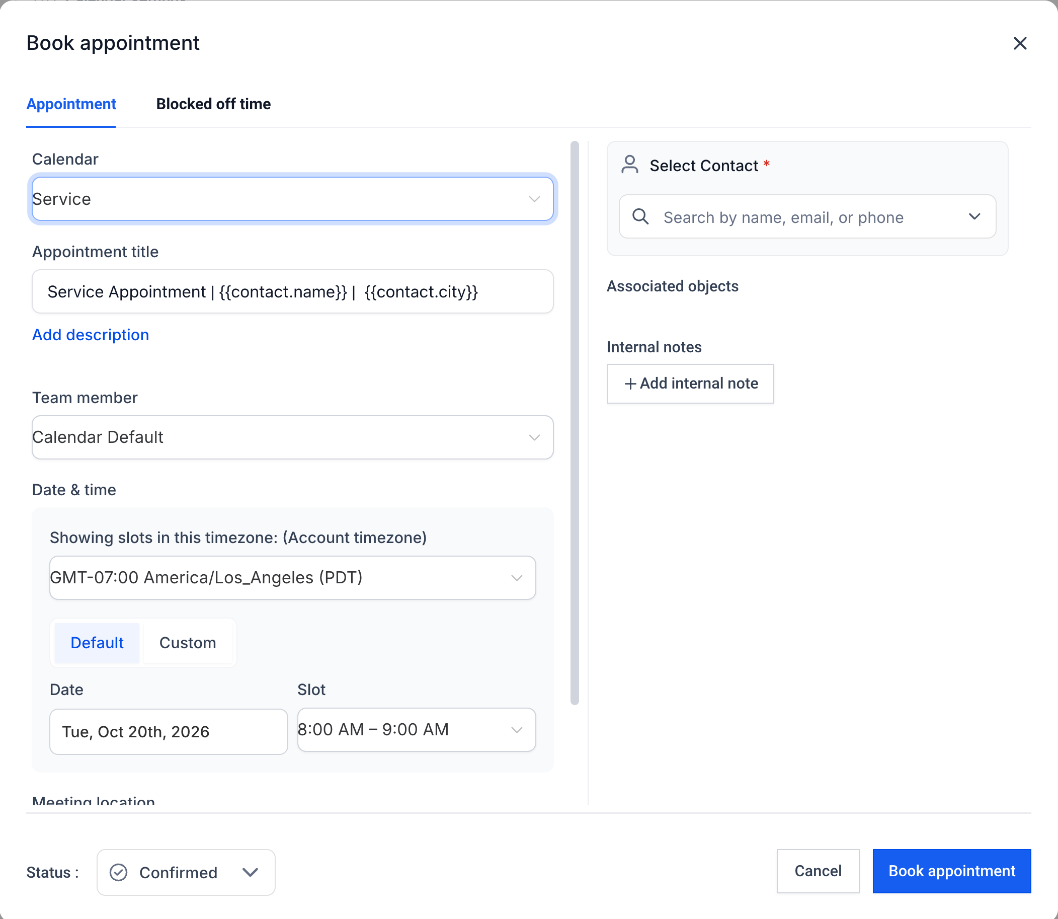
AGM remembers the last calendar used, so check it says Service every time.
Within a few minutes HG Command finds the new appointment and ties it to the customer's open ticket: - the ticket gets the date, time and crew, and turns Scheduled; - the visit shows on that crew's row for everyone; - nothing is sent to the customer automatically: the call center told them on the phone.
If it can't be tied up on its own, it becomes a Fix calendar bookings line on the service manager's board (no ticket, two tickets, no crew, or a crew booked twice).
One limit, for now: AGM's Service calendar offers each time once. If Service 3 has 10:00 Thursday, AGM won't offer 10:00 Thursday for Service 4. The call center books the nearest open time and tells the service manager; + Book here on HG Command is not limited this way.
The folds under the calendar: Customers waiting on us, Open tickets and Finished. You don't need them to run the day (everything that needs you is already in Your to-do list) but they hold the full picture.

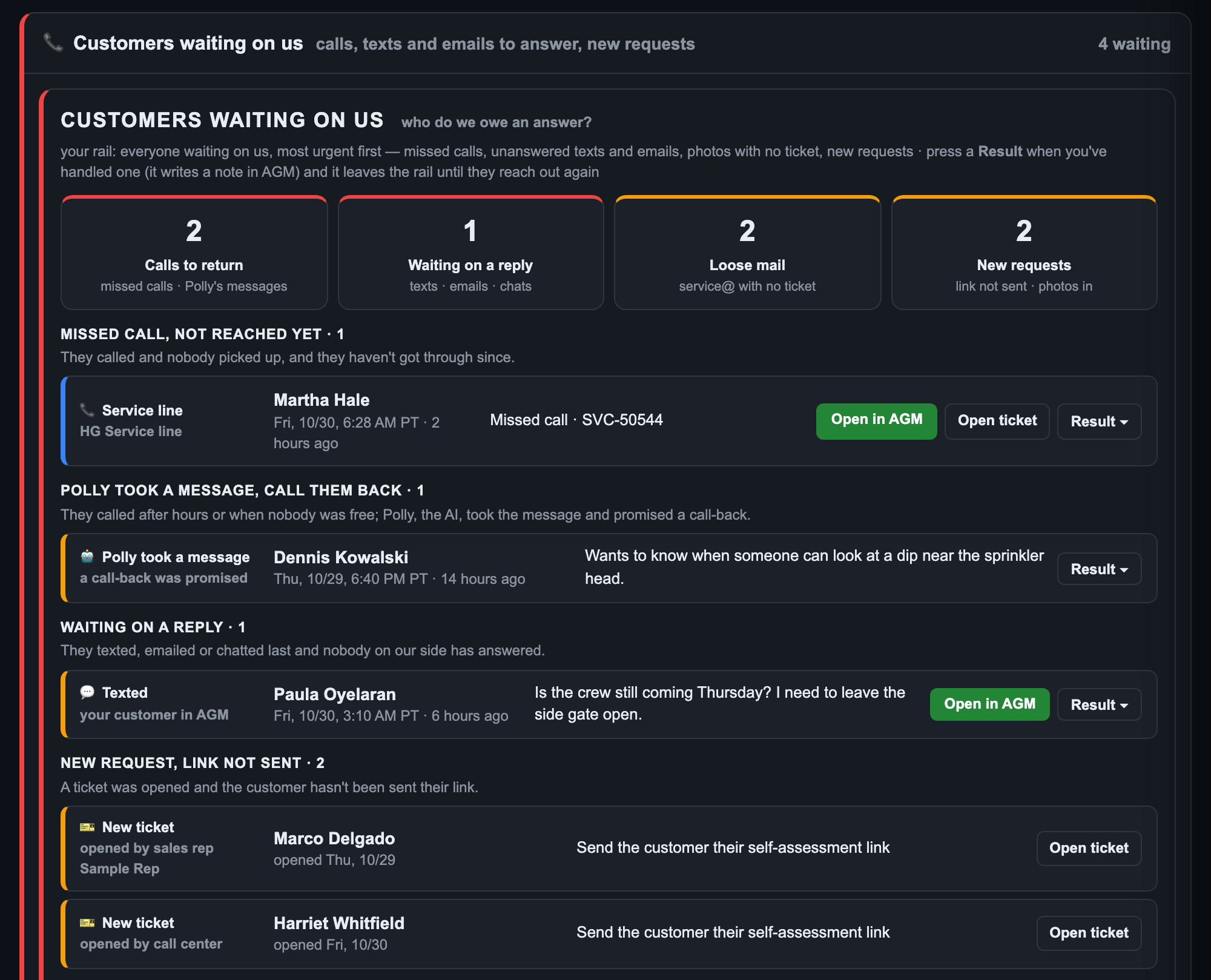
Most urgent first, each with where it came from (the Service line, the main HG number, a text, an email, Polly the after-hours AI, a new ticket) and how long they've waited. The edge turns red past 24 hours.

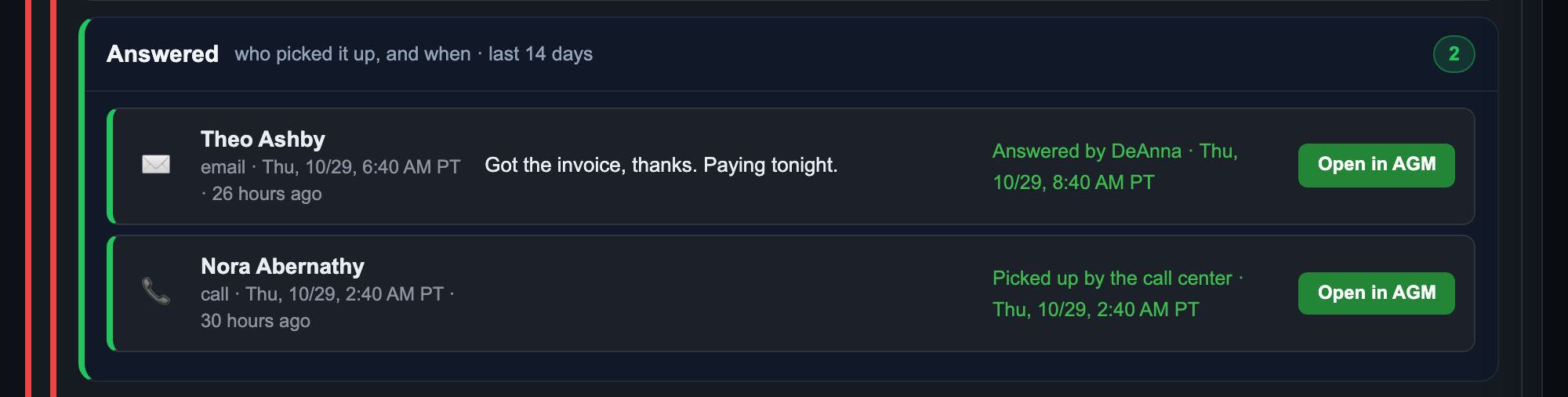
When the call center or the service manager answers, the customer moves to Answered with the person's name and the time. A call somebody picked up counts as answered.

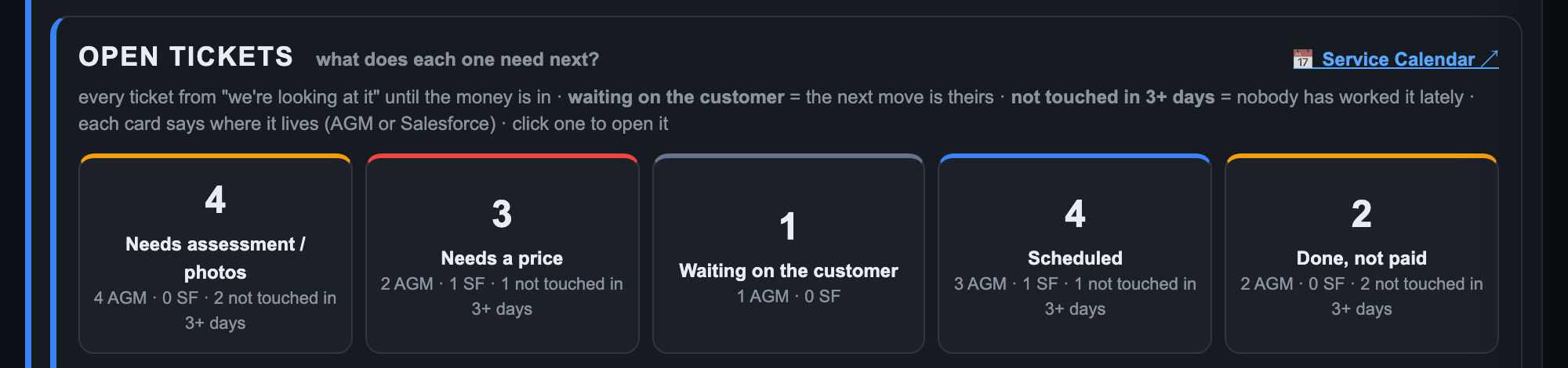
| Stage | Means |
|---|---|
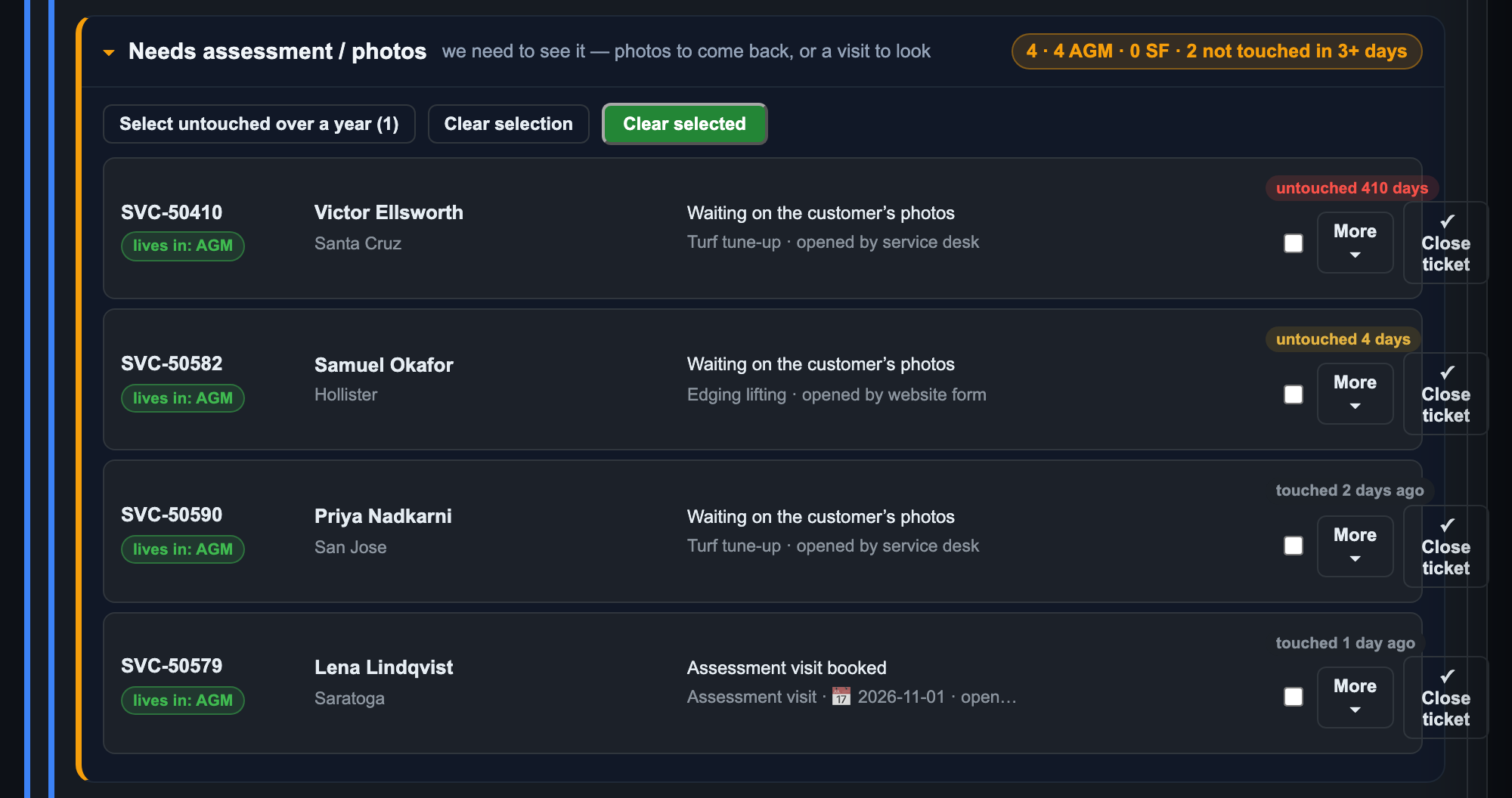
| Needs assessment / photos | We need to see it: photos to come back, or a visit to look |
| Needs a price | We have what we need: set the price (or no charge) |
| Waiting on the customer | The ball is in the customer's court |
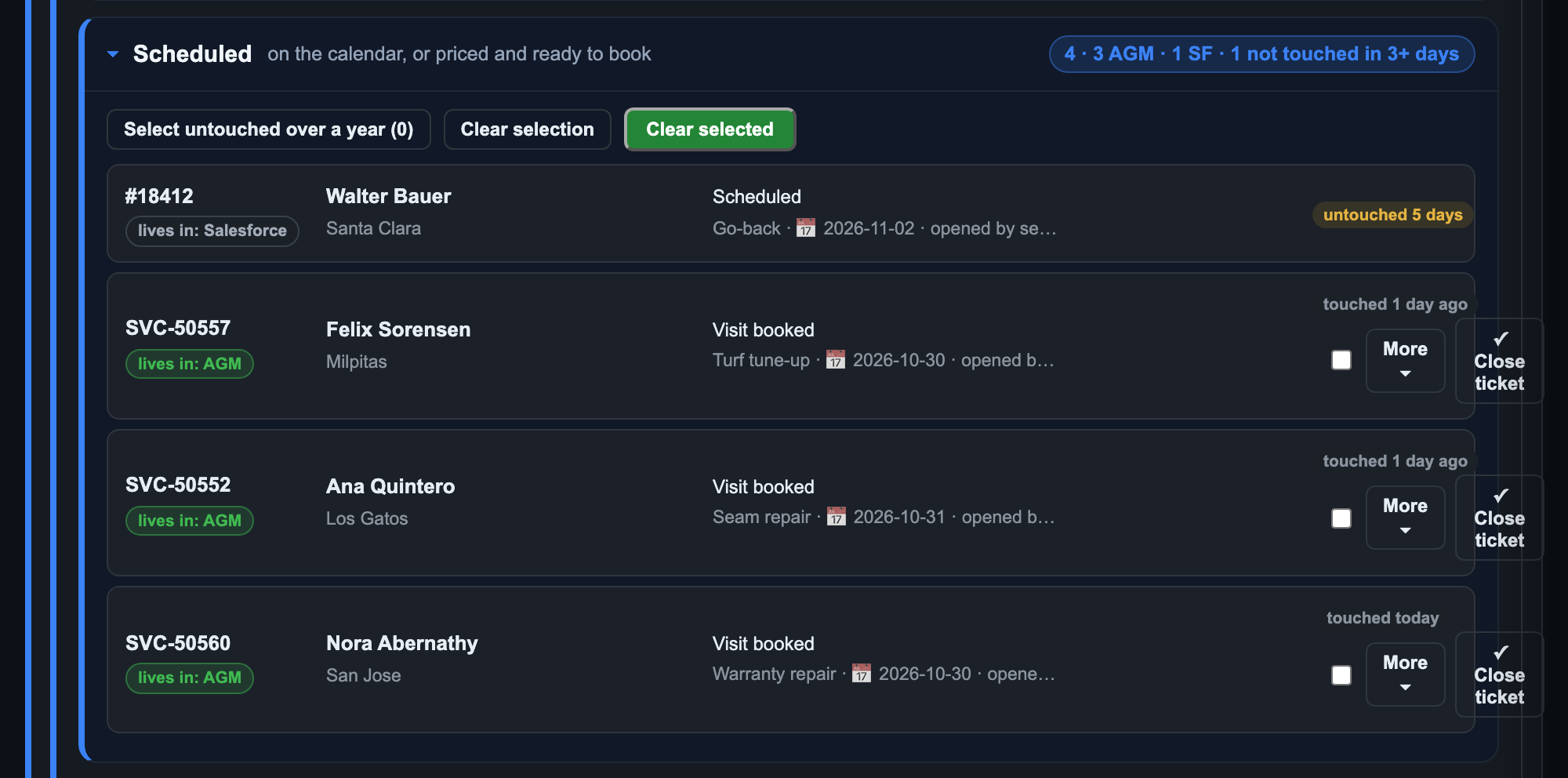
| Scheduled | On the calendar, with its crew |
| Done, not paid | Work done, money not in yet |
Not touched in 3+ days shows only those tickets; Only AGM / Only Salesforce split new tickets from old ones.

Each card: the SVC number and where it lives (AGM = the new system; Salesforce = an old ticket from before the switch), the customer, the next step in plain words, who opened it, and how long since anyone touched it. Click an AGM card to open its ticket.

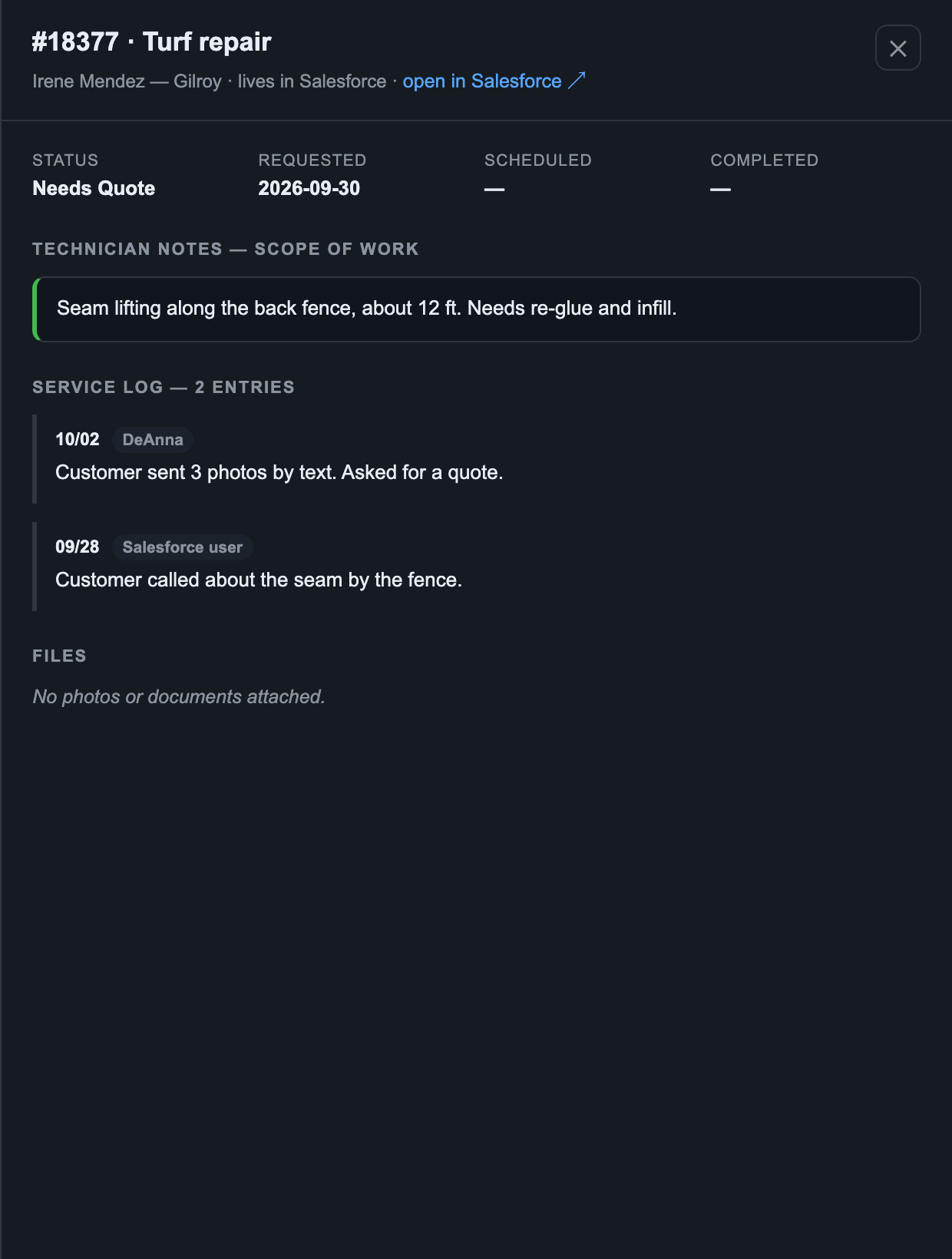
An old Salesforce card opens a panel with its whole history instead:

Use it to read what happened before the switch.

On a ticket row, ✓ Close ticket does this (first reason ✓ Service completed = Resolved). On a card, press Clear and pick why: customer gone · already handled · duplicate · not service · too old to act on. Or Select untouched over a year, untick any to keep, and Clear selected.
It marks the ticket Cancelled, closes its AGM card with a note in your name, cancels its AGM calendar visit and switches off every reminder. The receipt says what happened to the visit. Nothing is sent to the customer. Set the status back on the ticket to reopen it.

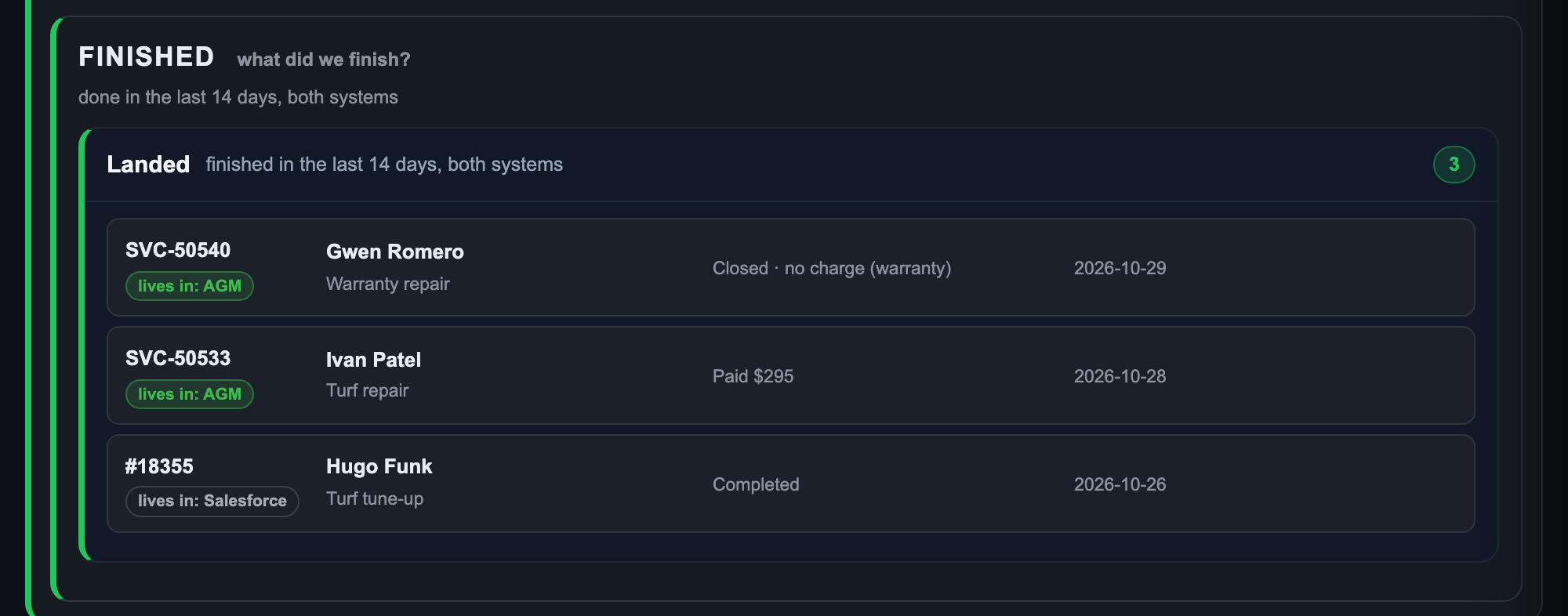
A job is Finished when the work is done and the money is in (or it was no charge). Done, not paid stays in Open tickets, because collecting is part of the job.

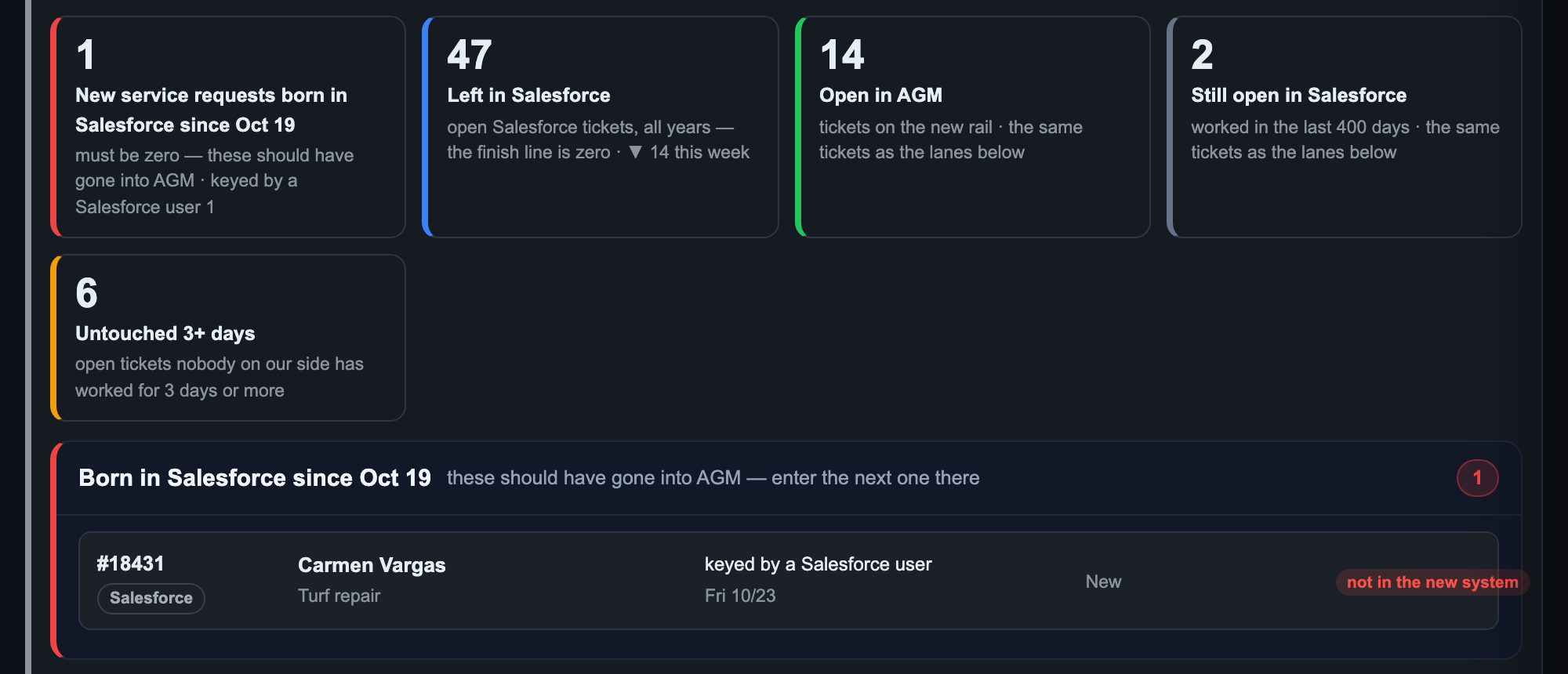
Service has left Salesforce: New service requests born in Salesforce must read zero. Left in Salesforce counts the old tickets still to convert or close.

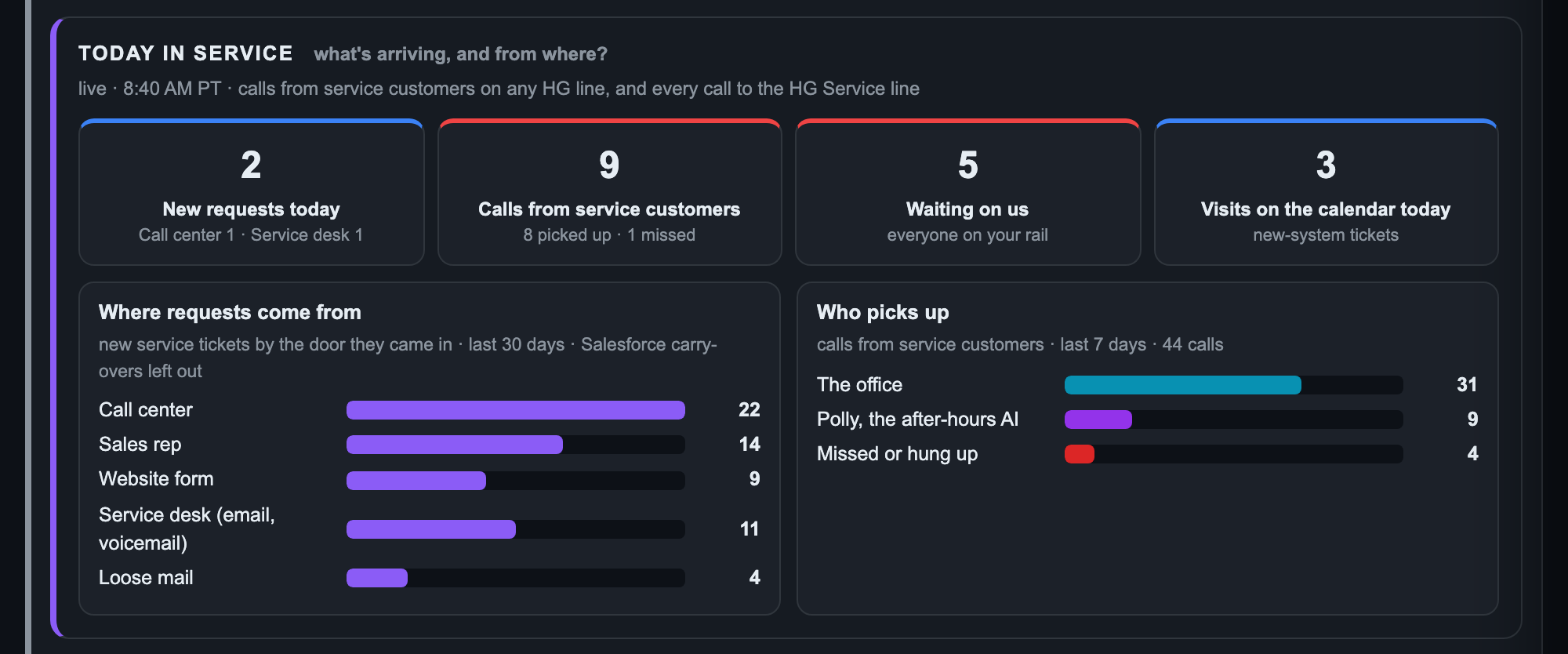
Where requests come from and who picks up (the office, Polly, or missed) tell you whether customers are getting through.
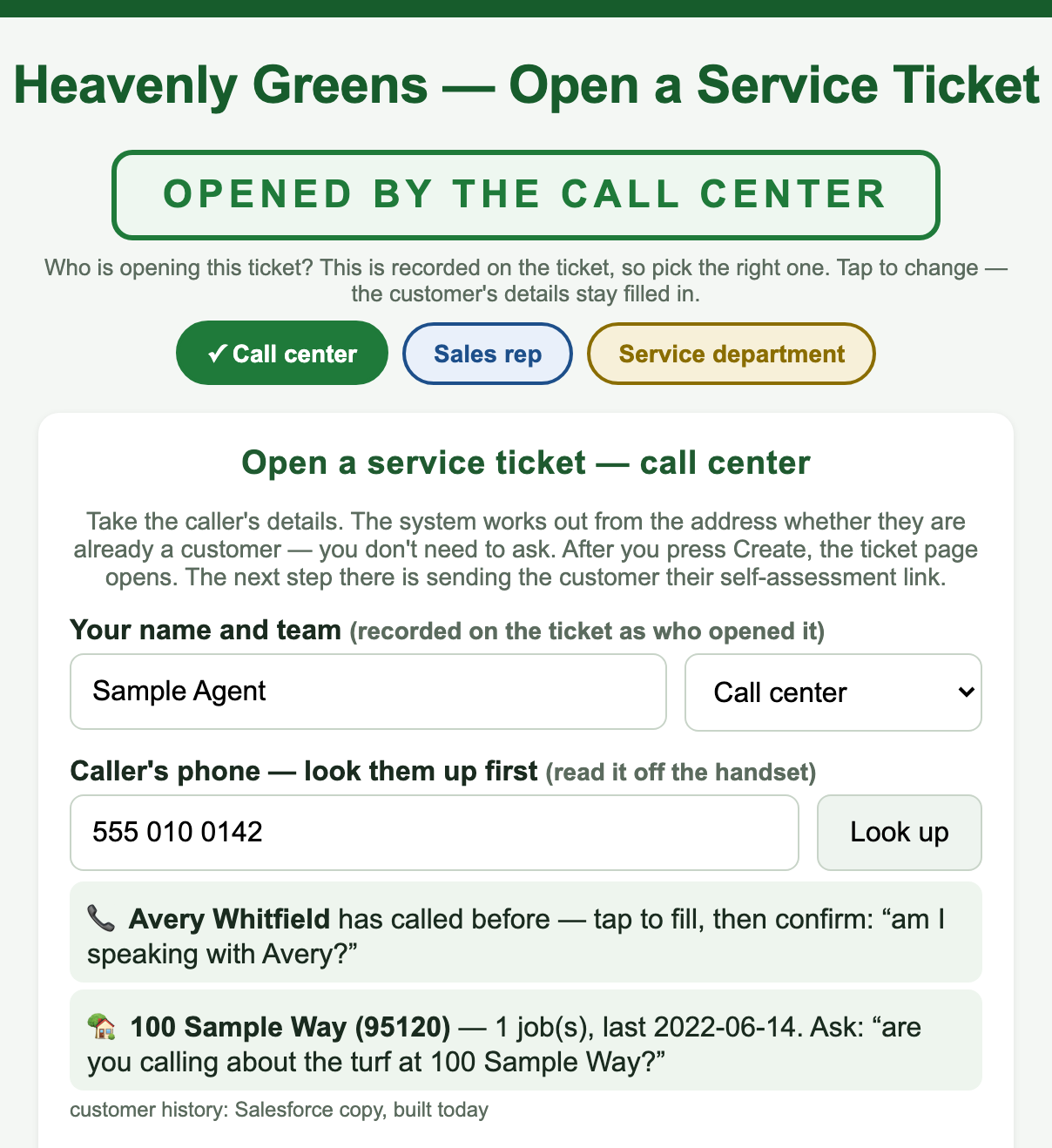
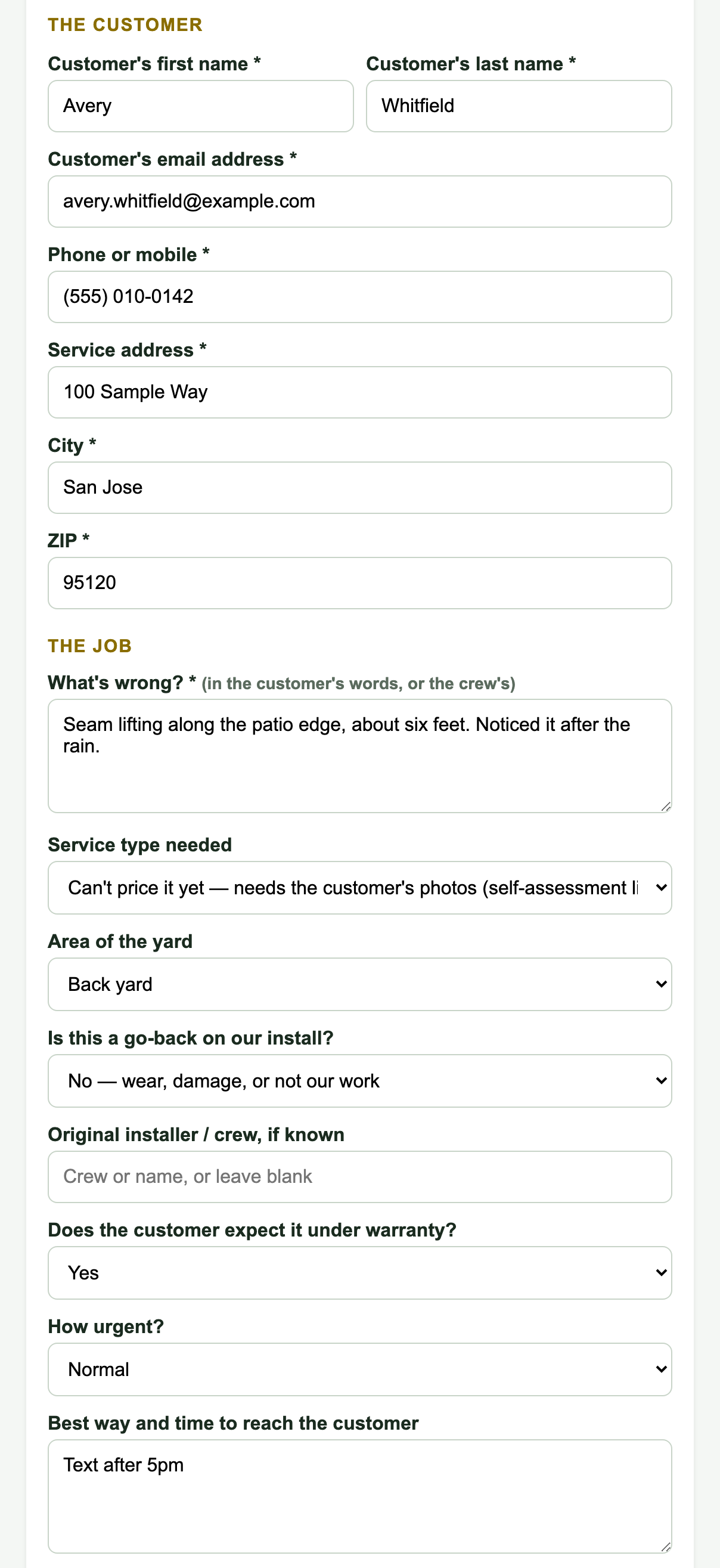
One form, three versions: Call center, Sales rep and Service department. The buttons at the top say who is opening it, and that is recorded on the ticket.

Start with the phone number and press Look up. It pulls the customer from AGM and from every past install: "Avery has called before" and "100 Sample Way: 1 job, last 2022" give you the two questions to confirm on the call. The address tells the system whether HG installed there and whether it's in warranty; nobody has to ask.
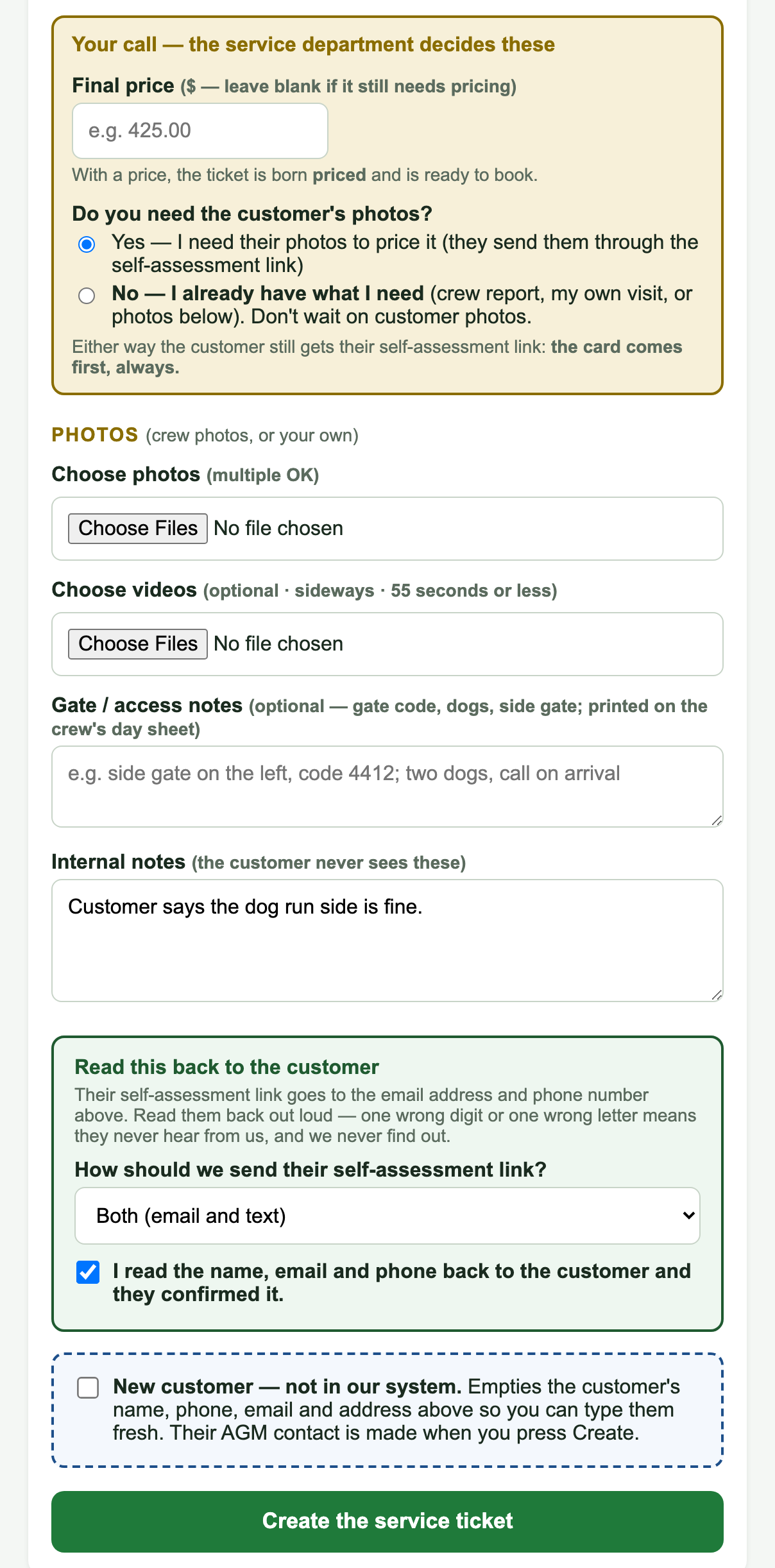
What's wrong goes in the customer's own words. The email and phone are where their link goes, so read them back.

The gold box is the service department's: a price now if it is known, and whether photos are needed. Add Gate / access notes for the crew. Choose how the customer wants their link: Both (email and text) is the default, and if one is missing it uses what exists and press Create the service ticket. The ticket page opens, assigned to the service manager, and service@ gets an email.
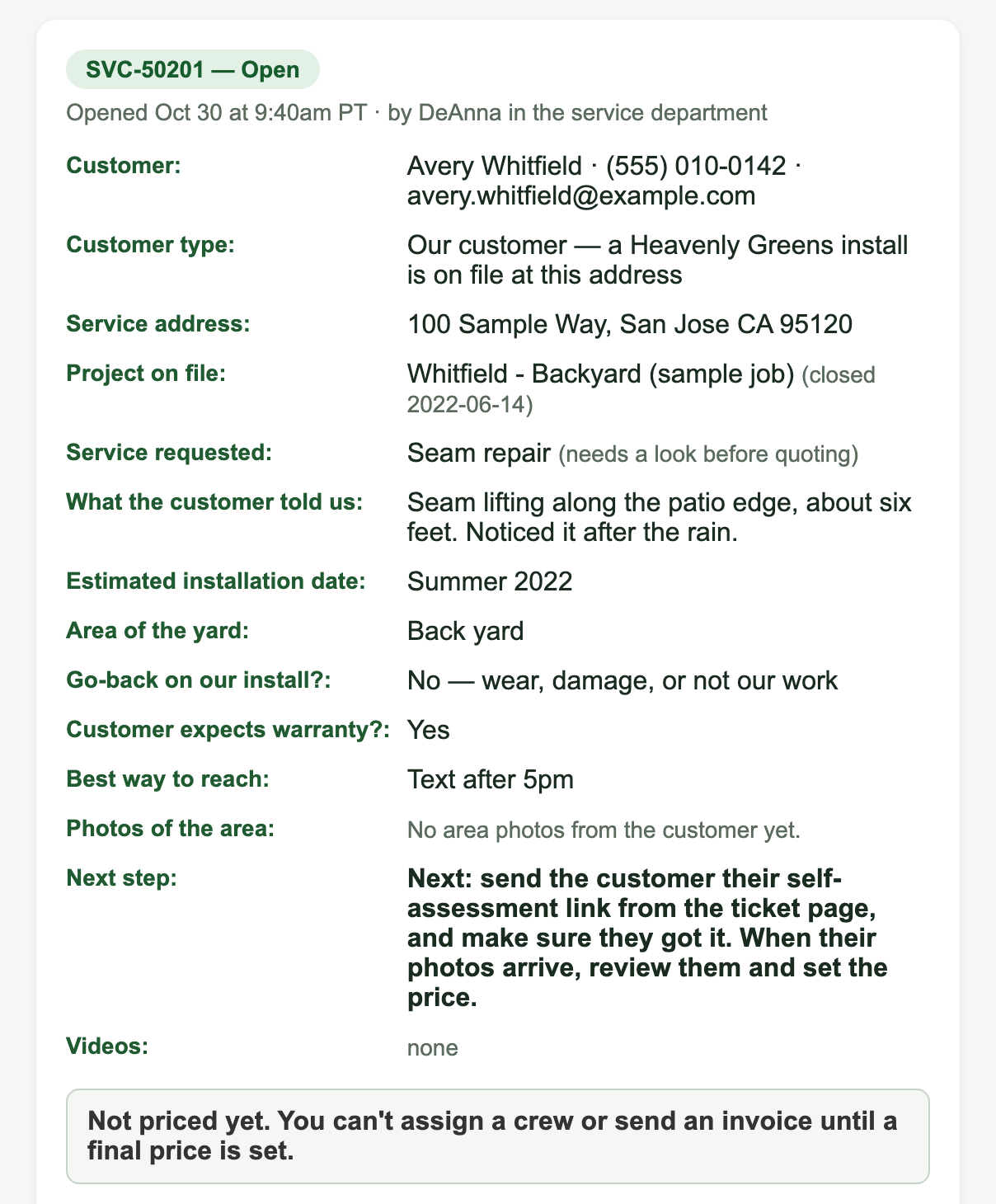
Every ticket has its own page. The Next step line always says what to do now.

Who the customer is, whether a Heavenly Greens install is on file at that address (and when), what they asked for, what they told us, the area, go-back and warranty answers, and their photos once they arrive.

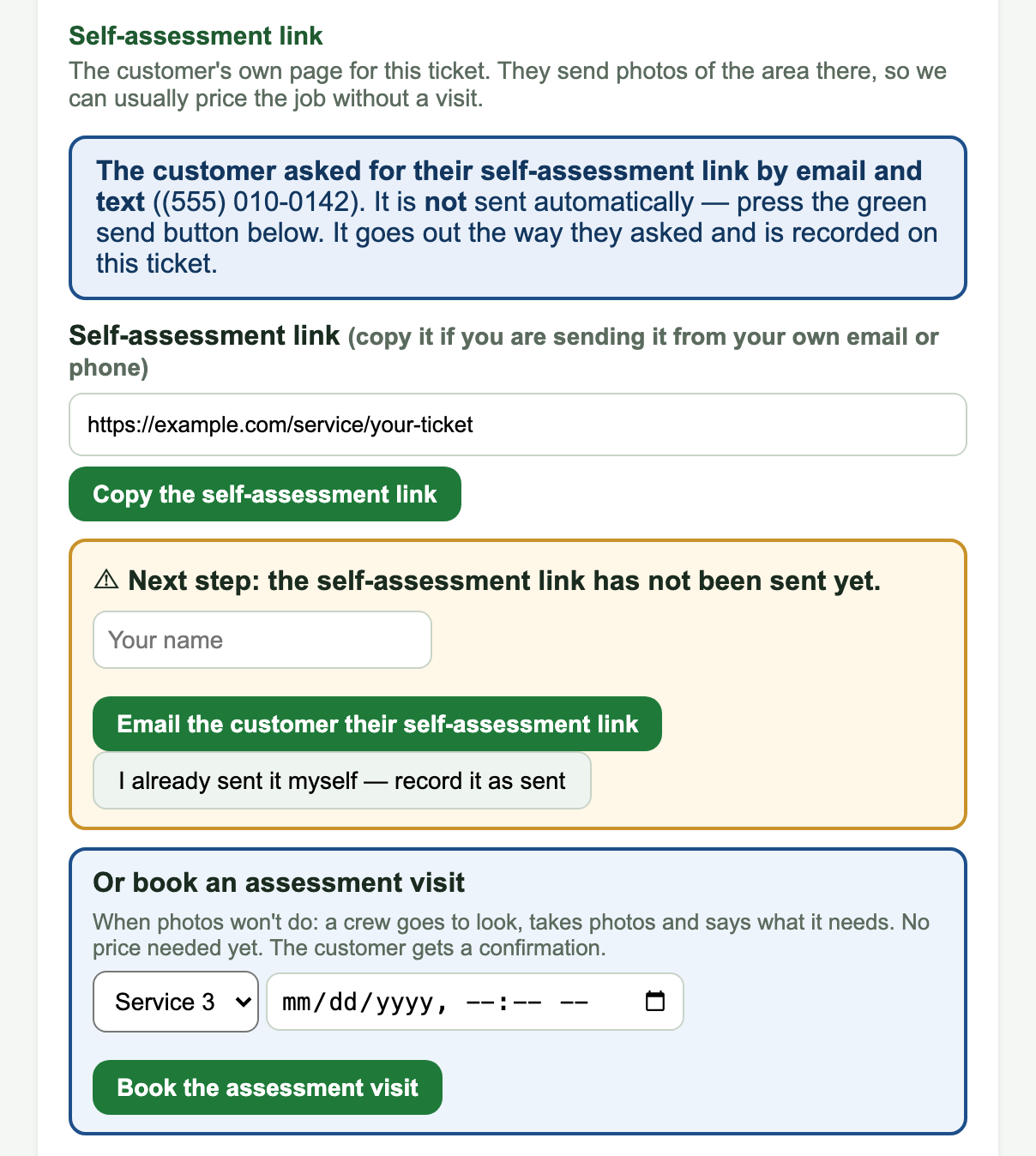
The customer's self-assessment link is their own page for this ticket, where they send photos. It is never sent automatically: type your name and press Email and text the customer their self-assessment link (it goes the way they asked), or I already sent it myself if you sent it from your own phone.
When photos won't do, pick a crew and a time and press Book the assessment visit: a crew goes to look, takes photos and says what it needs. No price needed yet. The customer gets a confirmation.

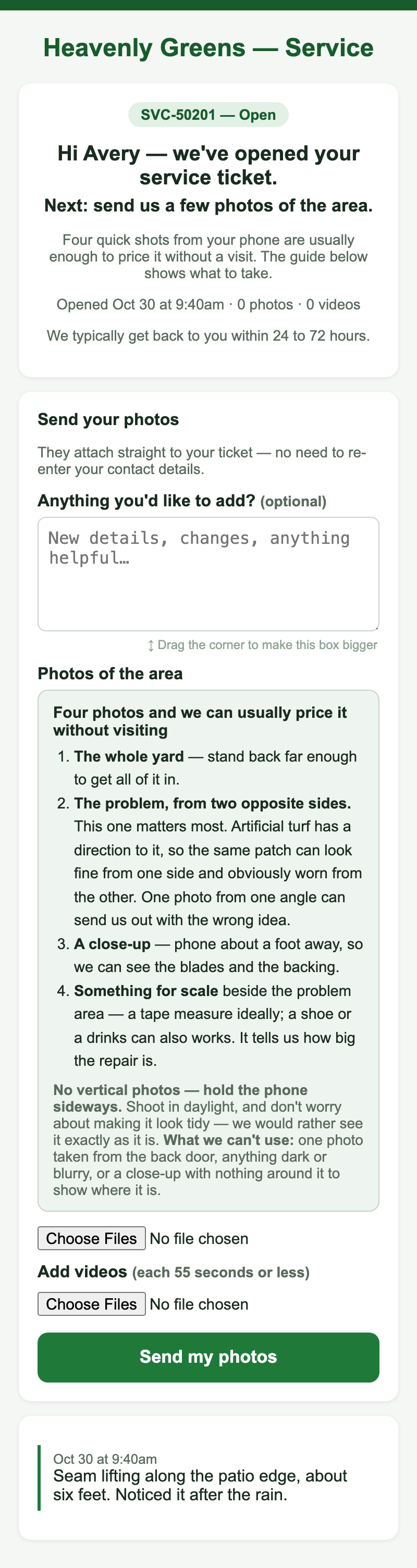
Their page explains the four photos that let us price without a visit (the whole yard, the problem from two opposite sides, a close-up, something for scale), takes up to five photos and short videos, and promises an answer within 24 to 72 hours. When they press Send my photos, the ticket moves to Needs a price, its AGM card moves with it, and service@ gets an email.

The sales rep who opened the ticket gets one short email when it is priced, scheduled, done and paid.

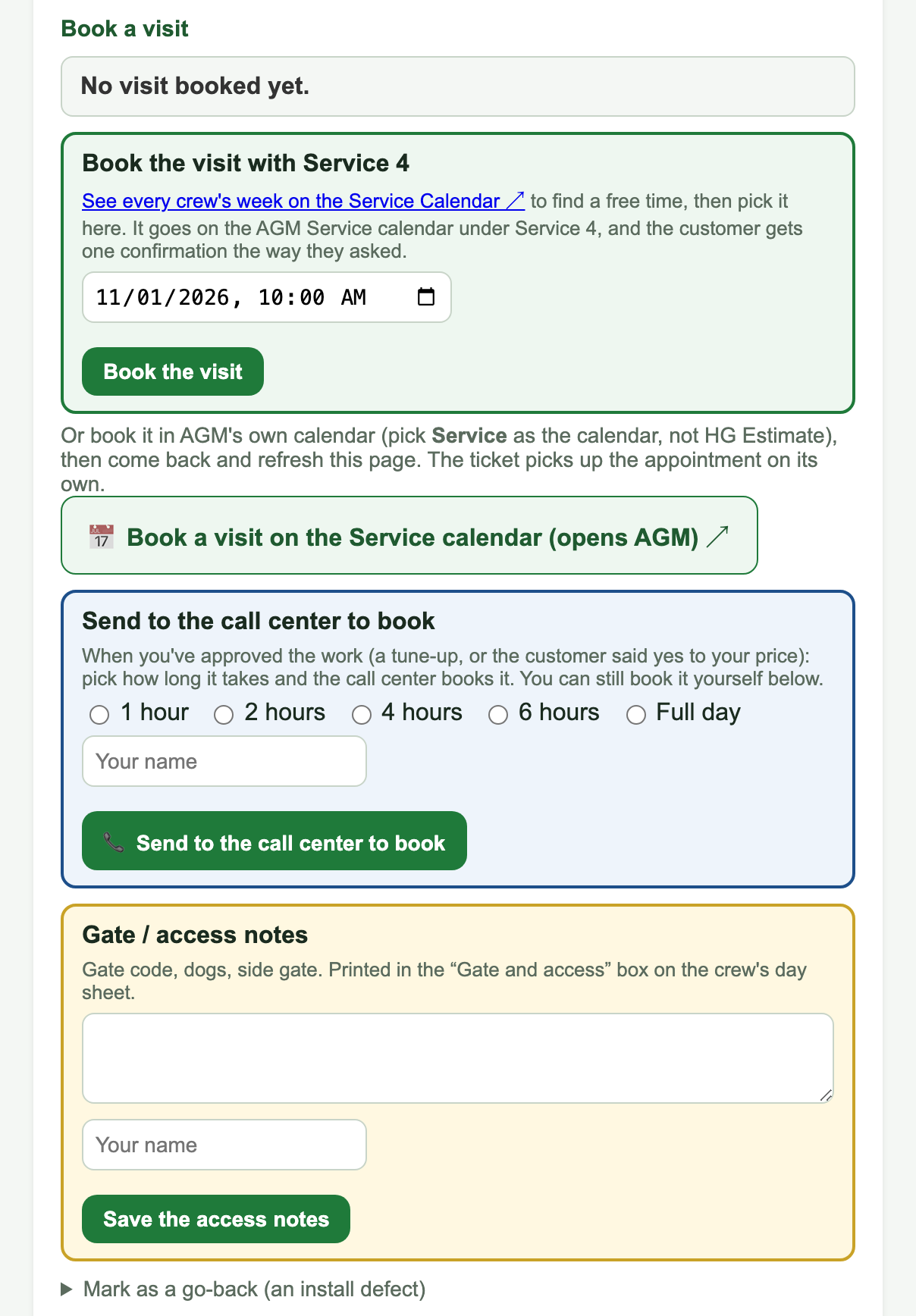
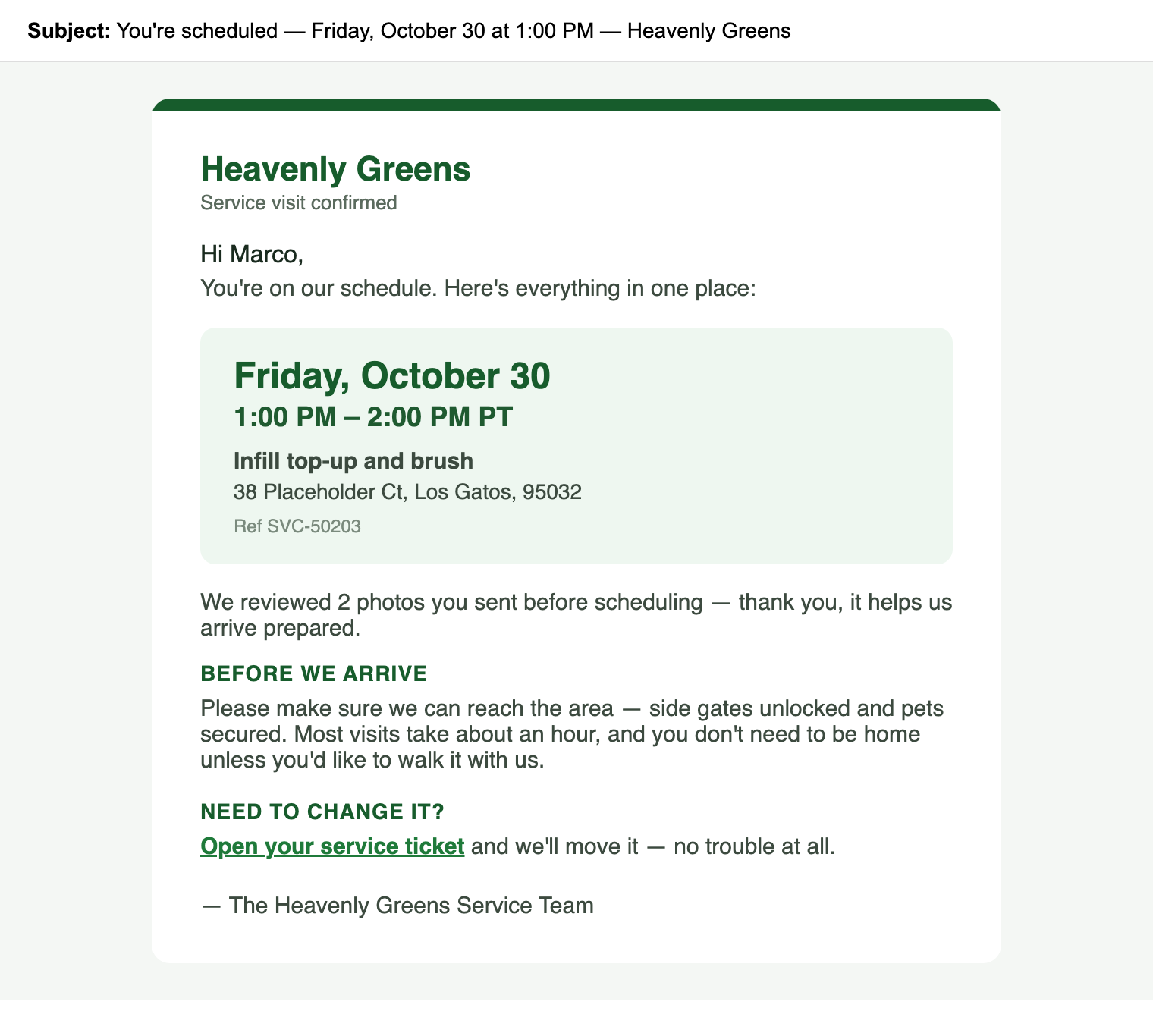
Pick the date and time and press Book the visit. It goes on AGM's Service calendar under that crew, the ticket turns Scheduled, and the customer gets one confirmation, the way they asked:

From then on the customer also gets a reminder the day before and a note the morning of, automatically. Booked for a length over an hour, the confirmation says "This visit takes about N hours". Unbook (in More ▾ on the board) cancels the calendar visit. Mark as a go-back (under the booking) records an install defect against the crew that installed it.
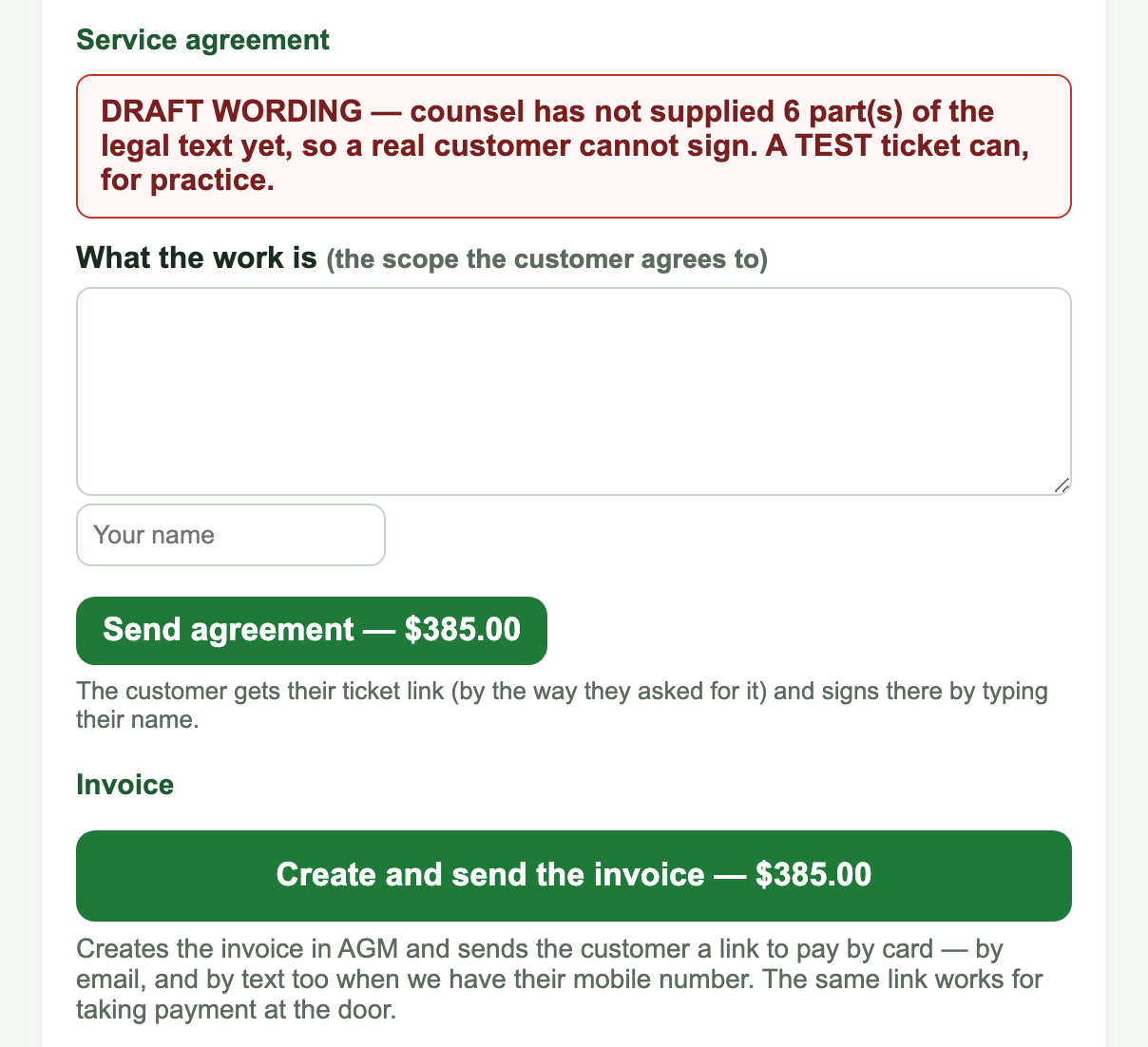
For paid work, California requires a signed Service and Repair agreement; over $750 it becomes a full home-improvement contract. The ticket already has it: describe what the work is and press Send agreement. The customer signs on their own ticket page by typing their name.

Today it says DRAFT WORDING: counsel has not supplied six pieces of the legal text, so a real customer cannot sign yet (a TEST ticket can, for practice). Until it is switched on, the agreement is not required before booking paid work.
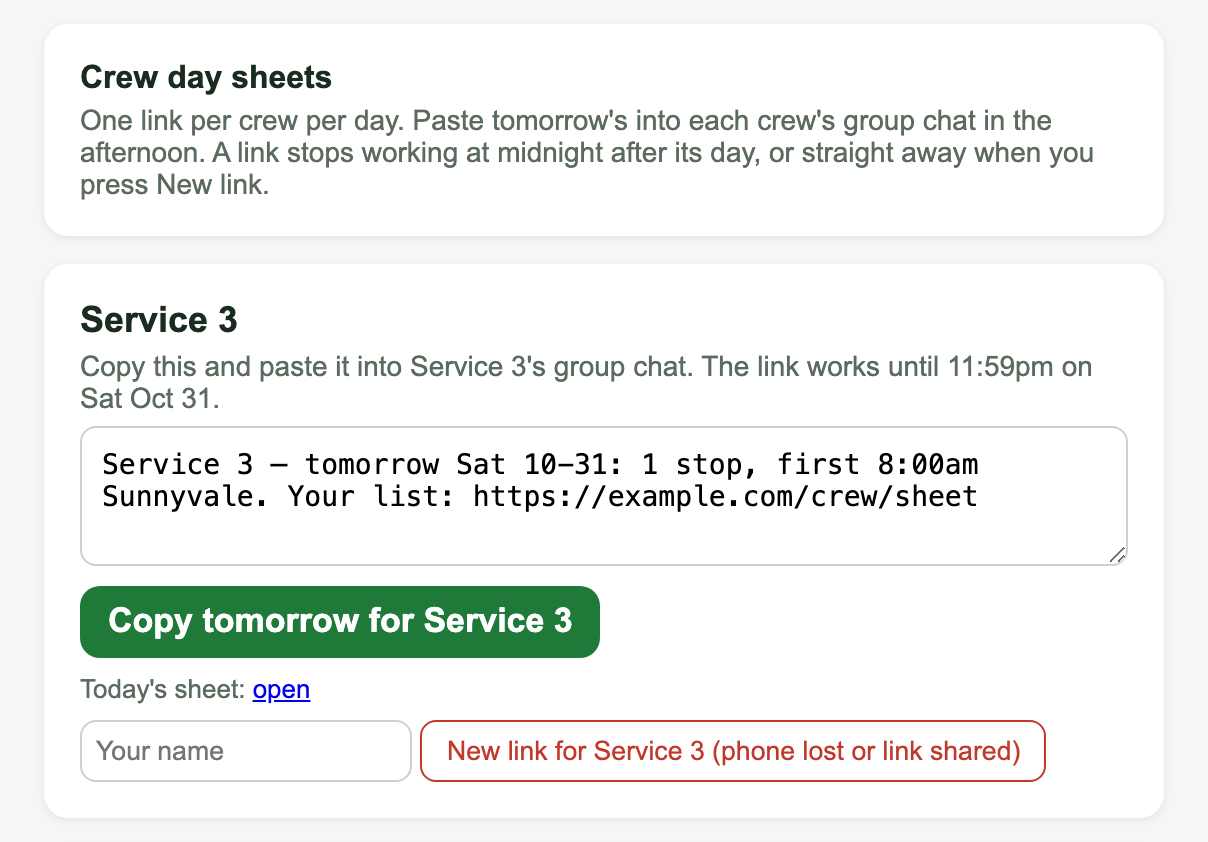
Crews never get email. Each afternoon, the service manager copies tomorrow's link for each crew and pastes it into that crew's group chat.

One link per crew per day. It stops working at midnight after its day, or straight away when you press New link (a lost phone, or a link shared by mistake). Open the page from Crew day-sheet links on any ticket.

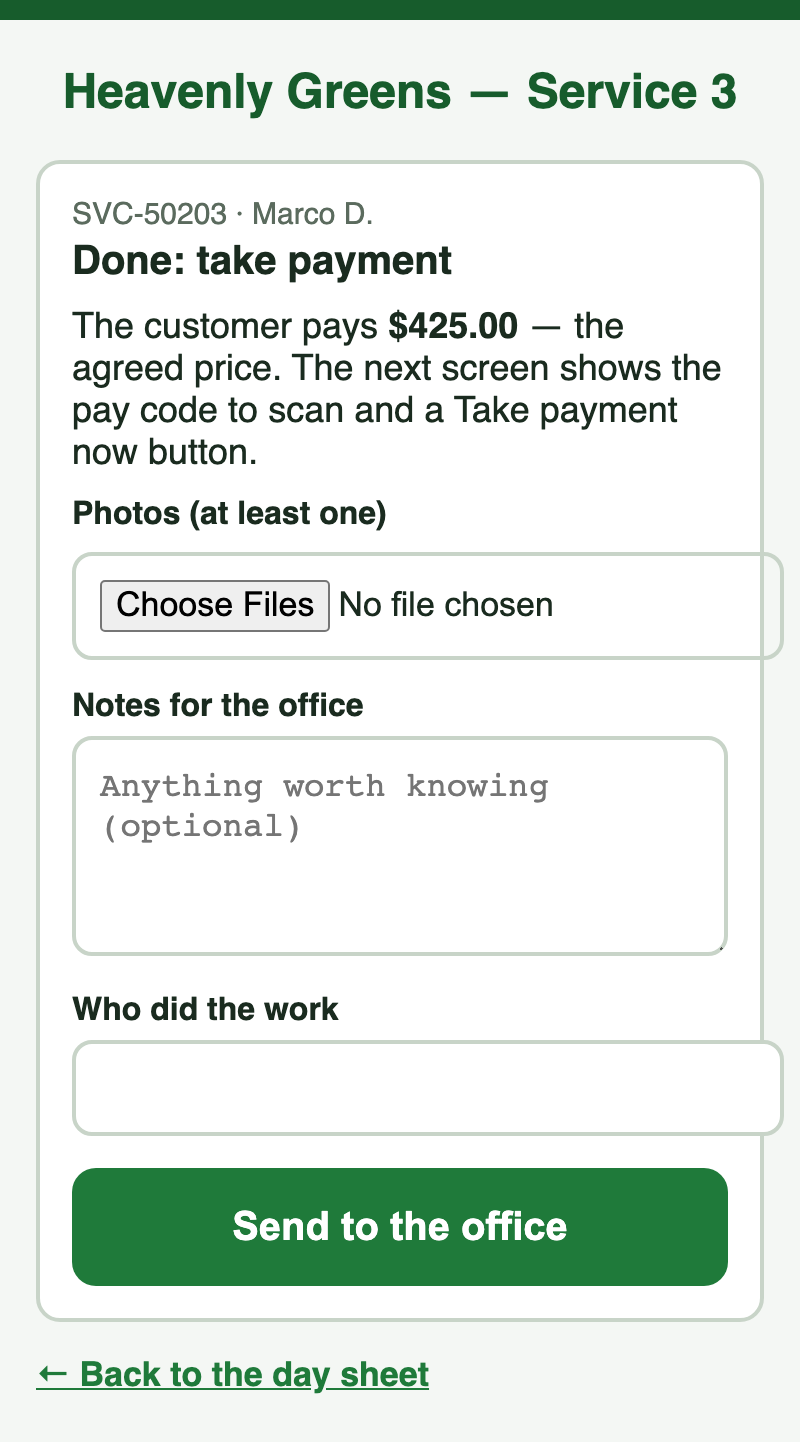
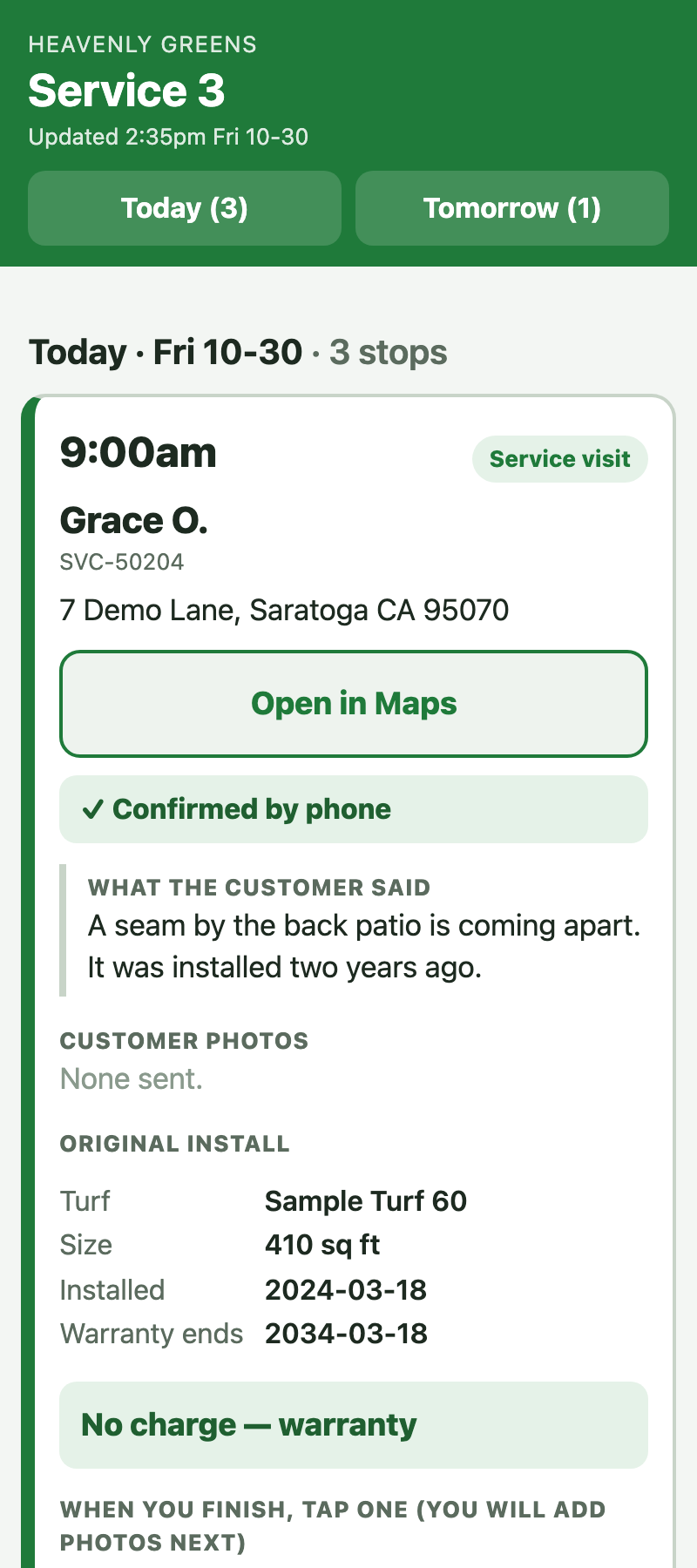
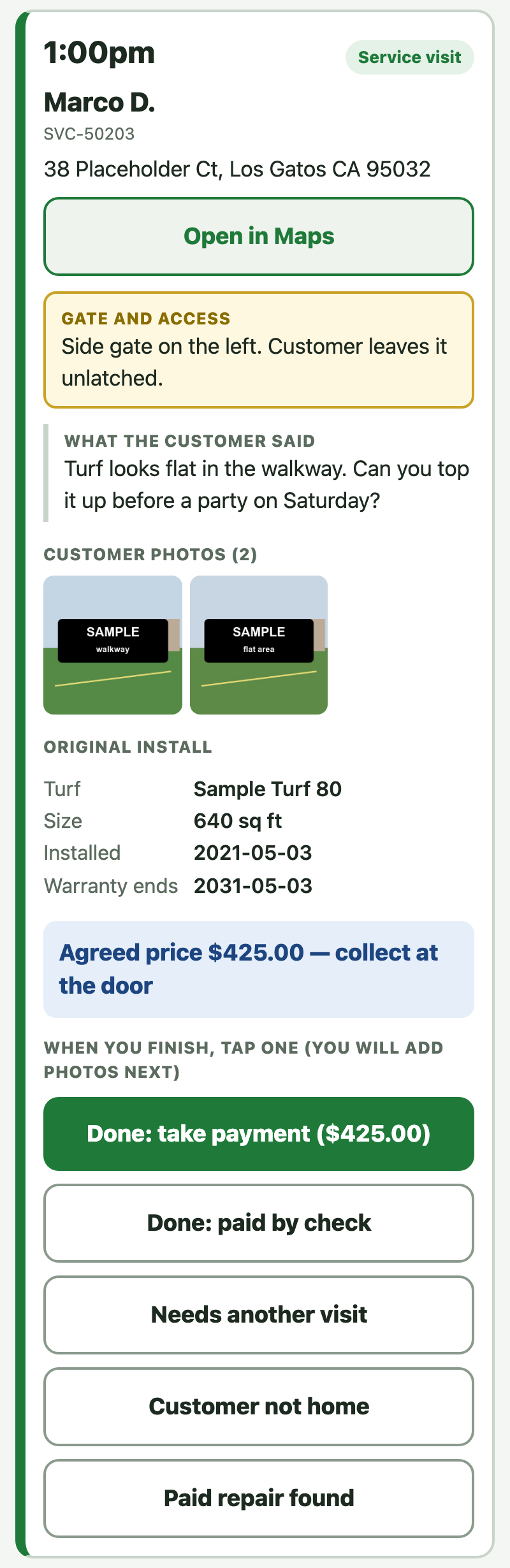
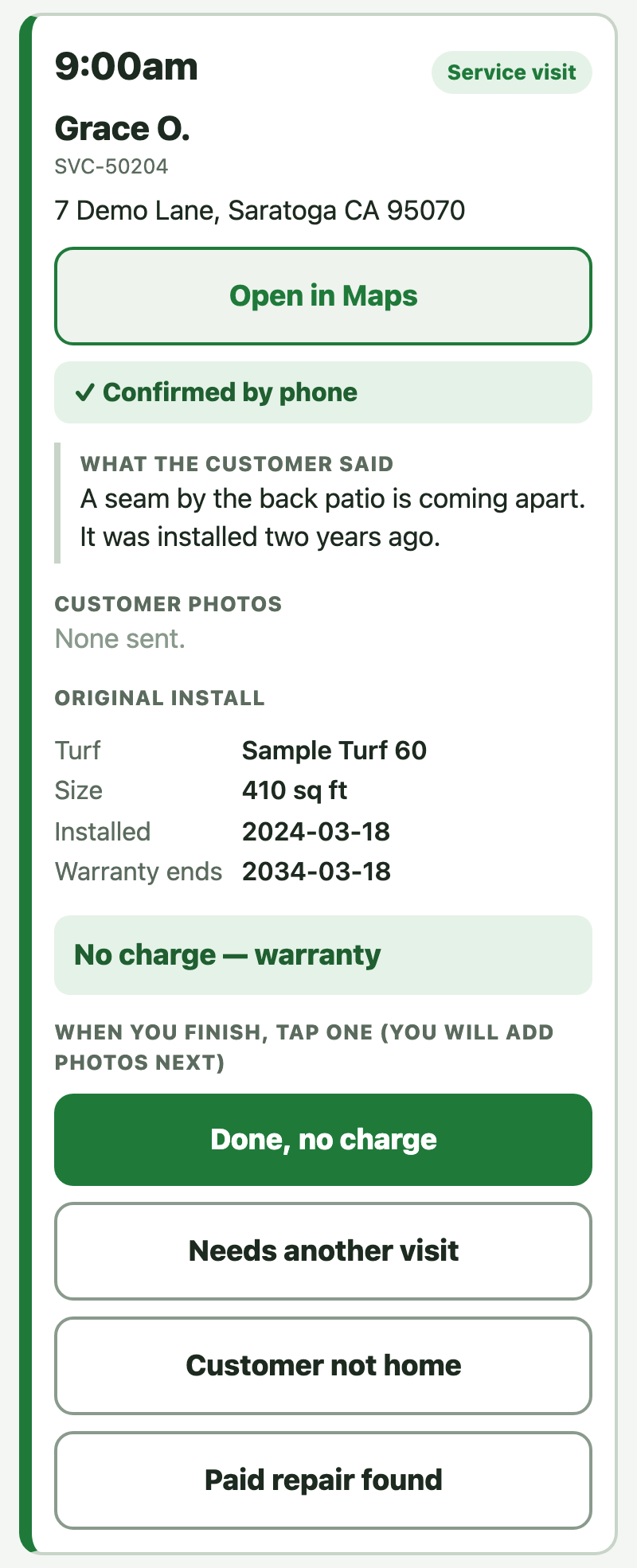
Today and tomorrow, sorted by time. Each stop: the customer and address with Open in Maps, the Gate and access notes, whether the call center confirmed it, what the customer said, their photos, the original install (turf, size, install date, warranty end), and either No charge — warranty or the agreed price.


The crew presses one button when they finish, then adds photos.
| The crew presses | What happens |
|---|---|
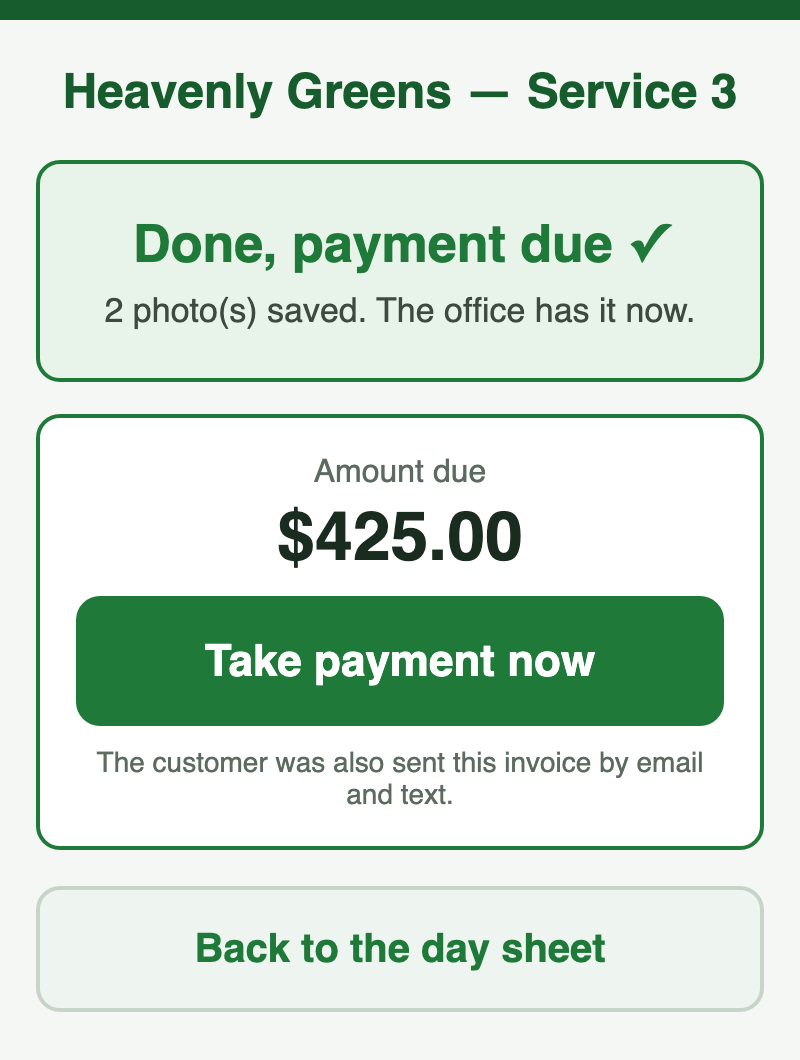
| Done: take payment | The invoice for the agreed price is created and sent; the screen shows Take payment now |
| Done: paid by check | The check number is recorded against the ticket |
| Done, no charge | The ticket closes; no invoice, ever |
| Needs another visit | Back to the service manager to rebook |
| Customer not home | Back to the service manager; the customer gets one "we missed you" note |
| Paid repair found | The crew's scope and photos go to the office to price |
Every outcome needs at least one photo and emails service@. A sales rep who opened the ticket hears about the outcomes that change their customer's plan. The crew cannot type an amount: the price is the one agreed. One ticket never gets a second invoice.


The customer pays on the crew's phone (Take payment now) or on the invoice link they were just sent, by card or bank, into HG's Stripe account. If they pay later, the same link works.
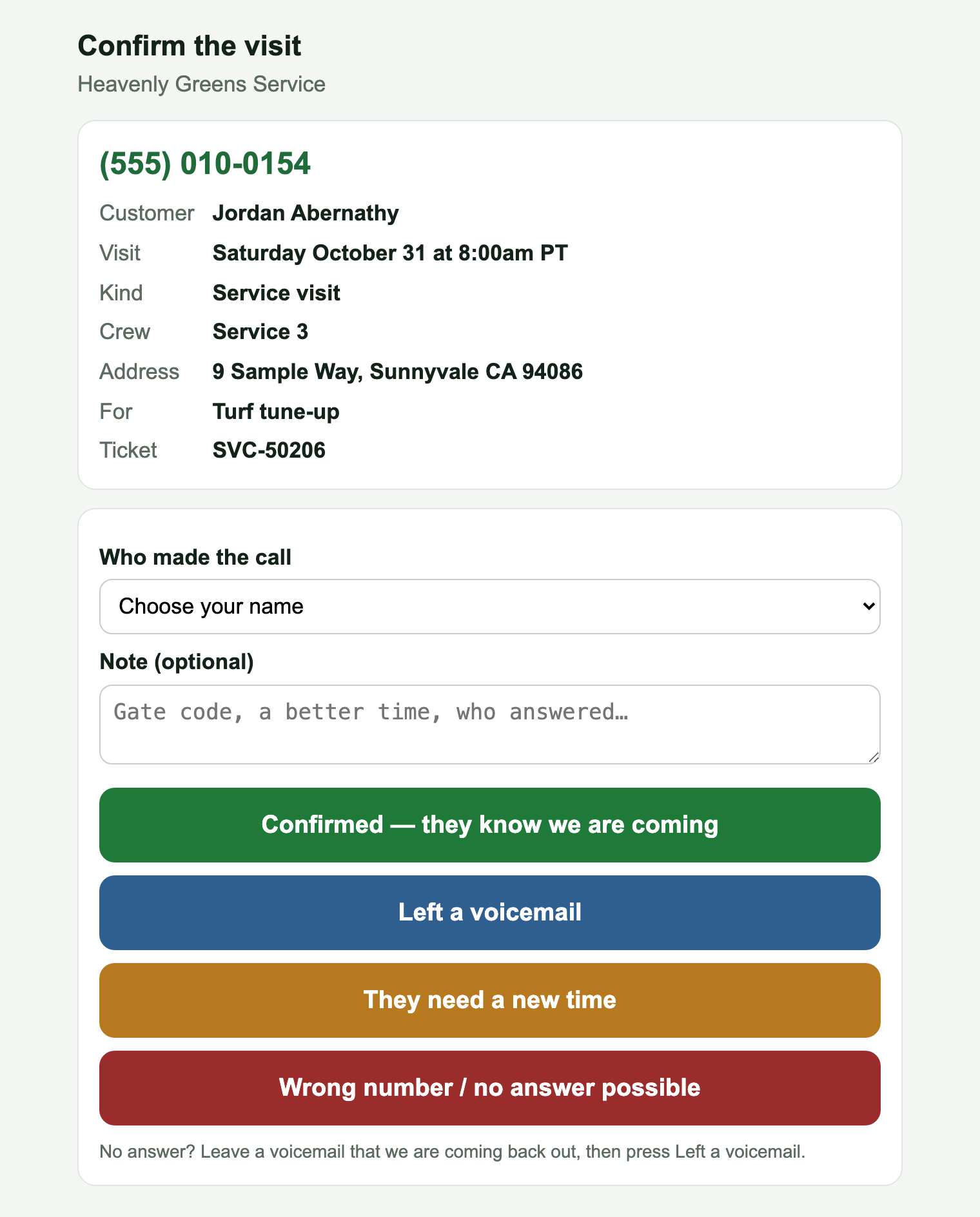
At 6:30am and 1pm on weekdays, every booked visit for the next business day becomes an AGM task on the Call Center user (a Monday visit is called on Friday). The 7:30am call center email lists them under "Service visits tomorrow — confirm these".

The call center calls and presses one: Confirmed · Left a voicemail · They need a new time · Wrong number. The AGM task closes itself; the last two email service@ so the visit gets rebooked. The crew's day sheet then shows ✓ Confirmed by phone, Voicemail left or Not confirmed on that stop.
The invoice goes out when the crew presses Done: take payment (or from the ticket with Create and send the invoice). It reaches the customer by email, and by text when we have their mobile number.
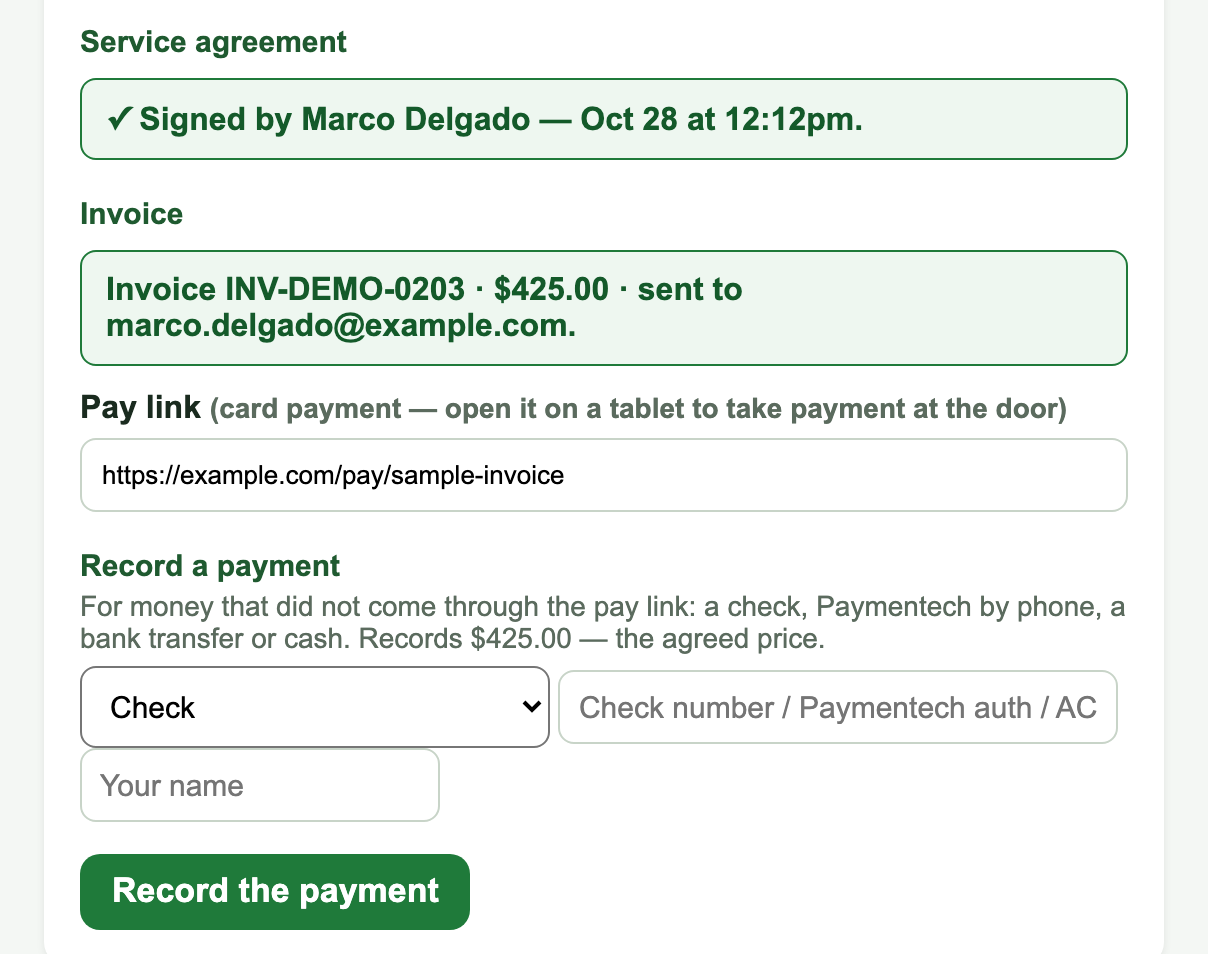
Money that did not come through the pay link (a check, Paymentech by phone, a bank transfer or cash) goes in with Record a payment on the ticket.
When money arrives, the system closes everything by itself: the ticket and its AGM card close, the sales rep is told, and accounting@ and service@ (DeAnna) get a "Service paid" email.
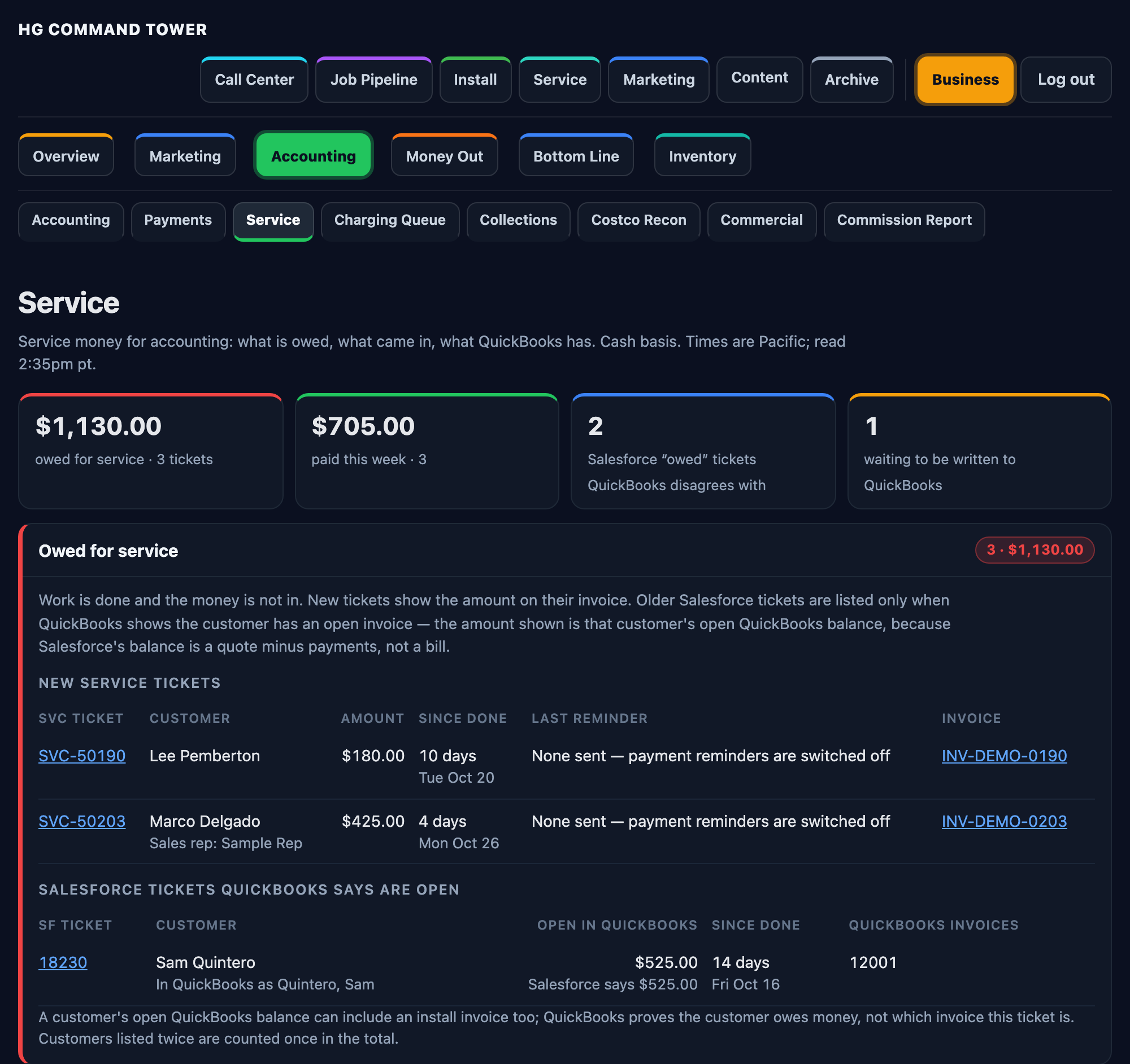
Zima and Blas work service money at HG Command → Business → Accounting → Service. Cash basis.

Owed for service: finished work with money not in. New tickets show their invoice; older Salesforce tickets show only when QuickBooks says the customer has an open invoice.

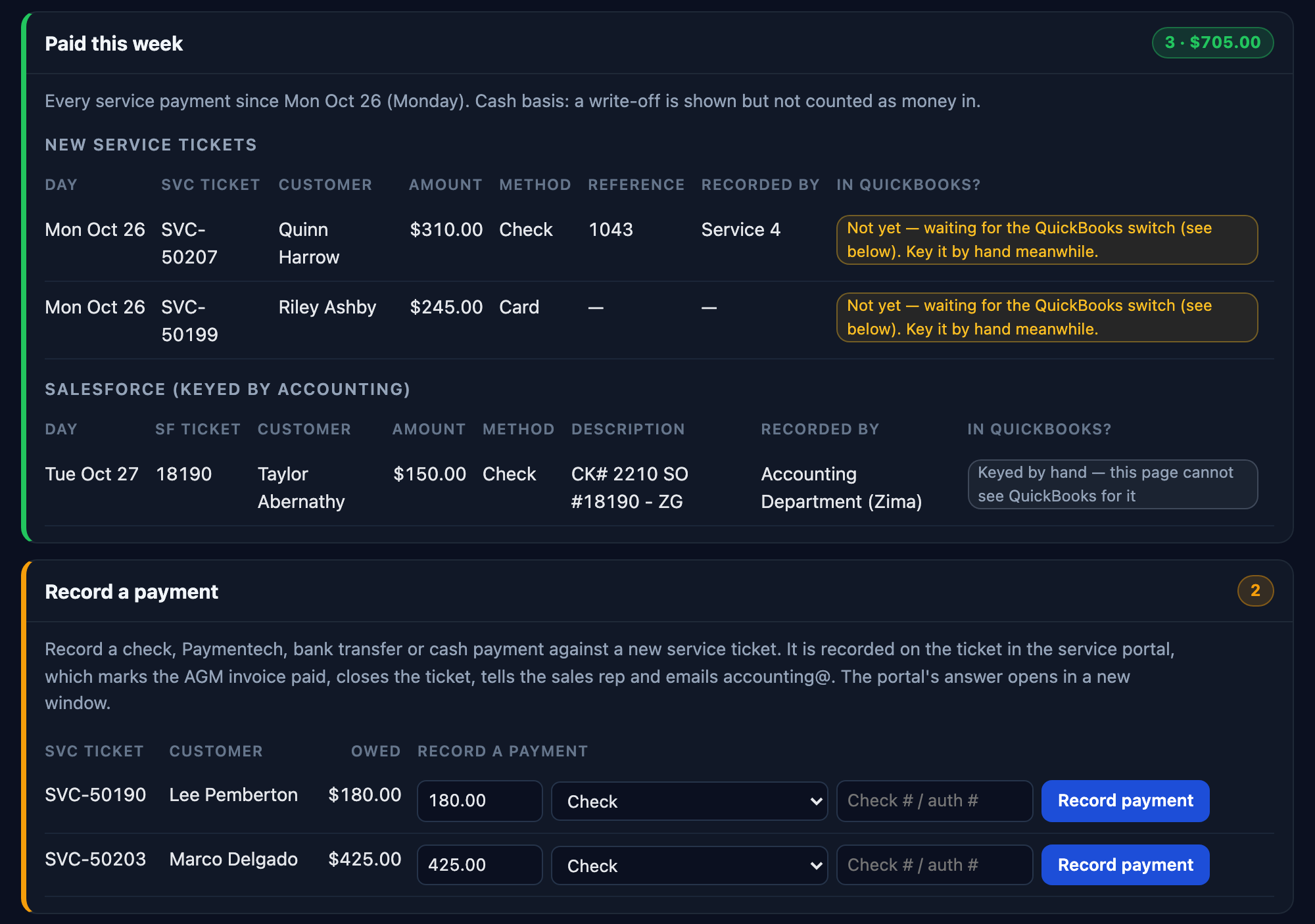
Record a payment marks the AGM invoice paid, closes the ticket, tells the sales rep and emails accounting@ and service@.

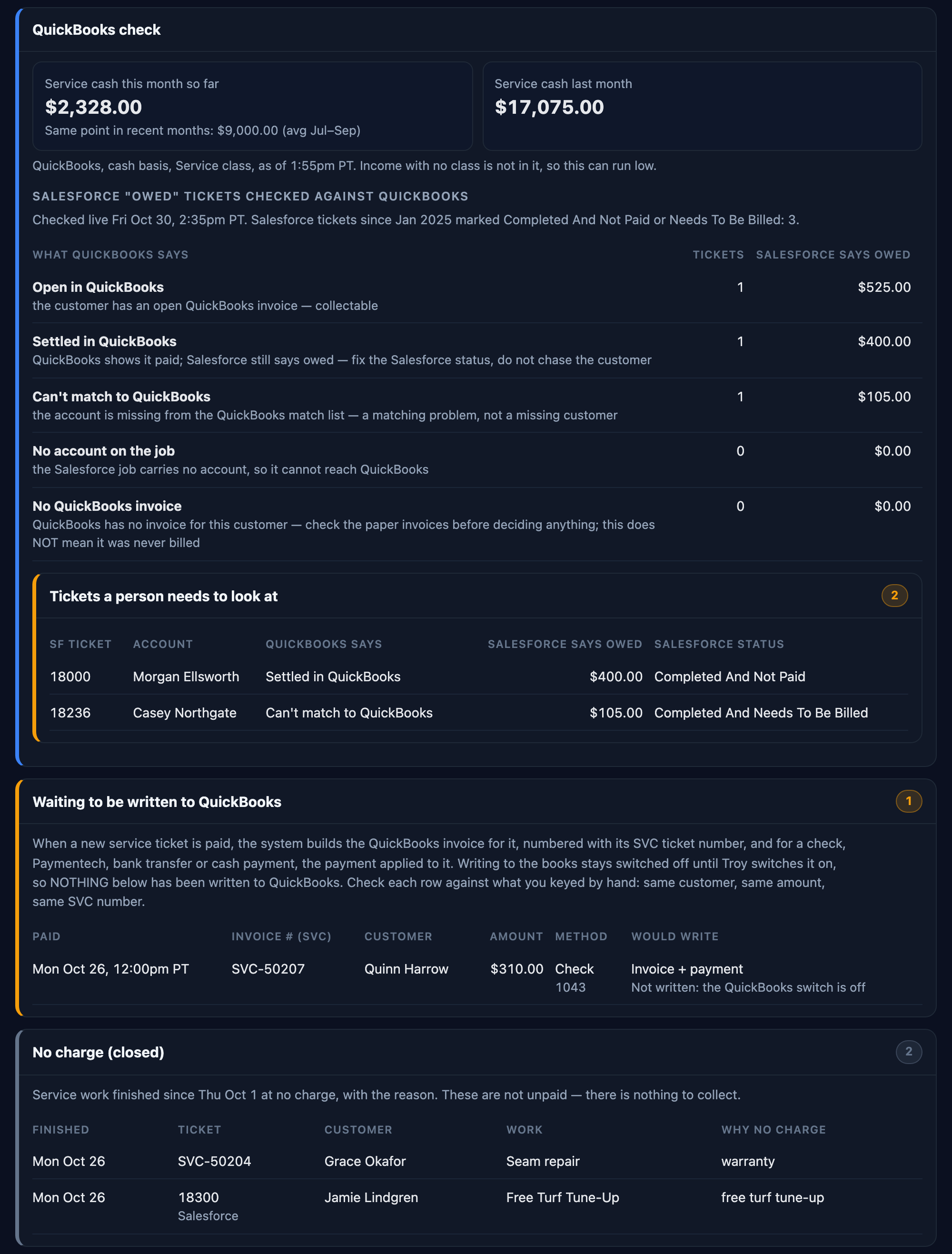
Waiting to be written to QuickBooks: for each paid ticket, the system builds the QuickBooks invoice (numbered with its SVC number) and payment, but does not write it yet. Accounting checks each row against what they keyed by hand; when they match, the switch gets turned on. Until then, key service payments into QuickBooks by hand.
No charge (closed): warranty, go-back and free tune-up work, with the reason. Nothing to collect.
| When | Who | What |
|---|---|---|
| 6:30am | System | Tomorrow's visits become confirmation-call tasks for the call center |
| 7:30am | Call center | The morning email lists the visits to confirm; they call and press the result |
| Morning | Service manager | Open the board and work Your to-do list top to bottom: people waiting first, then pricing, bookings, payments, and closing finished jobs |
| During the day | Crews | Work their day sheet: one outcome per stop, with photos |
| During the day | Service manager | Price what came in, book visits, chase links past 72 hours, file Loose mail |
| During the day | Call center | Book what For the call center lists, for its length |
| Afternoon | Service manager | Copy tomorrow's day-sheet link into each crew's group chat |
| Before leaving | Service manager | Your to-do list reads "Nothing is waiting on you" |
The goal of the whole board: everything that comes in is picked up the same day, and every job finishes and closes.
| Today | |
|---|---|
| New ticket → AGM card on 4. Service, assigned to the service manager, emailed to service@ | ✅ On |
| Sales rep emailed when their ticket is priced, scheduled, done and paid | ✅ On |
| Customer's photos arrive → ticket to Needs a price, service@ emailed | ✅ On |
| Website service form → ticket, every 15 minutes | ✅ On |
| Visit booked on HG Command → one confirmation, then the day-before reminder and the morning-of note (by the way the customer asked) | ✅ On |
| Visit booked straight in AGM → tied to its ticket (within 30 minutes; sooner when the board is open) | ✅ On · customer reminders are held |
| Day-before confirmation call tasks for the call center (6:30am and 1pm, plus the 7:30am email) | ✅ On since Oct 22 |
| Crew "done, take payment" → invoice for the agreed price sent, Take payment now shown | ✅ On |
| Payment in → ticket Closed, AGM card Closed, sales rep told, accounting@ and service@ emailed | ✅ On |
| Photo reminders: two, 72 hours apart, after a person sends the link (the customer's chosen way; DND respected) | ✅ On since Oct 30 |
| Clear / Unbook → the AGM calendar visit cancelled, and the receipt says so | ✅ On |
| A crew already booked at that time → the new booking is refused | ✅ On |
| Photo link sent automatically when a ticket opens | ⛔ Off: a person presses Send |
| Card on file, charged when the work is done | ⛔ Off |
| Customer must sign the service agreement before paid work | ⛔ Off: waiting on counsel's wording |
| Unpaid reminders to customers | ⛔ Not built for service |
| Payments written into QuickBooks | 🔌 Shadow: logged for accounting to check, not written |
The finish line: "New service requests born in Salesforce" reads 0, and "Left in Salesforce" counts down to 0.
| When | Who | Press |
|---|---|---|
| A customer calls | Call center | Service Request on their AGM contact |
| A customer needs to show us | Call center or service manager | Text the customer their self-assessment link on the ticket |
| Photos won't do | Service manager | Book the assessment visit on the ticket |
| Photos are in | Service manager | 💲 Look and price it: a price, or no charge with a reason |
| Ready to book | Service manager | Book the visit on the ticket, + Book here on the calendar, or More ▾ → Send to the call center to book with its length |
| Needs a visit to look | Service manager | More ▾ → Needs an in-person look |
| A visit must come off | Service manager | More ▾ → Unbook |
| Work done | Service manager | ✓ Close ticket → ✓ Service completed (nothing sent to the customer) |
| Booking from the phone | Call center | AGM appointment, Calendar: Service, title ends | Crew: Service N |
| No photos after 72 hours | Service manager | 📲 Resend the link, or call and offer a visit |
| Afternoon before | Service manager | Copy tomorrow's day-sheet link into each crew's group chat |
| Day before | Call center | The confirmation-call task: Confirmed · Left voicemail · Needs a new time · Wrong number |
| At each stop | Crew | One outcome on the day sheet |
| A check arrives | Service manager or accounting | Record payment |
| After a call or message | Service manager | Done? Press what happened |
| An email to service@ with no ticket | Service manager | Add to SVC-… or Open a new ticket |
| An old Salesforce ticket | Service manager | Search it, then ⇄ Convert to AGM |
| A ticket that is dead | Service manager | ✓ Close ticket (or Clear), with the reason |
If something doesn't work: write down the SVC number and what you pressed, take a screenshot, and reply to the email this guide came in. Don't work around it in Salesforce: service no longer lives there.